
Profiles, PINs and locked categories
One install, several people, and nothing shared that should not be.
What a profile holds
Section titled “What a profile holds”Its own favourites, history, watchlist, groups and playback position. Switching profile switches all of them at once.
A profile can also have its own:
- pinned categories and genres, the block at the top of the category lists,
- hidden categories and channels, so a child’s lists can be shorter than yours,
- preferred audio and subtitle language and the Subtitles mode, so a child can watch with subtitles off while yours stay on,
- rows on Home, on each device,
- look: the theme picture, its colours, picture strength and panel opacity, the same on every device,
- recent searches, which nobody else sees,
- sort and filters in Movies, Series and Live, on each device,
- where Search looks: all content, its own categories or only the pinned ones,
- open playlists: the playlists ticked in the switcher, the same on every device, see Which playlists are open,
- what Sports shows: the sports and leagues it hides or pins, and on each device whether Home leads with a match,
- downloads and recordings it saved: a Kids profile sees only its own, and an adult can turn on All profiles on this device in Downloads or Recordings to see everything saved there,
- its own Trakt and SIMKL account and its own TMDB sign-in, so a watchlist, ratings and watch history stay with the person they belong to. The TMDB key itself is shared, so every profile gets plots and posters.
The first profile, the one the app starts with, keeps what your account had before. Every other profile shows the same as that first profile until you change something in it. From its first change on it keeps its own, and later changes in the first profile no longer reach it.
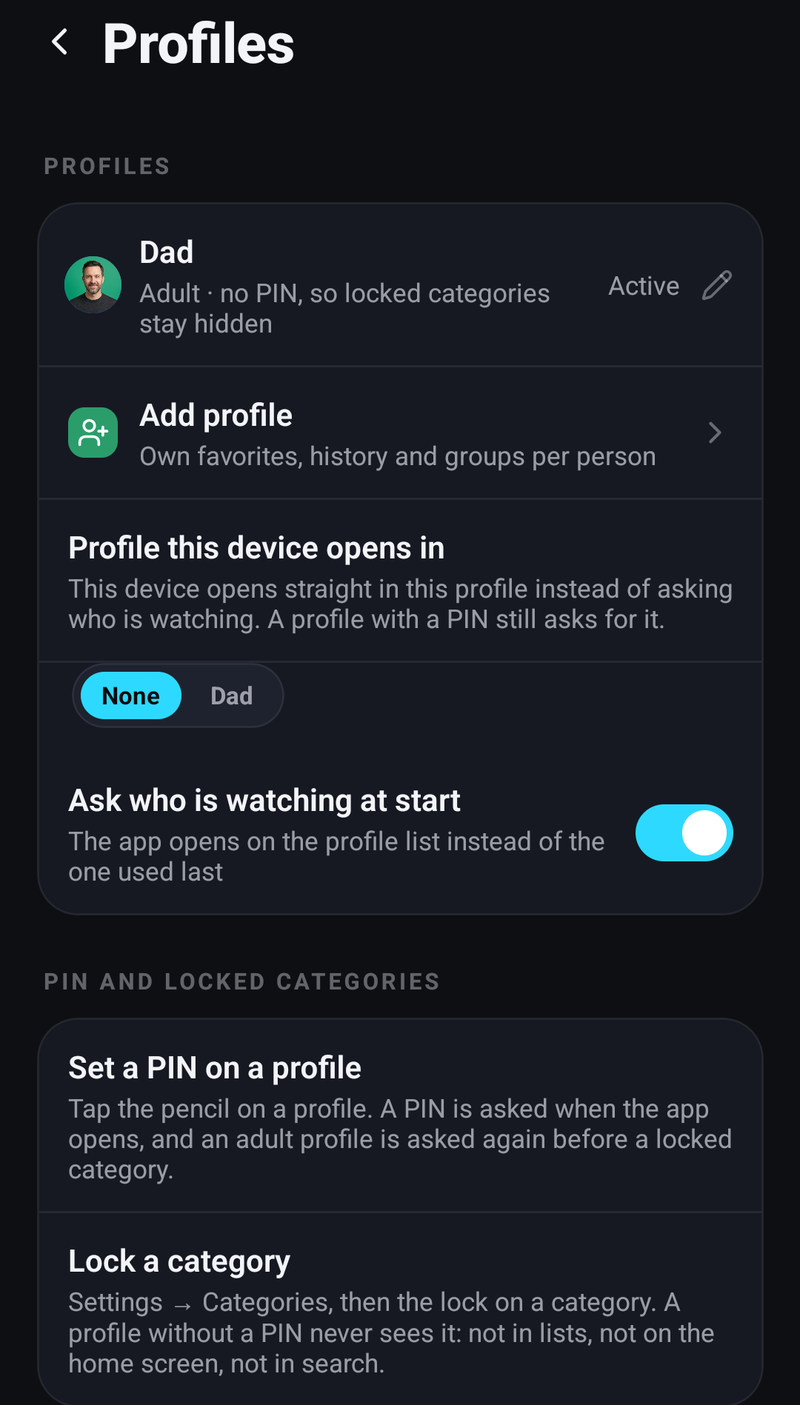
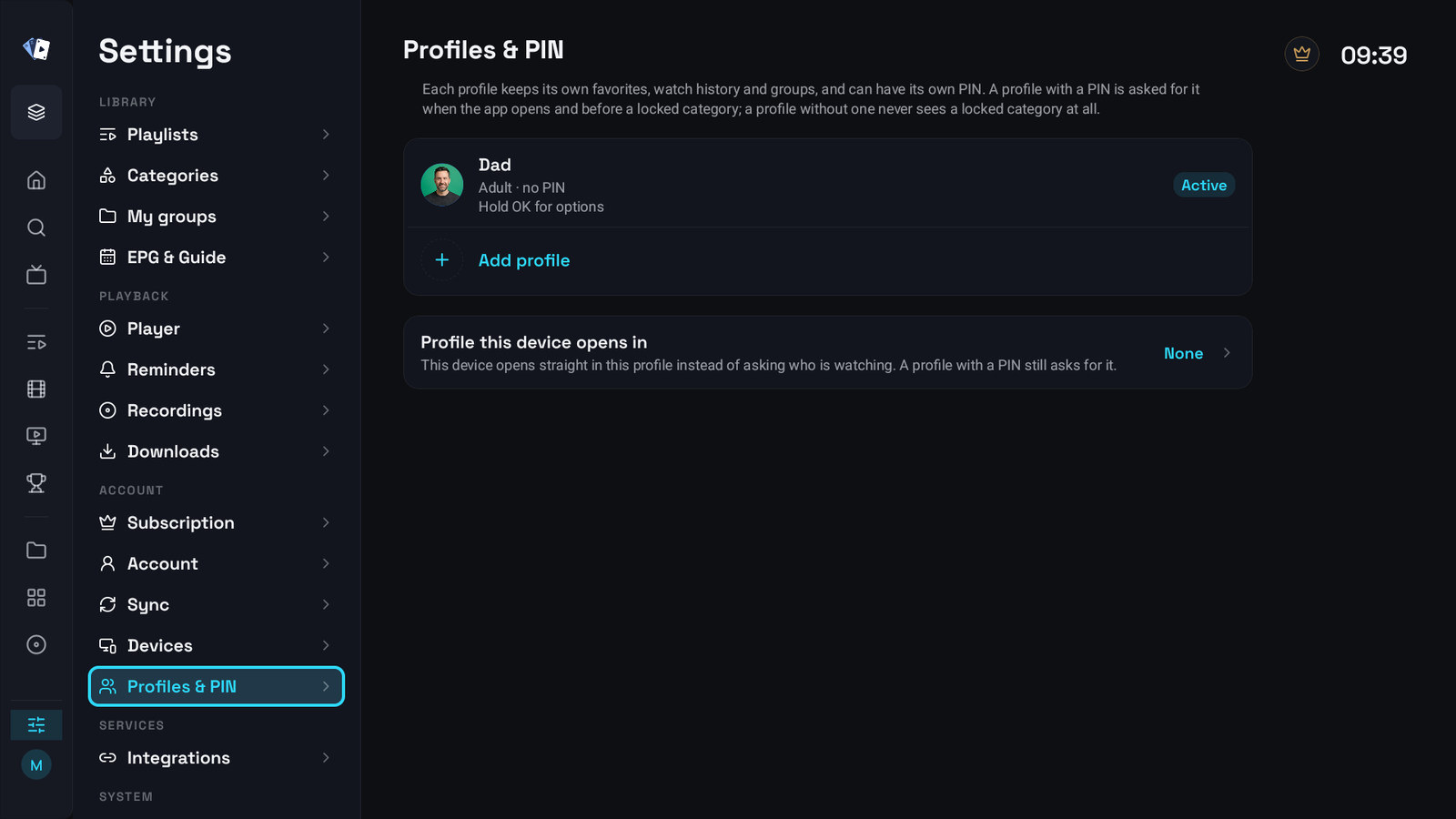
Settings → Profiles & PIN creates, renames and removes them, and the avatar can be a face. On a phone the pencil on a profile opens its editor. On a television OK on a profile switches to it and hold OK opens its options: Edit profile, Set a PIN, Change PIN or Remove PIN, and Delete profile.
Creating, editing and deleting a profile
Section titled “Creating, editing and deleting a profile”An account holds up to 5 profiles. A sixth is refused with You can have up to 5 profiles.
- Settings → Profiles & PIN → Add profile, on a phone and on a television or a computer.
- Give it a name, pick an Emoji or an Avatar picture and a Color.
- Choose Adult or Kids. On a phone the Kids button also says it has limited settings. On a television it says Limited settings, and locked categories stay out of sight.
- Optionally type a PIN, 4 digits. Anything else says PIN must be 4 digits.
- Create profile.
The editor of an existing profile has the same fields, What … sees (its categories, Home rows, look, audio and subtitles), Playlists this profile can open when you manage the household, and Delete profile. Deleting asks first and removes that profile’s favorites, history and groups, on every device. The first profile, the one the app started with, cannot be deleted.
To switch profile: Who is watching? when the app opens, the profile picture at the top of Home on a phone, or on a television your account at the bottom of the side menu. A Kids profile switches with Switch profile in its short Settings.
A profile is either an Adult or a Kids profile. A Kids profile has a short Settings of its own: its whole look (theme, colours, picture strength and panel opacity), its Home rows, its audio and subtitle languages, Switch profile and About. Everything else, including buying Premium, stays with the adults, see Kids profiles.
Who is watching
Section titled “Who is watching”With more than one profile the app can open on the profile picker, Who is watching?, where a profile with a PIN asks for it. Both settings below are in Settings → Profiles & PIN, under the list of profiles.
- Ask who is watching at start opens the app on the profile list instead of the profile used last. It follows your account. It is on the phone and tablet, and in the account panel on the Profiles page. A television, Windows, the Mac and LG and Samsung TVs always ask at start.
- Profile this device opens in makes this device open straight in one profile instead of asking. A profile with a PIN still asks for it. It stays on the device, so the television in the children’s room can always open in the Kids profile while your phone opens in yours, and it applies from the next start. It is on every device: on a phone tap a profile in the row of choices under it, on a television press OK on it and pick the profile.
Setting it up for a family
Section titled “Setting it up for a family”- Create a profile for the child, of kind Kids.
- Set a PIN on your own profile.
- Lock the categories the child should not see: Settings → Categories, then the lock on the category on a phone, or OK on the category and Lock with PIN on a television.
A Kids profile, and any profile with no PIN, never sees a locked category anywhere, not in the lists, not in search, not on the home screen, not through a reminder or a link. A Kids profile can have a PIN of its own, asked when the app opens, but that PIN never opens a locked category.
An adult profile with a PIN is asked for it when the app opens and again before a locked category.
A Kids profile also treats the categories a MAC portal marks as adult as locked, without you locking them.
The PIN belongs to the profile, not to the app, so two people on one television can have different ones.
Setting up a child’s profile from yours
Section titled “Setting up a child’s profile from yours”A Kids profile cannot change what it is allowed to see, so you set that up from your own profile:
- On a phone: Settings → Profiles & PIN, the pencil on the child’s profile, then What … sees. It opens the child’s Categories, where you hide, show and pin categories and single channels, its Home screen rows on this phone, its look, and its audio and subtitles.
- On a television: Settings → Profiles & PIN, hold OK on the child’s profile, then What … sees. Settings then shows only Categories, Home, Appearance, Audio & subtitles and Integrations for that profile, and All settings takes you back.
- In the account panel in your browser: choose the profile in the top bar, or open it on the Profiles page and pick Categories or Channels under What … sees.
On a phone and on a television the same place has Integrations, where the child’s profile can use your Trakt and TMDB sign-in instead of one of its own.
Renaming, ordering and removing categories from the device stay with the whole account, so they are not offered there. When another adult profile than yours manages the household, the app asks for its PIN first.
Holding a category in the lists offers Hide from browsing on every profile. An adult profile shows it again in Settings → Categories. On a Kids profile it asks for a parent’s PIN first, and a parent shows it again from their own profile.
Which playlists a profile can open
Section titled “Which playlists a profile can open”A profile can be held to a subset of your playlists. That profile then cannot see the other playlists anywhere, cannot switch to them, and a link or a reminder pointing at one of their channels does not open it. The choice follows your account to your other devices.
Who decides:
- The profiles that manage the household are the adult profiles that can open every playlist. Their editor shows Playlists this profile can open for every profile.
- A profile with a list of its own does not see that section, and its PIN does not approve changes to other profiles or to category locks. The PIN the app asks for in those places is the PIN of a managing profile.
- Leaving every playlist ticked means “all of them”, including playlists added later.
- A new playlist goes to the profile that added it. When a managing profile adds one, the app asks Show {playlist name} to every profile?, because profiles with a list of their own do not get new playlists by themselves.
The limits only hold if the managing profiles have a PIN. When one of them has none, the editor says so: anyone could switch to it and change the lists.
Which of its playlists a profile has open is a separate choice: each profile keeps its own set of ticked playlists, on every device of your account. In the account panel, choose them on the Profiles page under Open together. See Which playlists are open.
From another device
Section titled “From another device”When another device sends something to play in a profile that has a PIN, with Watch on TV or a cast, or switches this device to such a profile, the app asks for that profile’s PIN first and starts playing once it is entered. A profile without a PIN starts at once.
How far the lock reaches
Section titled “How far the lock reaches”Locked categories are filtered out before anything is drawn, rather than hidden by the screen showing them. That is why a locked category cannot leak through search, the home screen rows, continue-watching, a deep link or a reminder.
Unlocking with the PIN lasts for the session. It ends when the app goes to the background, when it starts, and when you switch profile.
Forgot the PIN
Section titled “Forgot the PIN”Forgot the PIN? on the prompt proves you own the account and then removes the PIN, or replaces it with the one you just typed when you were changing it. How you prove it depends on how you sign in:
- with an email and password, you type the Account password,
- with Google or Apple, you sign in again with that account.
When the device is not signed in, there is nothing to confirm against, and the app says so: sign in first, or reset the device in Settings → Account.
On a television whose household PIN belongs to another profile, the TV asks for that PIN first. Without it, set the PIN on a phone instead: Settings → Profiles & PIN, the profile, Forgot the PIN?.
Changing or removing a PIN normally asks for the current one.
What travels
Section titled “What travels”Profiles, their PINs, their locked categories and their playlist access all follow your account to your other devices, and so do the open playlists, the pinned categories and genres, the hidden categories and channels, the audio and subtitle choices, the look, the Search choice and the hidden and pinned sports and leagues of each profile. The Trakt and SIMKL accounts and the TMDB sign-in of a profile follow too when Keep my passwords in my account is on. The rows on Home, the sort and filters and the Sports options for Home belong to a profile on one device, the recent searches never leave the device, and the profile a device opens in stays on that device.
