
Reading the guide
The guide is a grid: channels down, time across, seven days back and seven days forward where the source carries them.
On a television
Section titled “On a television”TV Guide on the rail, on Android TV, Fire TV, Apple TV, Windows, the Mac and LG and Samsung TVs. Guide in the player’s row of controls, or the Guide button of a remote that has one, opens the same guide on the channel you are watching.
| Key | What it does |
|---|---|
| Up / Down | Another channel |
| Left / Right | Another programme on the same channel, the timeline follows |
| Channel up / down, Page Up / Page Down | One screen of channels at a time; holding the button keeps going |
| OK | The action for the programme under the cursor |
| Hold OK (right-click on Windows and the Mac) | Everything that applies to the programme and the channel, see below |
| Back | Out of the grid, to the category column and then out |
On Windows and the Mac, clicking a channel name or logo, or a channel that has no guide yet, opens the channel.
Hold OK on a programme
Section titled “Hold OK on a programme”The panel lists what applies to the programme under the cursor:
- Watch now and Start from the beginning (the latter when the channel’s archive has it; the line under it says Catch-up · N days back, or Check this recording with the provider when your provider never said how far back it keeps).
- Set reminder or Remove reminder, for a future programme. See Reminders.
- Catch-up, the past days the channel keeps.
- Watch in multiview, or Add to multiview while multiview runs.
- Record, Cancel scheduled recording or Stop recording, and Record and set a reminder on a channel without catch-up when the app must be open at the start. See Recording.
- Jump to day, to scroll the guide to another day.
Hold OK on a channel
Section titled “Hold OK on a channel”The same panel carries the channel’s own options, as in TV Channels. The guide shows each change at once.
- Move in category, Move in favorites or Move in and the name of your group, depending on the list you are looking at: moves the channel up or down within it.
- Variants, to pick another version of the channel when your playlist has several.
- Remove from and the name of the group, when you are looking at one of your groups. TV Channels offers the same.
- Play when the app opens, or Don’t play when the app opens on the channel already chosen.
- Pin to top of category, which keeps the channel first in its category on every device, or Unpin from top of category.
- Rename.
- Hide, which takes the channel out of the lists of the profile you are in.
- Guide source, to pick the channel’s guide by hand, see Reassign EPG.
- Guide time offset, which shifts the programme times of this channel only.
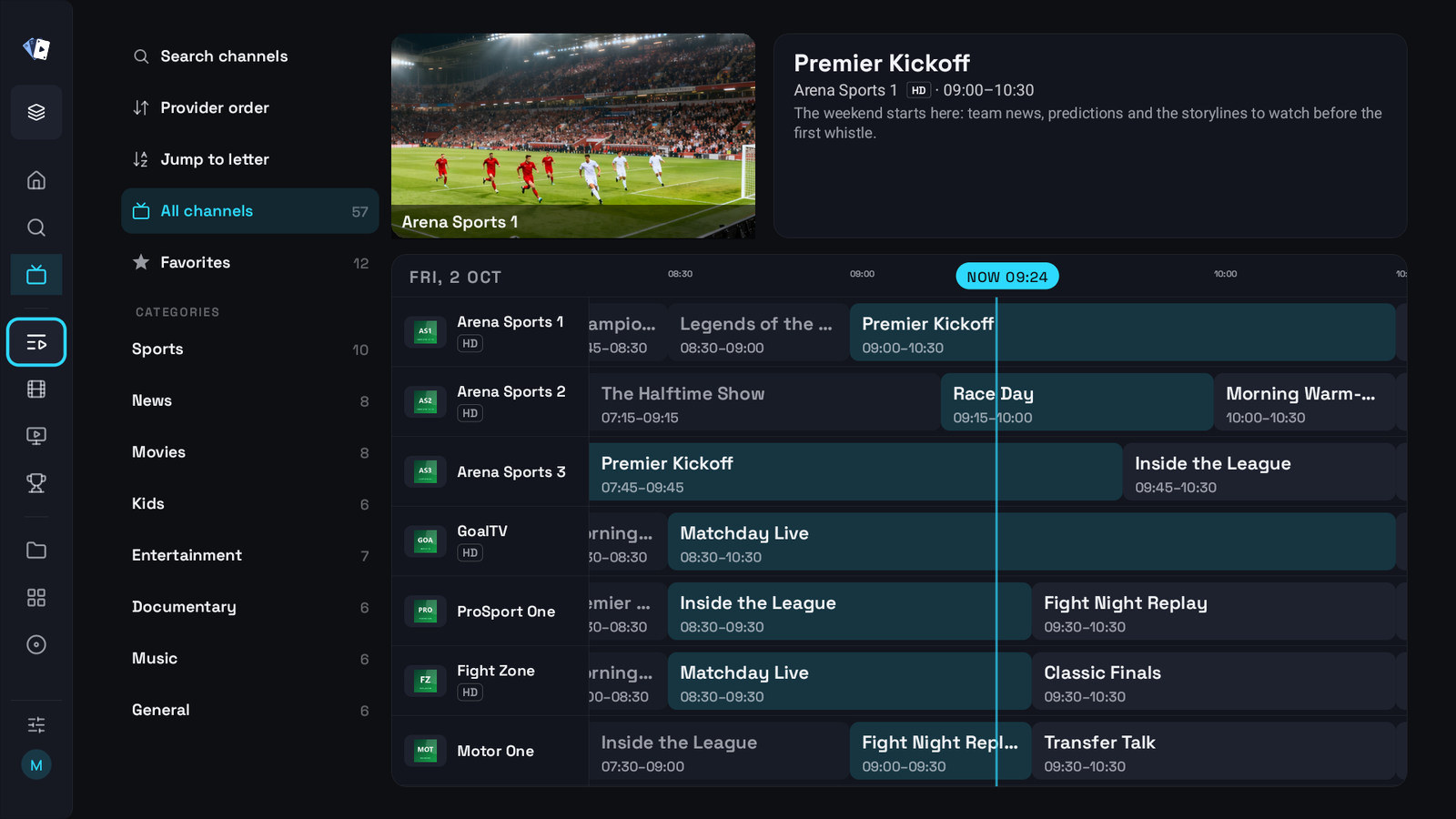
The card at the top shows the programme under the cursor: its title, channel and time, and its description. OK does the obvious thing for it, watch the channel now, play a finished programme out of the archive, or set a reminder for one in the future, and hold OK lists everything.
Channel names are cleaned up as they are in the channel list, with quality as a small label under the name. Section titles from your provider show as headings under All channels, and the cursor skips them. A channel with no guide says so, and hold OK → Guide source lets you pick one for it.
Long channel names get more room with Channel column in TV Guide in Settings → General: Normal (default), Wide or Extra wide. A name that still does not fit scrolls while its row is highlighted.
Next to the card, the highlighted channel plays as a preview. Two settings in Settings → Player shape that, both on by default, both following your account and editable in the account panel:
- Guide preview follows the cursor: the channel you land on plays in the preview once you stop moving. With it off, the preview keeps playing your current channel; the first OK on a channel moves the preview to it and the second one opens it full screen, so you can look around without leaving what you are watching.
- Sound in the guide preview, where the device offers it: the preview is unmuted a second after you settle on a channel.
The preview is handed over rather than restarted when you move between TV Guide and TV Channels, so switching screens does not re-buffer the same channel.
Catch-up only
Section titled “Catch-up only”When your playlist has channels with catch-up, the category column of TV Channels and the TV Guide has two extra rows: Catch-up, which lists every channel with catch-up, and Catch-up only (On / Off). With Catch-up only on, Favorites, your groups and every category show only their channels with catch-up, with their counts, and the ones without any are left out.
On a phone
Section titled “On a phone”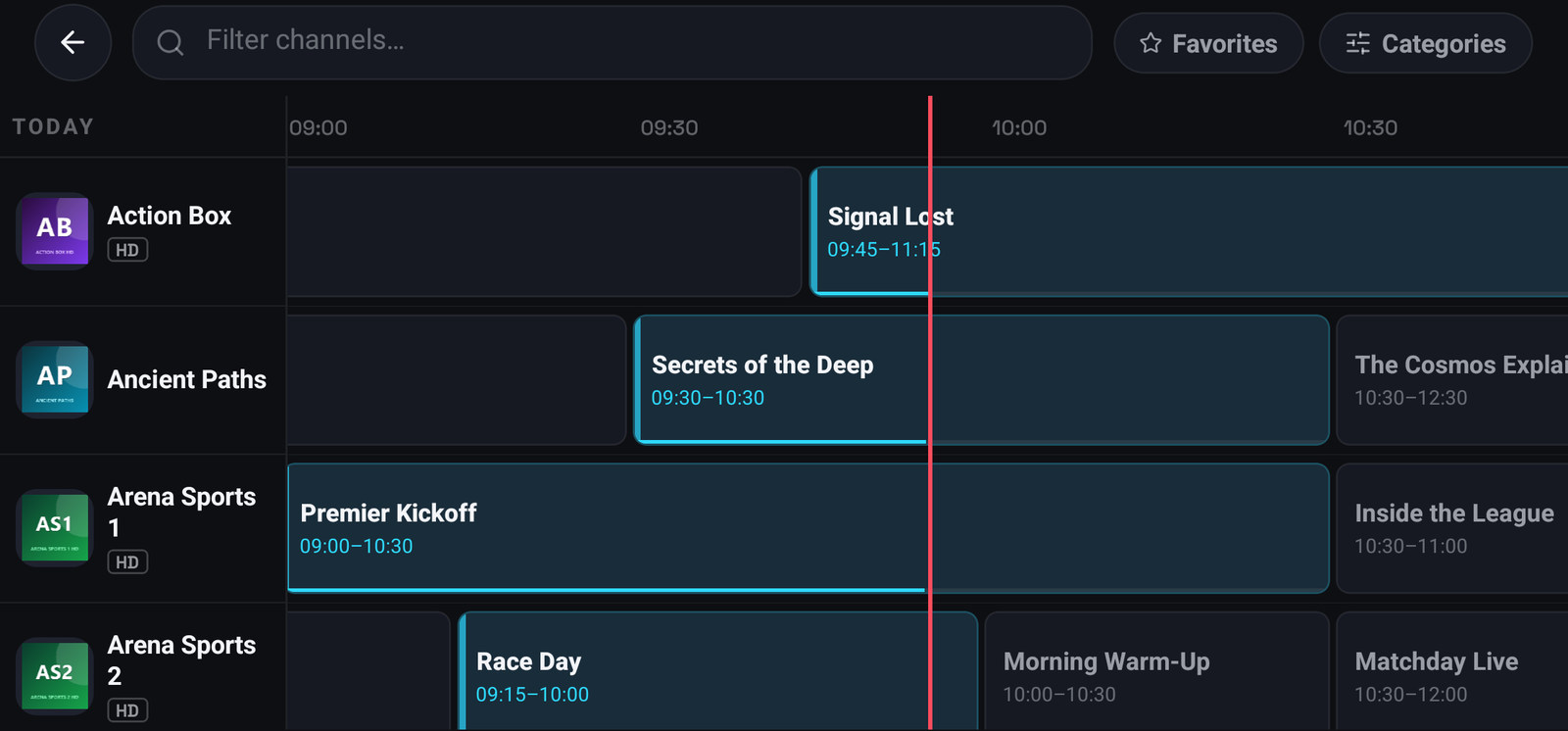
The guide opens from the calendar icon in the header of Live. Drag the grid sideways to move through time, up and down through channels, and tap a programme for its card, description, times, and the actions that apply to it: Watch live, Play catch-up or Set reminder, and Record. Tapping a channel on the left opens the channel’s options (Watch now, Variants, Add to group, Hide channel, Rename, Reassign EPG), and when Sports is open, the matches found on that channel. The filter field at the top narrows the channels.
What a programme card offers
Section titled “What a programme card offers”Depending on when it is:
| Past | On now | Future | |
|---|---|---|---|
| Watch | From the archive, if the channel has one | Live; from the start with Play from start in the player, or Start from the beginning on a television | no |
| Record | From the archive | yes | Scheduled |
| Remind me | no | no | yes |
Whether from the archive is offered at all depends on your provider, see Catch-up and archive.
The description is not always there
Section titled “The description is not always there”Some sources publish titles only, some publish full synopses, and some publish a synopsis for the first showing of a programme and nothing for the repeat. The app shows what the source gave it.
Searching the guide
Section titled “Searching the guide”Search finds programmes as well as channels, and a search for a programme lists every channel airing it, useful when a match is on four sports channels and only one of them works for you.
