
Search
One search box covers channels, films, series and the programme guide.
Where it is
Section titled “Where it is”- Phone and tablet: the magnifier in the header of Home searches everything. The magnifier in Live, Movies or Series opens the same search set to that kind.
- Television, Windows, the Mac, LG and Samsung TVs: Search in the side menu. Press OK and type; results appear as you go. On a television you type with the on-screen keyboard or a keyboard on the remote. TV Channels also has Search channels in its category column, which searches only the channels.
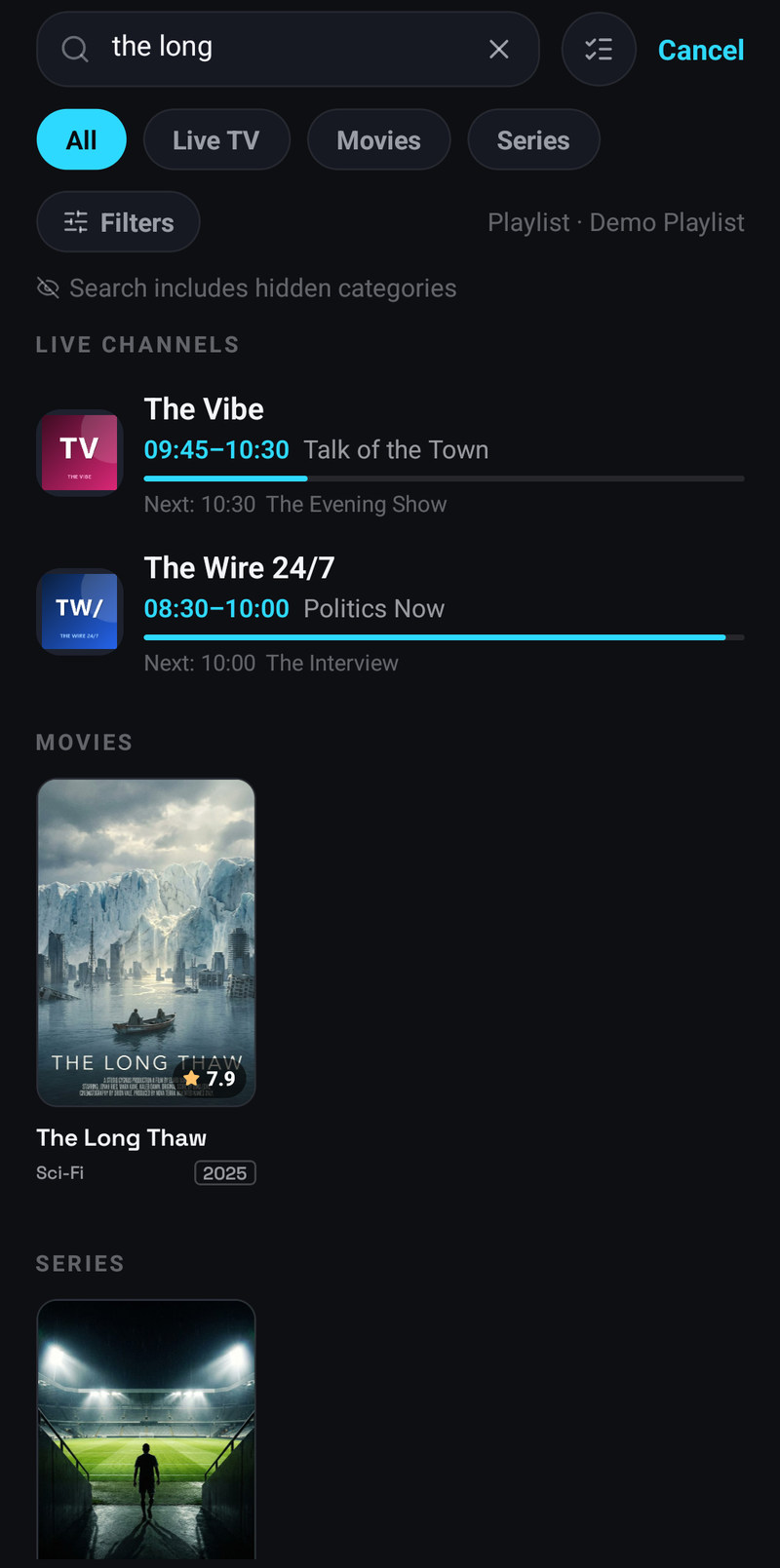
On a phone the chips under the box narrow the results to All, Live TV, Movies or Series. Opened from Live, it has Channels, which searches channel names only, and Channels + guide, which adds the programmes.
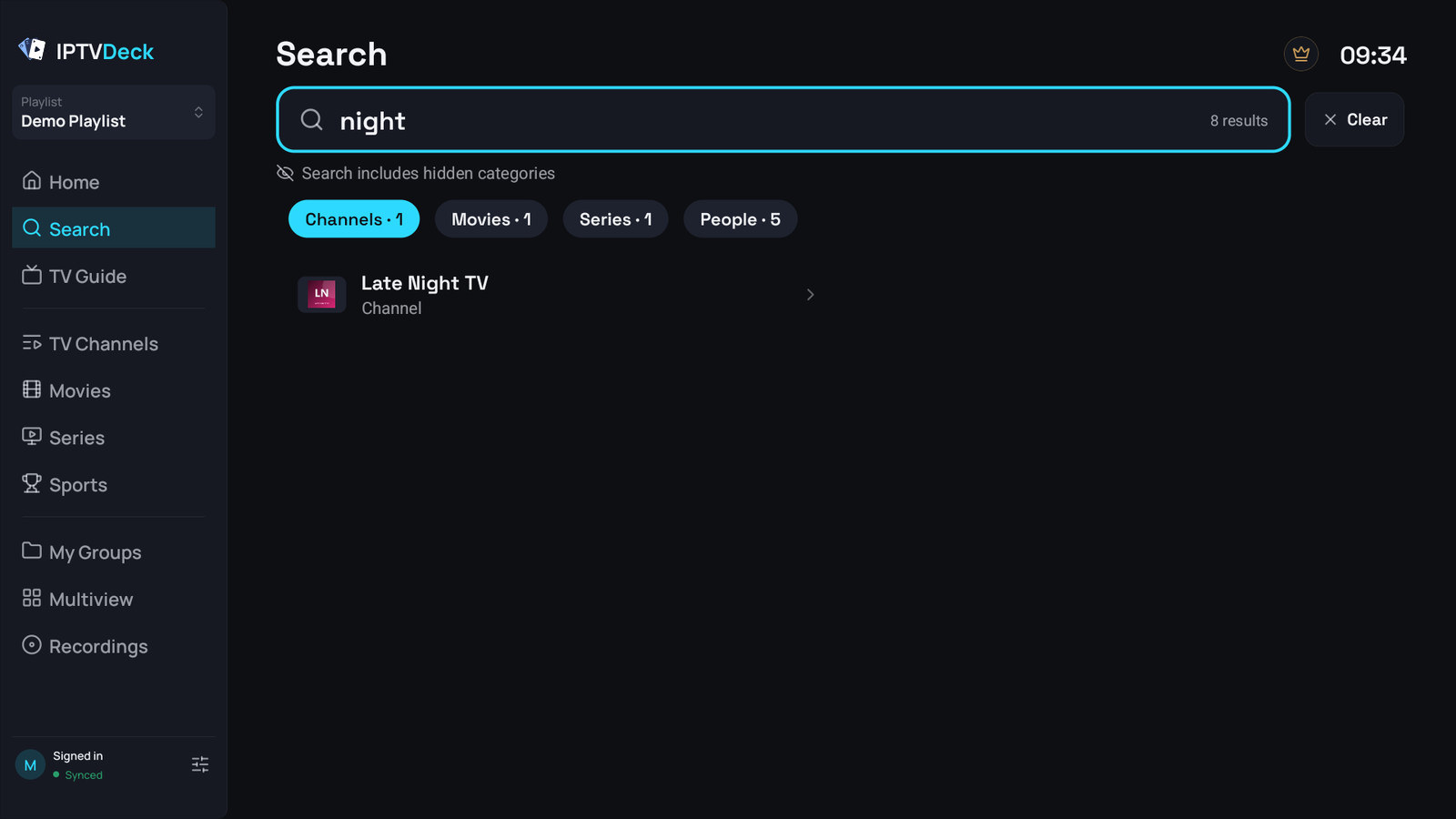
On a television the results are split into tabs by what was found, Channels, Movies, Series, People and programmes, opening on the first tab that has anything. Your recent searches are offered before you type, on a phone too. They are kept for each profile separately and stay on the device, and Clear next to them removes the searches of the profile you are in.
Typing on the phone instead
Section titled “Typing on the phone instead”When a television search finds nothing, Search from phone shows a code. Scan it with a phone and type on the phone’s keyboard; the results appear on the television.
Typos are handled
Section titled “Typos are handled”Search needs neither the right spelling nor the whole name:
- Words in any order, and the beginning of each is enough,
bbc onefinds BBC One HD. - Part of a name works,
vn24andtvn 24both find TVN24. - Misspellings are corrected against your own catalogue,
barcafinds Barcelona andxmenfinds X-Men. - Extra words do not break it,
witcher season 2still finds The Witcher.
Accents do not matter either, and ł, ø, đ, ß, æ and œ match their plain letters.
People
Section titled “People”With TMDB connected, an actor’s or a director’s name finds them under People, and their page lists the films and series of theirs that your playlist has.
Programmes
Section titled “Programmes”A search for a programme lists every channel airing it, which is what you want when a match is on four sports channels and only one of them works for you. Past episodes your provider still keeps for catch-up are found too, and each opens on the channel it belongs to.
Guide search looks at titles only, not descriptions.
What search will not show you
Section titled “What search will not show you”- Channels in a locked category, unless the current profile has unlocked it. Nothing of it shows in search, the home rows or a link either.
- Channels in a category you chose not to download. Those do not exist on the device at all.
Narrowing what it searches
Section titled “Narrowing what it searches”By default hidden categories are searched, and the search screen says so. To change that:
-
Phone and tablet: tap Filters. Search filters offers:
- one collection to search in: Favorites, a Pinned category, one of My groups, or a single category, with a search box to find it;
- where to search: My categories leaves hidden categories out, Pinned searches only your pinned categories, All content goes back to everything.
The choice shows as a chip next to Filters; its × removes it.
-
Television, Windows, the Mac: Search in next to the box, with My categories, Pinned and All content. When nothing is found with a narrower choice, Search everything switches back to All content.
Where to search is kept per profile, follows your account to every device, and the account panel can change it too.
