
Xtream Codes
An Xtream account is the richest kind of source: it hands the app categories, films, series and a programme guide of its own, none of which a plain link carries.
Adding one
Section titled “Adding one”On a phone or tablet:
- Open Settings → Playlists and tap Add playlist.
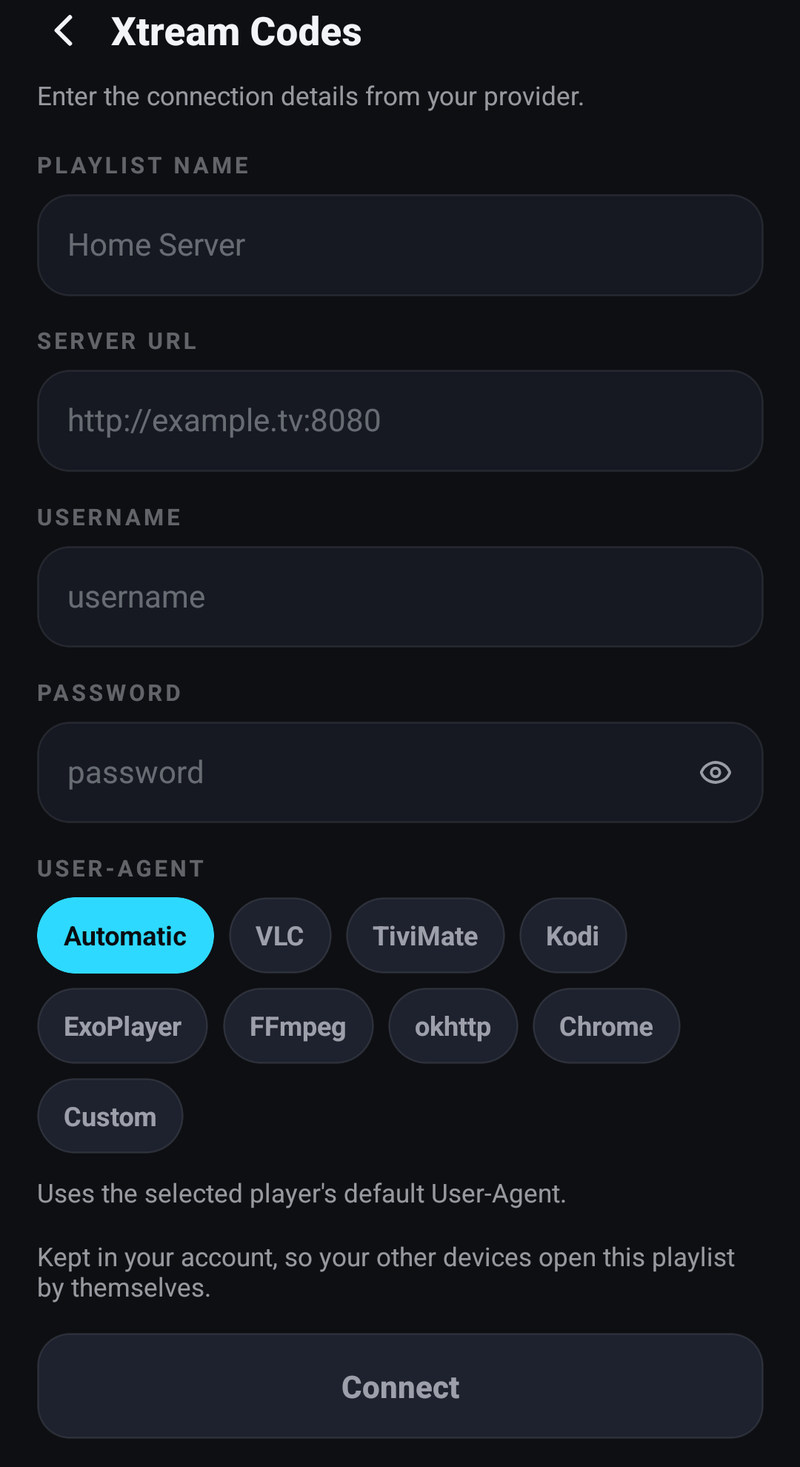
- Choose Xtream Codes login.
- Fill in the fields below. Connect stays greyed out until the name, server, username and password are all filled in.
- Tap Connect. The app shows Checking your provider while it asks the provider for its categories.
- On Choose categories, tick what you want and tap Load selected, or tap Load everything. See Categories.
- Setting things up shows while the channels and the guide download. When it ends, the playlist is ready.
On a television, Windows, the Mac and LG or Samsung TVs: Settings → Playlists → Add a playlist → Type it with the remote, then pick Xtream Codes at the top of the form. The fields are the same, the first one is called Name, and the button is Add playlist.
| Field | What goes in it |
|---|---|
| Playlist name | Whatever you want to call it. Only you see it |
| Server URL | The address your provider gave you, like http://example.tv:8080 |
| Username | From your provider |
| Password | From your provider. The eye inside the field shows what you typed |
| User-Agent | Automatic unless the provider asked for something else, see The User-Agent |
Under the fields a line says where the password will be kept: on this device only, or in your account as well, see Keep my passwords in my account.
If the account is already on this device, the category screen says so: adding it again updates the playlist you have and starts from the categories it keeps now.
When the server is refused
Section titled “When the server is refused”When something goes wrong before the download starts, the app shows Something went wrong with the reason, and Try again or Go back. The common reasons:
| What you see | What it means |
|---|---|
| The provider rejected these details | The server answered, but not to this username and password. Check both with the eye icon; a space at the end is the usual culprit |
| The provider says this account has expired | The subscription ended. Renew it with your provider |
| The provider says this account is banned or is disabled | The provider switched the account off. Only the provider can turn it back on |
| The server … could not be found | The address is mistyped, or your DNS or VPN cannot find it |
| The address starts with https:// but the server answers without encryption | Change https:// to http:// in Server URL |
| The server’s security certificate could not be verified | The provider’s https:// address has a broken certificate. Ask the provider, or use the http:// address they give |
| The connection was refused, or it times out | The host or the port is wrong, or the provider is down |
The app never adds https:// on its own, because most panels answer plain HTTP on their stream
ports.
Some sections did not load
Section titled “Some sections did not load”A provider can answer for Live TV and stay silent for Movies or Series, most often when it is busy or the account is already at its connection limit. The download screen then says which sections did not load, with a Retry button for each one and Continue anyway to keep what did load. Later the playlist’s row in Settings → Playlists says … did not update, and tapping it retries only those sections, see Reading the status row.
One connection
Section titled “One connection”If your account allows one connection and something is already playing from it on another device, the provider may refuse the download or send only part of it. Stop the other device and retry. An HTTP 403 while something else is playing means the same thing, see A channel or film will not play.
Spare stream hosts
Section titled “Spare stream hosts”Providers move streams between servers, and some hand out a second address for when the first goes quiet. Stream hosts in the playlist’s details (phone) or its options (television, Windows, the Mac) lists the main host and the spares. The playlist plays from the top host and goes down the list when one does not answer. Move a host to the top to make it the main one: the channels, favourites and history stay. You can paste a whole link from the provider; only the address part is kept.
When the provider moves your line to a new address
Section titled “When the provider moves your line to a new address”When the old server is switched off and your line has a new address, put the new address in the playlist, by Edit or by adding the account again with the new details. Your channels and films then play again from the new address, also the ones downloaded before the move, without adding the playlist anew. See When your provider moves your line to a new address.
The User-Agent
Section titled “The User-Agent”Some providers only serve a particular player string, and a few block the default outright. The User-Agent choices are Automatic, VLC, TiviMate, Kodi, ExoPlayer, FFmpeg, okhttp, Chrome and Custom, which opens a Custom User-Agent field for the exact text your provider gave you. Automatic is the default and uses the player’s own.
Change it only if your provider told you to, or if channels return an error immediately while the same account plays in another app. Changing it never asks about your favourites.
Live stream format
Section titled “Live stream format”An Xtream account can send a live channel in two ways, and Live stream format decides which one this playlist uses:
| Choice | What it does |
|---|---|
| Auto (default) | Whatever this playlist works best with on this device |
| MPEG-TS | One continuous stream. It starts closer to live and changes channel faster, but when the connection dips the picture stops instead of dropping to a lower quality |
| HLS | The stream in pieces. It can drop to a lower quality instead of stopping, which suits an unsteady connection, and it runs further behind live |
When the provider gives the account only one of the two, the setting offers Auto and that one.
On Windows, the Mac and Linux, from version 1.8.6, Auto starts live channels of an Xtream playlist as one continuous stream (MPEG-TS), as Android TV does, so they start closer to live. A channel that does not play that way switches to HLS by itself: when the provider refuses the continuous stream, or when no picture comes in about 20 seconds. An account that allows only HLS plays HLS from the start. Live stream format still lets you pick MPEG-TS or HLS for the playlist yourself.
It is in the playlist’s details on an Android phone or tablet (tap it to step through the choices), and in Edit in the playlist’s options on Android TV, Fire TV, Windows, the Mac and LG and Samsung TVs. The iPhone, iPad and Apple TV do not have it. Try it when live channels stutter or freeze on one playlist only.
Catch-up time offset
Section titled “Catch-up time offset”When catch-up of this playlist plays a different part of the recording than the programme you picked in the guide, set Catch-up time offset in the playlist’s details on a phone, or in its options on a television, Windows, the Mac and LG and Samsung TVs. See Catch-up and archive.
One channel in several categories
Section titled “One channel in several categories”Some providers list the same channel or film in more than one category, for example in their own Favorites as well as in its country. It shows in each of them, and the number next to a category matches what it shows. It stays one channel: one favourite, one history, one place in All channels. A playlist added before version 1.8.4 fills in at its next update.
Its own id
Section titled “Its own id”The playlist’s details show the Playlist ID the app knows this source by, and tapping it copies it. That id is what makes a bug report about one playlist actionable.
Your account at a glance
Section titled “Your account at a glance”On a phone, the pencil next to the playlist in Settings → Playlists opens Edit Xtream playlist. It starts with the account as the provider reports it:
| What it tells you | |
|---|---|
| Status | Whether the provider considers the account active, and whether it is a trial |
| Connections | How many streams are open right now against how many the account allows. Max reached means someone is watching right now |
| Expires | When the subscription ends, or No expiry |
If the provider reports that it has moved to a different address, the card says so and offers to switch.
When your subscription ends
Section titled “When your subscription ends”You do not have to open the details to see the end date. In Settings → Playlists every Xtream playlist shows Expires and the date under its name on a phone, and in its description on a TV, Windows and the Mac. In the last seven days the date turns gold and the TV shows Ends soon; after the date it says Expired.
During that last week the app also reminds you once a day, at the top of the screen, so the channels do not stop without warning. Renew with your provider and the reminder stops. M3U links carry no end date, so nothing is shown for them.
Editing it later
Section titled “Editing it later”- Settings → Playlists, then the pencil next to the playlist on a phone, or OK on the playlist and Edit on a television, Windows and the Mac.
- Change what you need.
- Tap Save & refresh on a phone, or Save and reload on a television.
Changing the name or the User-Agent is harmless. Changing the server or the username is not: the app asks you a question about your favourites first. See Refreshing and changing a source.
Remove playlist, at the bottom of the details, removes it from every device on your account, together with the groups built only on it. Your account with the provider is untouched.
