
Refreshing and changing a source
The Playlists screen
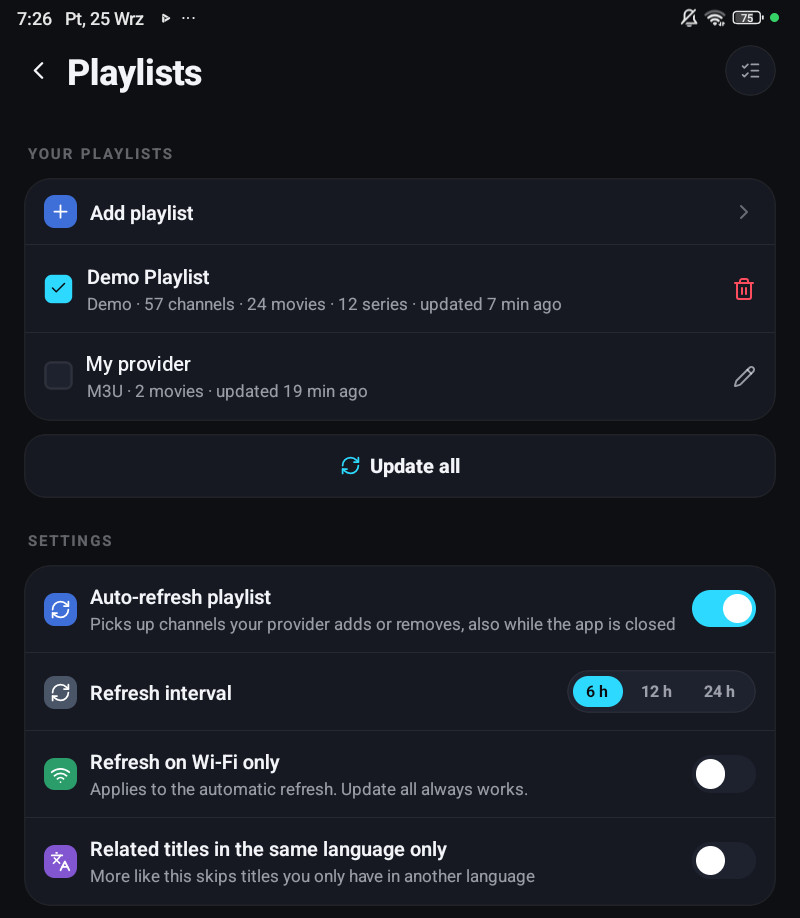
Section titled “The Playlists screen”Settings → Playlists on a phone has three parts.
Your playlists starts with Add playlist, then every playlist on the device.
- Tap a playlist to make it the one you are watching. The box on its left adds it to the view next to the others instead, or takes it out, see Several playlists at once. At least one playlist always stays in view, and the Demo Playlist cannot be combined with others.
- The pencil opens its details: the same form you added it with, for Xtream with the account at a glance on top, and at the bottom Playlist ID, Stream hosts, Live stream format (Xtream, Android only), Catch-up time offset (Xtream, M3U and MAC portal), Downloaded categories, Reload from scratch and Remove playlist, depending on the kind of playlist. The Demo Playlist has a bin instead of a pencil, because there is nothing in it to edit.
- Holding a playlist offers to remove it. With two or more playlists, the button in the top corner selects several at once: drag ≡ to put them in order, or remove the ticked ones together.
Update all, under the list, refreshes the playlists that are open on this device, one after another. A playlist that is not open here is left alone, by Update all and by the automatic refresh, and catches up as soon as you open it. A playlist loaded from a file and the Demo Playlist have nothing to refresh and are skipped; one that is missing its password says so instead of failing. The same Update all is in the playlist switcher on Home.
Settings, at the bottom, holds the rules for the automatic refresh.
On a television, Windows, the Mac and LG or Samsung TVs Settings → Playlists has the same parts: Your playlists, then Add a playlist and Update all side by side, then Settings. Each row shows a chip: Active or In view, Updating…, Failed, Password needed or MAC address needed, or Not synced. OK on a playlist opens its options in a side sheet:
| Group | Options |
|---|---|
| (first, when needed) | Enter password or Enter MAC address, or Retry for the sections that failed |
| Watch | Add to view or Remove from view, Make active |
| Update | Refresh now, Reload from scratch |
| Manage | Edit, Stream hosts, Catch-up time offset (Xtream, M3U and MAC portal), Downloaded categories, Profiles on this server (Jellyfin and Emby), Remove playlist |
Catch-up time offset is explained in Catch-up and archive.
Removing a playlist
Section titled “Removing a playlist”Remove playlist asks first, then removes the playlist and its channels from every device on your account, together with any of your groups that are left empty. Your account with the provider is untouched, and you can add the playlist again at any time. On a phone it is at the bottom of the playlist’s details, or hold the playlist; on a television it is the last option, and Remove everywhere confirms it.
Automatic refresh
Section titled “Automatic refresh”Under Settings on the same screen. All of them follow your account to your other devices, and the account panel can change them too.
| Setting | Options and default | What it does |
|---|---|---|
| Auto-refresh playlist (TV: Refresh playlists automatically) | On or off. On by default | Picks up channels your provider adds or removes. On Android phones, Android TV and Fire TV it also runs while the app is closed; on the iPhone and iPad when iOS allows background activity; on Apple TV when tvOS allows background activity, from version 1.8.6 (the guide too); on Windows, the Mac and LG and Samsung TVs every time you open the app. Opening the app always refreshes a playlist that is overdue |
| Refresh interval (TV: Playlist refresh interval) | 6 h, 12 h or 24 h. 24 h by default | How old a playlist may get before it is downloaded again. Shown only while the automatic refresh is on |
| Refresh on Wi-Fi only | On or off. Off by default | Phone and tablet only. Applies to the automatic refresh; Update all always works |
| Show playlist updates | On or off. On by default | Off keeps the automatic playlist and guide updates quiet: no progress and no messages. A new playlist, an update you start and problems that need you, such as an expired account, still show |
The same section also has Related titles in the same language only, which is about More like this, not about refreshing.
On a phone a refresh running in the background shows as a small spinner in place of the icon of the tab it updates, Live, Movies or Series. A message above the tab bar appears only while your library loads for the first time.
Refreshing one playlist now
Section titled “Refreshing one playlist now”- Phone: Update all refreshes every playlist in view, and a playlist that shows Needs refresh updates when you tap that line.
- Television, Windows, the Mac: OK on the playlist, then Refresh now.
Reading the status row
Section titled “Reading the status row”Under the playlist’s name you see what it holds and when it was last updated. Under that, when there is something to say:
- A line saying what it is doing, such as Connecting…, while it updates.
- … did not update (tap to retry), with the provider’s own reason under it. Some sections answered and others did not. Tapping retries only the ones that failed, not the whole list, and what you already had in them stays.
- Needs refresh (tap to update): a playlist that has never finished loading on this device.
- all categories switched off here: a playlist whose every category you chose not to download on this device. Nothing is wrong with it, and it is not refreshed until you switch one back on.
- Enter password to load channels, or Enter the MAC address to load channels for a portal: a playlist that reached this device without its password, see Keep my passwords in my account. Tapping it opens the form to type it in.
On a television the same warning is a yellow line in the playlist’s row, and retrying is the first option when you press OK on it.
A provider that answers for Live TV and refuses for Movies is common, and the app deliberately keeps what it has rather than emptying a section it could not download again.
Changing the link or the login
Section titled “Changing the link or the login”Editing a playlist’s server, username, M3U address, portal address or MAC is different from renaming it, because your favourites, history and hidden categories hang off channel numbers, and providers number their streams from 1. Point the same playlist at a different list and your favourites would land on strangers.
So the app asks one question, Is this the same channel list?:
| When it is right | |
|---|---|
| Keep my favorites and settings | Same provider, new address or a renewed subscription. The list is the same list |
| Start clean | A different provider, or an edited list where the numbering has moved |
Nothing is guessed and nothing is matched by name: a wrong guess here puts a children’s channel in place of something else, so the app refuses to guess.
Renaming the playlist, changing its User-Agent or its spare hosts never asks anything.
When your provider moves your line to a new address
Section titled “When your provider moves your line to a new address”Providers sometimes switch off a server and give you the same line under a new address. On an Xtream playlist, give the playlist the new address and your channels and films play again, with your favourites and history, without adding the playlist anew:
- Edit the playlist, put the new address in Server URL and choose Keep my favorites and settings, or
- add the account again with the new details. The app sees that it is already on this device and updates the playlist you have.
The app then sends every channel and film to the address the playlist has now, also the ones it downloaded before the move. This is for Xtream playlists only: M3U links and MAC portals keep the addresses their list gives.
Reload from scratch
Section titled “Reload from scratch”In the playlist’s details on a phone, and in its options on a television. It asks first, then throws away the channels, films and series it downloaded and everything cached from them, and downloads the whole list again.
It keeps: your favourites, history, groups, the names you gave things, and your hidden categories.
Use it when the list itself looks wrong: duplicated channels, a section that will not come back, a category that should have disappeared weeks ago. It is not a fix for a stream that will not play.
How long a refresh takes
Section titled “How long a refresh takes”A very large provider takes minutes, and on a slow television box longer. Every refresh is much faster if you trimmed the categories: a playlist told to keep two categories only downloads those two.
