
The home screen
Home is built out of your own use and your own playlist, not out of an editorial list. Nothing on it is promoted, and nothing on it comes from us.
There are two Homes. Phones and tablets have the phone Home. Android TV, Fire TV, Apple TV, LG and Samsung TVs, Windows and the Mac have the television Home, which adds the Featured banner at the top. A tablet with TV layout (experimental) turned on in Settings → Appearance gets the television Home too.
The rows
Section titled “The rows”In the order they come unless you change it:
| Row | What is in it | Titles you see on Home | Phone | TV |
|---|---|---|---|---|
| Featured banner | The large title at the top, see The Featured banner | ✓ | ||
| Sports | Matches: what you follow first, then live matches on your channels, see Sports on Home | Sports | ✓ | ✓ |
| Continue watching | Films, series and catch-up programmes you stopped partway, see Continue watching | Continue watching on a television. On a phone three rows: Continue watching · Movies, · Series and · Catch-up | ✓ | ✓ |
| New episodes | Series you follow on Trakt or SIMKL that got a new episode in the last two weeks. Needs Trakt or SIMKL | New episodes of your shows on Trakt (or SIMKL) | ✓ | ✓ |
| Recently watched channels | The live channels you opened last, newest first, with what is on them now | Recently watched channels | ✓ | ✓ |
| Favorites | The channels, films and series you starred, in your own order | On a phone one row, Favorites. On a television Favorites for the channels, then Favorites · Movies and Favorites · Series | ✓ | ✓ |
| Groups | The groups you made yourself | My groups | ✓ | ✓ |
| Watchlist | Your own watchlist, and the titles your playlist has from the watchlist of the service you chose under Watchlist and ratings in in Settings → Integrations (TMDB, Trakt or SIMKL) | On a phone Your watchlist and From your Trakt watchlist (or TMDB, SIMKL). On a television each of them as · Movies and · Series | ✓ | ✓ |
| Your Trakt lists | A row for each list you made or liked on Trakt. Needs Trakt | The list’s name, · Movies and · Series | ✓ | ✓ |
| Recently added | The films and series your provider added last, newest first, see Recently added | Recently added movies and Recently added series | ✓ | ✓ |
| New releases | Films and series from this year or last, newest added first | New releases · Movies and New releases · Series | ✓ | ✓ |
| Popular on TMDB or Trakt | What is trending this week that your playlist has, and with Trakt also the most loved, the most anticipated, the most watched this week and the box office. Needs TMDB or Trakt | Popular on TMDB · Movies and · Series (or on Trakt), Most loved on Trakt · Movies, Most anticipated on Trakt, Most watched this week on Trakt, Box office on Trakt | ✓ | ✓ |
| Recommended for you | Films and series Trakt picks from what you watched and rated. Needs Trakt | Recommended for you on Trakt · Movies and · Series | ✓ | ✓ |
| Top rated | The best rated films and series in your playlist, rated between 6 and 9.5 | Top rated movies and Top rated series | ✓ | ✓ |
| Streaming services | A row for each film category your provider names after a service, like Netflix or Disney+ | Content from Netflix and so on | ✓ | ✓ |
| In 4K | Films your provider has in 4K, newest added first | In 4K | ✓ | ✓ |
| Picked for you | Films: more of the two film categories you watch most, best rated first, then three film categories that change every day | More Action (the category’s name) and the names of the day’s categories | ✓ | ✓ |
| A category, group or genre of yours | Any category, group or genre you add as a row, see A category, group or genre as a row | Its name | ✓ | ✓ |
Every row is on until you turn it off, and a row with nothing in it does not show. A few rows need enough titles before they show: Recently added, New releases, Top rated and In 4K at least six, Popular and Streaming services at least four. The Sports row also needs Sports row set to Following or Today; it is Off until you choose, or until you pick a Sports Home, see Sports or Regular.
On a phone, My groups shows even before you have a group, as a Create your own groups card. It ends with a New group tile. On a television it shows once you have a group.
With TMDB connected, film and series tiles carry the TMDB name in the language of the app instead of the provider’s name with tags such as |FR| or |VOST|. Titles from TMDB in Settings → Playlists turns that off.
How long a row is
Section titled “How long a row is”| Row | Phone | Television, Windows, the Mac |
|---|---|---|
| Continue watching | 24 in each of the three rows | 24 in one row |
| Recently watched channels | 10 | 12 |
| Favorites | 10 | 24 in each row |
| Your watchlist | 12 | 24 in each row |
| Picked for you | 12 in each row | 12 in each row |
| Every other row | 24 | 24 |
Show all and See all
Section titled “Show all and See all”A row with a list of its own ends with a Show all tile on a television, Windows and the Mac, and has See all at its title on a phone. It opens the whole list, and Back returns to the row:
| Row | Show all or See all opens |
|---|---|
| Recently watched channels | TV Channels with Recent picked on a television, the Recently watched screen on a phone |
| Favorites | The favourite channels, films or series |
| Your watchlist, and the watchlist of a service | That watchlist in Movies or Series |
| My groups | The groups, to manage them (phone only) |
| A category, group or genre row | That category, group or genre |
| Recently added | Movies or Series sorted by Recently added, for this visit only: the sort you saved stays |
| Picked for you and Streaming services | That film category |
Continue watching, New releases, Popular, Recommended, New episodes, your Trakt lists, Top rated, In 4K and Sports have no list of their own to open.
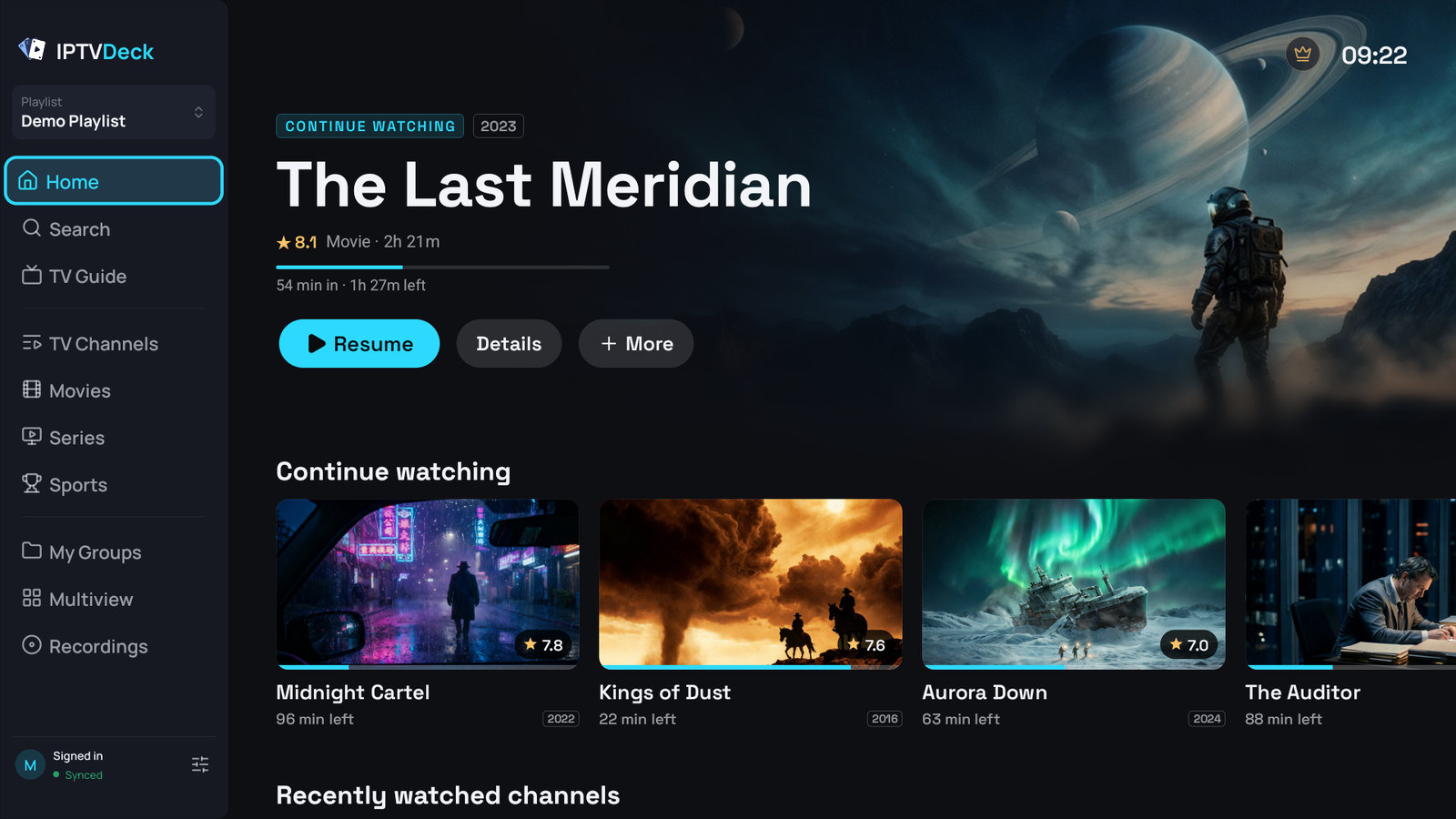
The Featured banner
Section titled “The Featured banner”On a television the top of Home is one large title.
- What you were watching: the film, series or catch-up programme you watched most recently and did not finish. It is marked CONTINUE WATCHING, shows how far you are (for example 12 min in · 1h 30m left) and has Resume (with the episode for a series, such as Resume S2 E4), which plays straight from where you stopped. That title then leaves the Continue watching row, so it is not there twice.
- A pick from your playlist, when there is nothing to resume: a film from your playlist, or a live channel when the playlist has no films. It is marked FEATURED and has Watch, which opens the film’s page or plays the channel.
Details opens the page of a film or series, and More opens the same actions as holding OK on a tile. The banner does not rotate: it changes when what you watch changes.
With Sports hero turned on in Settings → Home, the banner shows a match you follow instead, see Sports on Home. Turning the Featured banner off turns the Sports hero off too.
Continue watching
Section titled “Continue watching”Continue watching holds what you started and did not finish, per profile, newest first:
- Films, until you have seen 95 percent of one.
- Series, as one tile for the series showing the episode you are on. A series you watched to its last episode leaves the row, and comes back at the front when a new episode shows up.
- Catch-up programmes, while the provider still keeps them in its archive. These stay on the device you watched them on; films and series follow you to your other devices.
Titles in a category locked with a PIN stay out of the row until you unlock it.
Tapping a film or series tile on a phone, or pressing OK on it on a television, opens its page, where Resume carries on. A catch-up tile plays straight away. More on the list itself, and on the other lists: Favourites, watchlist, continue watching.
Continue watching and your favourite channels can also show outside the app, on the home screen of the TV itself, see On the TV’s own home screen.
On the TV’s own home screen
Section titled “On the TV’s own home screen”Android TV and Google TV. Settings → General → Android home screen has two switches, both on at first:
- Continue watching on the Android home screen: films and episodes you have not finished sit in the row the TV shows next to your other apps, and open straight where you stopped. It has nothing to do with the Continue watching row inside the app. A title you remove from that row stays away until you watch more of it.
- Favorites on the Android home screen: your favourite channels get a row of their own there and start playing with one click. A channel opened from that row opens in the profile the row belongs to, and asks for its PIN first when the profile has one. Where the TV’s home screen cannot show a row of an app, this switch is not there.
Both rows show the channel logos and the posters on Google TV too, or the name when there is no picture.
Nothing behind the parental PIN is ever put in these rows. Both switches belong to the device, and the account panel can change them for it. A Google TV set to apps only shows no such rows for any app.
Fire TV has its own home screen, which does not show rows from apps.
Apple TV, from version 1.8.7. Put IPTV Deck in the top row of the Home screen, and the space above it shows your newest recordings, what you were watching and your favourite channels. A click plays a recording or a channel, or opens the film or series where you stopped. The app icon shows how many finished recordings nobody has started yet.
Phones, tablets, computers and LG and Samsung TVs have no such place.
Recently added
Section titled “Recently added”Recently added shows the films and the series your provider added last, newest first, as Recently added movies and Recently added series. A row needs at least six titles, and a playlist that does not say when its titles were added has no Recently added rows.
With several playlists open, each playlist gets its own pair of rows with its name in the title, such as Recently added movies · Name, so a playlist that adds titles less often does not drop out. One switch in the settings turns all of them on or off.
With several playlists open
Section titled “With several playlists open”Rows are built from every playlist you have ticked in the switcher. Nothing is merged: two providers carrying the same film can both show it, which is what you want when one of them is down.
Recently added and Picked for you come once for each playlist, with its name in the row’s title. The other rows mix the playlists. Picked for you shows at most six rows in all.
The top of the phone Home
Section titled “The top of the phone Home”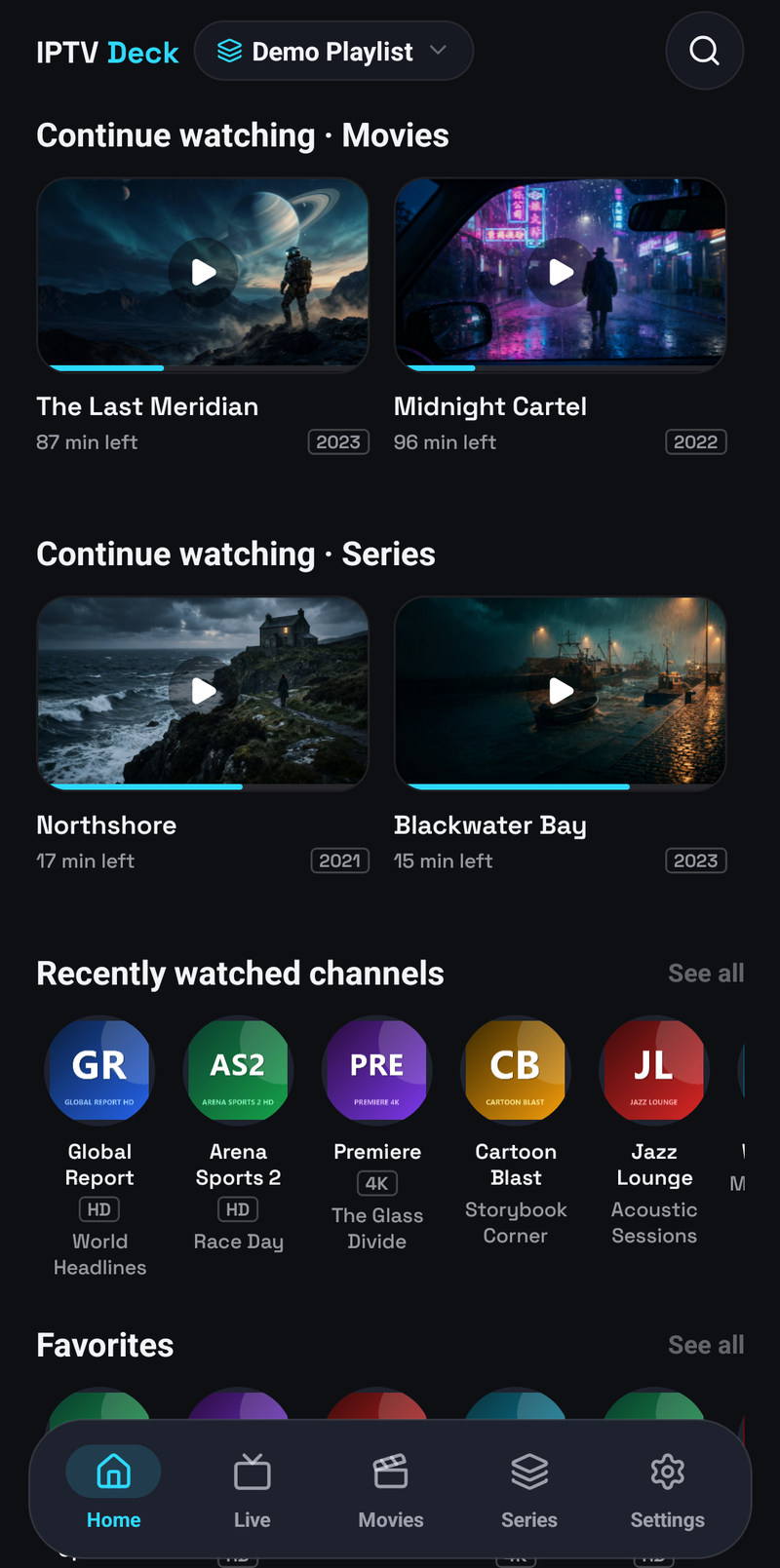
- The playlist pill shows the playlist you are in, or how many when you have ticked several. It opens Playlists: tap one to switch to it, tick more than one to browse them together, Add or manage playlists, and Update all. With no playlist it says Add playlist. On a kids profile it cannot be tapped.
- Your profile picture shows when the account has more than one profile. It opens Who is watching?, see Profiles.
- Downloads shows once you have downloads, with how many are under way.
- Search opens search.
- The pinned match: with Pin what I follow on, the match you follow that is live, or else the next one, sits above the rows, see Sports on Home.
On a television the playlist switcher is the card at the top of the side menu. When a new version is ready, a banner says so for a moment, see The banner and the update card.
Sports or Regular
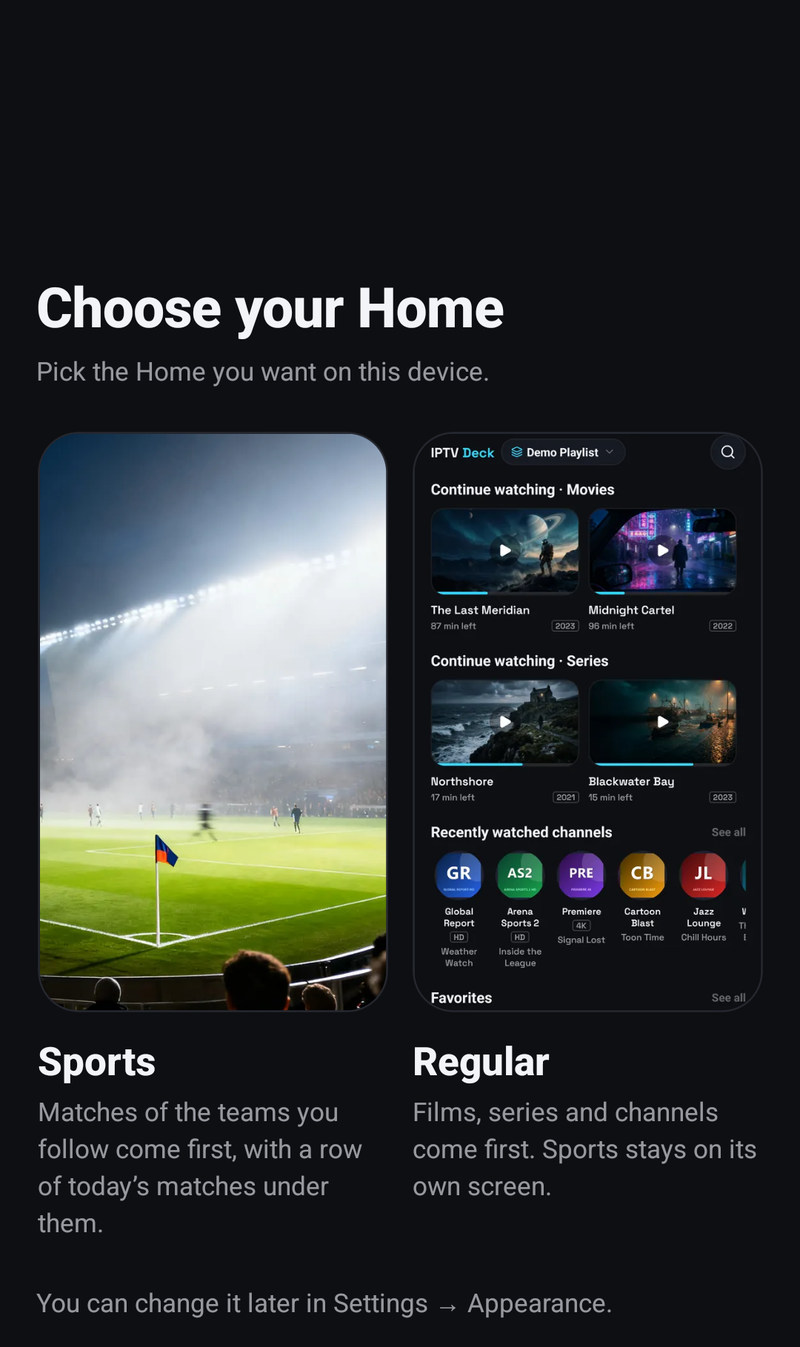
Section titled “Sports or Regular”The first time Home opens on a device where Sports is available, which means you are signed in and have the trial or Premium, and once a playlist has loaded, the app asks once: Choose your Home, Pick the Home you want on this device.
- Sports: matches of the teams you follow come first, with a row of today’s matches under them. This turns on the Sports hero on a television, the pinned match on a phone, the Sports row (Today, or Following if you had chosen it) and sports mode in the player.
- Regular: films, series and channels come first, and Sports stays on its own screen. This turns the Sports hero, the pinned match, the Sports row and sports mode in the player off.
Pressing Back keeps what the device shows now and counts as an answer. A kids profile is never asked.
You can change it later, in Settings → Appearance on a phone and Settings → Home on a television, Windows and the Mac, see Sports on Home.
Right after it, or on its own when the question is not due, comes Set up the player, see Set up the player.
Changing them
Section titled “Changing them”| Where | Path |
|---|---|
| Phone and tablet | Settings → Appearance → Home screen |
| Television, Windows and the Mac | Settings → Home |
| Kids profile | Settings of that profile: the Home screen part on a phone, Home on a television |
| A child’s profile, from a parent’s | What name sees of that profile, see Setting up a child’s profile from yours |
| Account panel | The Home group in the settings of each device, for the profile you pick at the top |
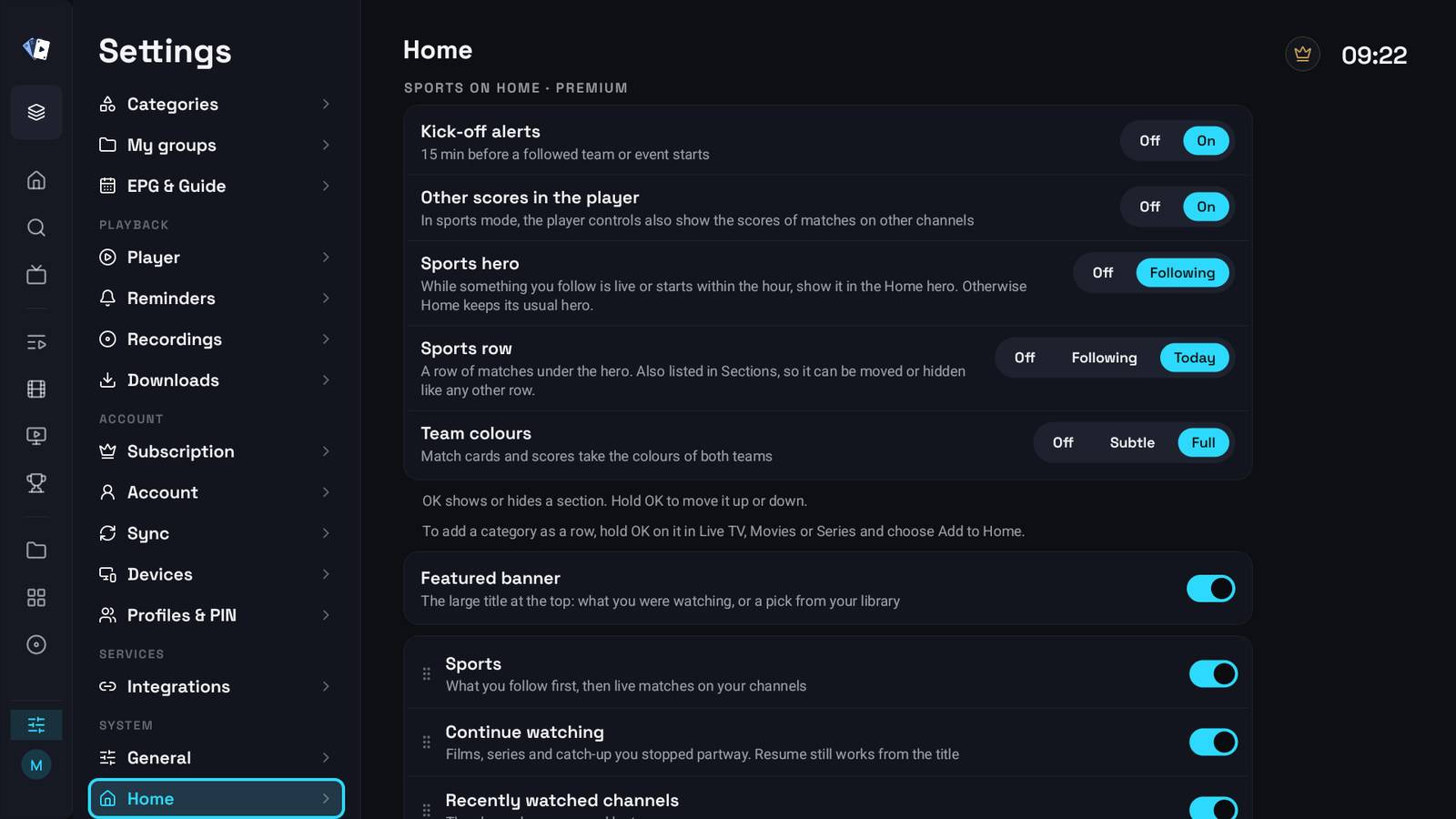
On a phone, Home screen starts with Start screen and Pin what I follow, then lists the rows. On a television, Settings → Home starts with Start screen and the Sports options, then the Featured banner and the rows.
- On a phone you switch a row with its toggle and drag it by its handle. A category, group or genre row also has an X that takes it off Home.
- On a television OK shows or hides a row and holding OK moves it up or down. The Featured banner has its own switch and always stays on top.
- On Windows and the Mac you can also drag a row with the mouse.
The choice lives on the device, so a television and a phone can show different rows. On that device each profile can have its own: a profile shows the rows of the main profile until you change them in it.
A television Home whose rows are all empty while you have turned some off says Nothing to show on Home, with Choose what Home shows, which opens Settings → Home.
A category, group or genre as a row
Section titled “A category, group or genre as a row”Any category can be a row on Home, and so can one of your groups or a genre.
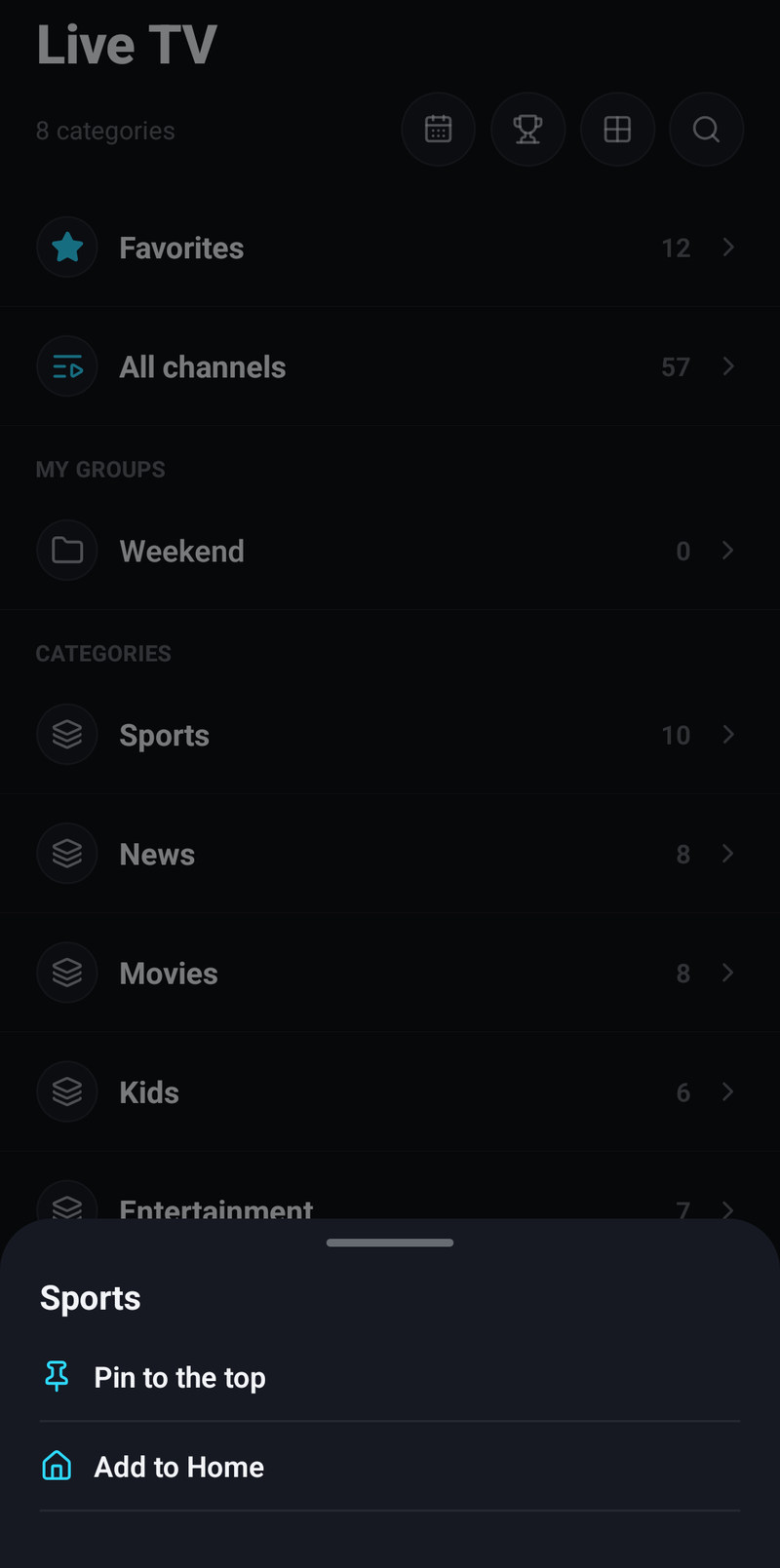
- On a phone, hold the category on the Live folder screen, or in the Categories sheet of Live TV, Movies or Series, and choose Add to Home. A genre works the same way in the sheet of Movies or Series. For a group, tap the Home button on the group’s screen.
- On a television, hold OK on the category, group or genre in the column of TV Channels, Movies or Series and choose Add to Home, or switch on Show on Home in the category’s sheet under Settings → Categories.
- In the account panel, from the category’s sheet.
The new row comes in at the top of Home, under the Featured banner on a television. A live category or a group shows its channels in their order, a film or series category its posters, newest year first. A row with both channels and titles shows as two rows under the same name. Take it off again with Remove from Home in the same place, or with the X in the settings on a phone.
Removing a tile
Section titled “Removing a tile”| Device | How | What it offers |
|---|---|---|
| Phone and tablet | Press and hold the tile | In Continue watching and Recently watched channels: Remove, or Clear Continue watching or Clear Recently watched for the whole row. In Favorites and Your watchlist: Remove. In My groups it offers to delete the group; its channels stay in your playlist |
| Television | Hold OK on the tile | Remove from Continue watching, which forgets where you stopped and keeps the title in the catalogue, or Remove from Recently watched, and Clear Continue watching or Clear Recently watched for the whole row. In favorites and In watchlist at the top take a tile out of those rows. In My groups it opens the groups in the settings |
| Windows and the Mac | Right-click the tile | The same as on a television |
The other rows, such as Recently added or a category, are built from your playlist, so there is nothing to remove from them. Turn the row off instead.
Clearing Recently watched or Continue watching
Section titled “Clearing Recently watched or Continue watching”To empty a whole list at once:
| Device | Where |
|---|---|
| Phone and tablet | Settings → Watch history, with Clear Recently watched and Clear Continue watching and how many items each has. Also the clear button at the top of the Recently watched screen, and holding a tile of either row on Home |
| Television, Windows and the Mac | Settings → Player, group Watch history, with the same two rows, and hold OK (or right-click) on a tile of either row on Home |
| Account panel | Clear all in Library → Recently watched and in Continue watching |
The app asks first and says how many items go. A clear empties the list of the profile you are in, for the playlists you have open, and your other devices follow.
- Clear Recently watched in the settings removes the channels, films and series the profile watched from the list. From the Recently watched channels row on Home it clears only the channels; films and series stay. Continue watching keeps where you stopped.
- Clear Continue watching removes the films, series and catch-up programmes the profile has not finished. Watched marks stay, and so does the episode you are on in a series.
A kids profile has no Watch history in its settings.
The screen the app opens on
Section titled “The screen the app opens on”Start screen chooses where the app opens:
| Choice | Phone and tablet | Television, Windows, the Mac |
|---|---|---|
| Home | Home | Home |
| Favorites | Live TV with Favorites picked | TV Channels with Favorites picked |
| Live TV / TV Channels | Live TV | TV Channels, on the category you browsed last |
| Guide / TV Guide | The guide | TV Guide |
| Last screen used | The last of Home, Live TV, Movies, Series or the guide | The last screen of the side menu, apart from Search, Multiview and Settings |
It is the first row of Settings → Appearance → Home screen on a phone and tablet and of Settings → Home on a television, Windows and the Mac, and it is in the Home group of each device in the account panel. Each profile on each device keeps its own.
The app opens on Home anyway while there is no playlist, when it was opened to play something by a cast, a link or a voice request, and for Favorites while the profile has no favourite channels. A channel set to play when the app opens plays over the chosen screen. On a television, Back from the start screen goes to the side menu first, then to Home.
With no playlist yet
Section titled “With no playlist yet”| Device | What Home shows |
|---|---|
| Phone and tablet | Add your first playlist, Connect an Xtream account or M3U link to start watching, with Add playlist. On a phone the demo is on the first screen, see Add your first playlist |
| Television, Windows, the Mac | Add your first playlist: scan the code with a phone that has your playlist, Type it with the remote, Plex, Sign in to restore when you are not signed in, Restore from backup where the device offers it, and Try the demo, which fills the app with sample channels, films and series so you can look around first |
| Kids profile | Ask a parent to add a playlist. |
When Home cannot be read, a phone says Couldn’t load your home screen with Try again, and a television says it could not load your library.
Home on a kids profile
Section titled “Home on a kids profile”A kids profile has its own Home rows and start screen, set in its own Settings or by a parent, see Changing them. It sees only what its profile allows, see Kids profiles. It is never asked the Sports or Regular question, its playlist pill on a phone cannot be tapped, a group tile opens the group instead of the settings, and Nothing to show on Home has no button to the settings.
It paints before the database is open
Section titled “It paints before the database is open”On a television Home draws from a snapshot of the last session while the catalogue is still opening underneath. That is why it appears in a second or two on a cheap box instead of after a spinner, and why a title can appear a moment before its poster does.
With a theme picture, the tiles of Home let it show through as much as Panel opacity allows, on a phone too.
