
Add your first playlist
Nothing of yours shows up until a playlist is in. There are six kinds of source, and the app treats them the same once they are loaded.
Not ready yet? Try the demo fills the app with sample channels, films and series so you can look around first. It is on the first screen of the phone, and on a television or computer Home while there is no playlist at all. Favourites, history and recent channels from the demo never go to your account. On a television or computer the demo goes away by itself as soon as a playlist of your own arrives. On a phone it goes away when you add a playlist with one of the forms; otherwise remove it with the bin next to it in Settings → Playlists.
The kinds of source
Section titled “The kinds of source”| You need | Best for | Where you can add it | |
|---|---|---|---|
| Xtream Codes | Server address, username, password | Most providers. Gives the app categories, films, series and a guide of its own | Everywhere |
| M3U link | A .m3u or .m3u8 URL | Providers that hand out a link instead of credentials | Everywhere |
| MAC portal | A portal address and the MAC your provider registered | Providers that sell access for a set top box | Everywhere |
| Jellyfin or Emby | Your server’s address and account | Films and series you keep on your own media server | Everywhere |
| Plex | A Plex account, signed in with a code | Films and series on your Plex server | Everywhere |
| Local file | An .m3u or .m3u8 file on the device | A list you built yourself, or one a provider emailed you | Phones and tablets only |
Already have the playlist on another phone, tablet or TV? Send it over instead of typing it, see Moving to another device. Signed in already? A playlist you add in the account panel in your browser (Xtream Codes, M3U or MAC portal) appears on every device of the account that shows it.
Coming from Televizo? Its backup file brings your playlists, favourites, hidden and renamed channels and guide sources over in one go, see Coming from Televizo.
If your provider gave you a long M3U link that contains username= and password=, you almost
certainly have an Xtream account. Paste the link as an M3U playlist all the same, or a shortened
link that leads to it: the app recognises the account and adds it as Xtream, with categories,
posters and a guide.
Signing in and the trial
Section titled “Signing in and the trial”An account is free. It carries the four-day trial, a subscription and your data between devices. Whether you must sign in before you can use the app depends on the device:
| Device | Signing in first |
|---|---|
| Android phone and tablet | Not needed. The first screen starts with the playlists, signing in is below them |
| iPhone and iPad | Needed. The first screen starts with signing in, and a moment later Sign in to use your free trial covers the app until you do |
| Android TV, Fire TV, Apple TV | Not needed. Home offers Sign in to restore next to the ways to add a playlist |
| LG and Samsung TVs | Not needed, as on the other televisions |
| Windows and the Mac | Needed. Sign in to use your free trial comes before anything else, with a QR code for your phone and the ways to sign in on the computer, and Exit app |
Without an account the trial counts for the device. Sports is part of the trial too, but only when you are signed in.
The ways to sign in also depend on the device. A phone has Continue with Google (where the phone offers it), Continue with Apple, Continue with email and Sign in from another device, which shows a code for a phone that is already signed in to scan. A television or computer always shows a QR code to scan with your phone and Sign in with email, and on Android TV, Fire TV, Windows and the Mac also Google and Apple where the device offers them.
Signing in on a device with no playlists brings the playlists of your account over. On a phone you see Your playlists, favorites and continue-watching are syncing over; on a television Loading your account, then Getting your channels ready while it downloads them. An Xtream playlist whose password your account does not keep asks for it once: a phone says Enter your password, a television This playlist came without its password, with Enter password.
On a phone or tablet
Section titled “On a phone or tablet”-
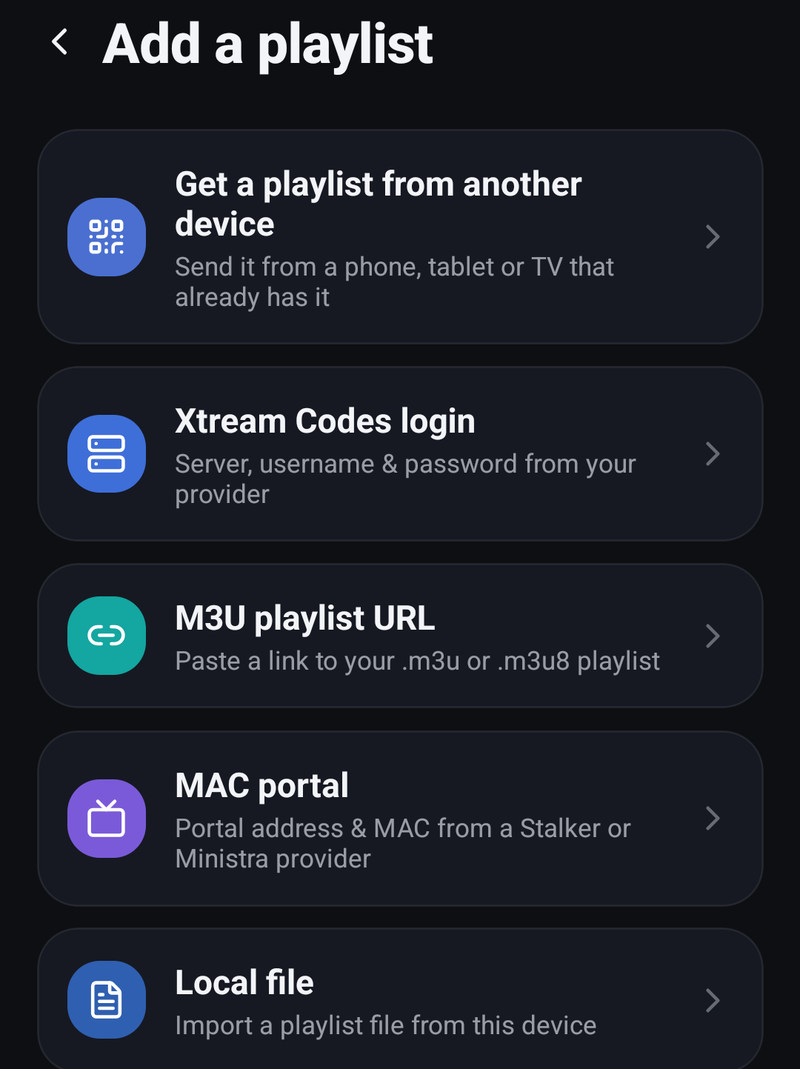
Start from the first screen, or later from Settings → Playlists → Add playlist, which opens Add a playlist. Home with no playlist also says Add your first playlist, with Add playlist.
-
The first screen lists Xtream Codes login, M3U playlist URL, MAC portal, Jellyfin or Emby, Plex and Local file, then Restore from backup (an IPTV Deck or Televizo backup file) and Try the demo. On Android signing in follows below, under Have an account? Sign in; on an iPhone or iPad it comes first, with or add a playlist and the same choices under it. Add a playlist in Settings has the same kinds of source, plus Get a playlist from another device, which shows a code that a phone, tablet or TV that already has the playlist scans under Settings → Devices → Connect a device.
-
Fill the form and press its button:
Kind Fields Button Xtream Codes Playlist name, Server URL, Username, Password, optional User-Agent Connect M3U playlist Playlist name, Playlist URL, optional EPG URL (optional) and User-Agent Add playlist MAC portal Playlist name, Portal address, MAC address, optional User-Agent Connect Jellyfin or Emby Playlist name, Server URL, Username, Password Connect Plex Nothing to type: open plex.tv/link on a phone or computer, sign in to Plex, type the code the app shows, then choose the server Moves on by itself Local file Choose file, then Playlist name Import playlist -
For Xtream, M3U and a MAC portal, Choose categories comes next. Keep everything with Load everything, or tick only what you want and press Load selected, see Categories. A trimmed list downloads far less, and Live TV only leaves out all films and series at once. If the same playlist is already on the device, it says so and loading updates it.
-
Setting things up shows while the channels and the guide download, with counts as they come in. A large provider takes minutes, not seconds. Then Home opens.
If one section does not load, the screen says which (for example Movies didn’t load) and offers a retry button for that section (Retry Movies) or Continue anyway. If nothing loads, it offers Try again and Go back.
On a television or computer
Section titled “On a television or computer”This is the same on Android TV, Fire TV, Apple TV, LG and Samsung TVs, Windows and the Mac, and on a tablet set to the TV layout. A Home with no playlist says Add your first playlist, and later Settings → Playlists → Add a playlist offers the same choices (without the demo). Typing a provider password with a remote is miserable, so the screen leads with a shortcut:
- From your phone: the screen shows a QR code and an eight-character code. Scan the QR code with the phone or tablet that already has the playlist, or type the code there under Settings → Devices → Connect a device. The phone lets you send everything or pick one playlist, and choose its categories, and the playlist comes over encrypted, straight from that device. The code renews itself, so you can leave the screen open. Details: Moving to another device.
- Type it with the remote: one form with Xtream Codes, M3U URL, MAC portal and Jellyfin / Emby, and Add playlist at the bottom.
- Plex: films and series, signed in with a code at plex.tv/link.
- Sign in to restore, when you are not signed in: brings playlists from your other devices. When you are signed in, the screen says Signed in as and your address instead.
- Restore from backup, on Windows and the Mac (and a tablet in the TV layout), from an IPTV Deck or Televizo backup file.
- Try the demo, while there is no playlist at all.
What follows depends on the route:
- From your phone: Setting up your playlist while it downloads, then Playlist ready with Start watching.
- Typed in: for Xtream, M3U and a MAC portal, Choose categories first, with Live TV only, Load everything, Load selected and Back. Then Setting up your playlist with a progress bar. Leave the screen on it: the first playlist cannot be sent to the background. A later one offers Continue in the background after a while. Then Home opens.
After it loads
Section titled “After it loads”- Live channels appear under Live (phone) or TV Channels and TV Guide (television and computer).
- Films and series appear under Movies and Series, with posters filled in from TMDB once you connect it.
- The programme guide arrives on its own for Xtream playlists. For an M3U link fill EPG URL (optional) on the phone form, or point the app at an XMLTV feed later.
Two questions on Home
Section titled “Two questions on Home”Once a playlist is open, Home asks two short questions, once on each device, in one window. Neither comes on a kids profile, under a full-screen player, or while an update offer or the release notes are open; the release notes wait until both are answered.
- Choose your Home: Sports or Regular, see Sports or Regular. It comes only when you are signed in and have the trial or Premium.
- Set up the player, right after it, or on its own when the first question is not due.
Set up the player
Section titled “Set up the player”A few settings people often miss. Keep them as they are if you are not sure. Each row says in one line what it gives and what it costs, and starts at what the device has now. Save keeps only what you changed. Skip keeps everything as it is, and so do Back on a remote, Escape on a computer and the back gesture on an Android phone. Either way the page does not come back. You can change them later in Settings → Player, see Player settings.
| Row | What it does | Options, and the setting it starts at |
|---|---|---|
| Timeshift | Pause and rewind live channels. The channel you watch is saved on the device, which takes storage space; an LG TV keeps the last few minutes in its memory instead | On or off, off at first |
| Timeshift length | How far back you can go. Shows only while Timeshift is on, with a line on how much fits on the device | 15 min to 180 min, 30 min at first |
| Low latency live | Keeps live channels closer to the broadcast, good for sport, but a weak connection stutters more | On or off, off at first |
| Buffer size | A bigger buffer rides out longer drops in the connection, but live channels start later and it uses more memory | Small, Auto, Large, Very large; Auto at first |
| Auto frame rate | Smoother sport and films at 25 or 50 frames per second, but on some TVs the screen goes black for a moment when you change channel | Off, Films and series, Films, series and live TV; Off at first |
| Stereo or surround | Stereo suits TV speakers and headphones, surround a sound system | Auto, Stereo, Surround; Auto at first |
| Subtitles | Auto turns them on in your language when a film or channel has them, On demand only when you pick them. It is saved for the profile you are in | Auto, On demand, Off; On demand at first |
| Subtitle size | How big subtitles are on this screen | Smallest, Very small, Small, Normal, Large, Larger, Huge; Normal at first |
The language subtitles look for is not on this page. It follows the language of the device until you choose Default subtitles in Settings → Player.
Only the rows the device has are shown:
| Device | Rows |
|---|---|
| Android TV and Fire TV | All of them |
| Android phone and tablet | All but Auto frame rate |
| iPhone and iPad | Timeshift, Low latency live, Subtitles, Subtitle size |
| Apple TV | Timeshift, Low latency live, Auto frame rate on tvOS 17 or newer, Subtitles, Subtitle size, and Buffer size when VLC is the player engine |
| Windows and the Mac | Timeshift, Low latency live, Subtitles, Subtitle size |
| LG TVs | Timeshift, Low latency live, Subtitles, Subtitle size |
| Samsung TVs | Low latency live, Subtitles, Subtitle size |
The answer is kept with the device’s settings in your account, so reinstalling and signing in again does not ask again. A device that was updated from version 1.8.5 or older gets this page once too, the next time Home opens.
It did not work
Section titled “It did not work”- Wrong host, or a refused connection, see Xtream Codes.
- It loaded, but a section is missing: the provider answered for some sections and not others. On a phone the playlist’s row in Settings → Playlists says which, and tapping it retries just those.
- Everything loaded, nothing plays. That is the stream, not the list. See A channel or film will not play.
- Still stuck? Ask in Settings → Help, see Help inside the app.
