
Films and series
Films and series come from the same playlist as your channels. An Xtream account hands them over as separate sections; an M3U playlist gets sorted by the address of each entry.
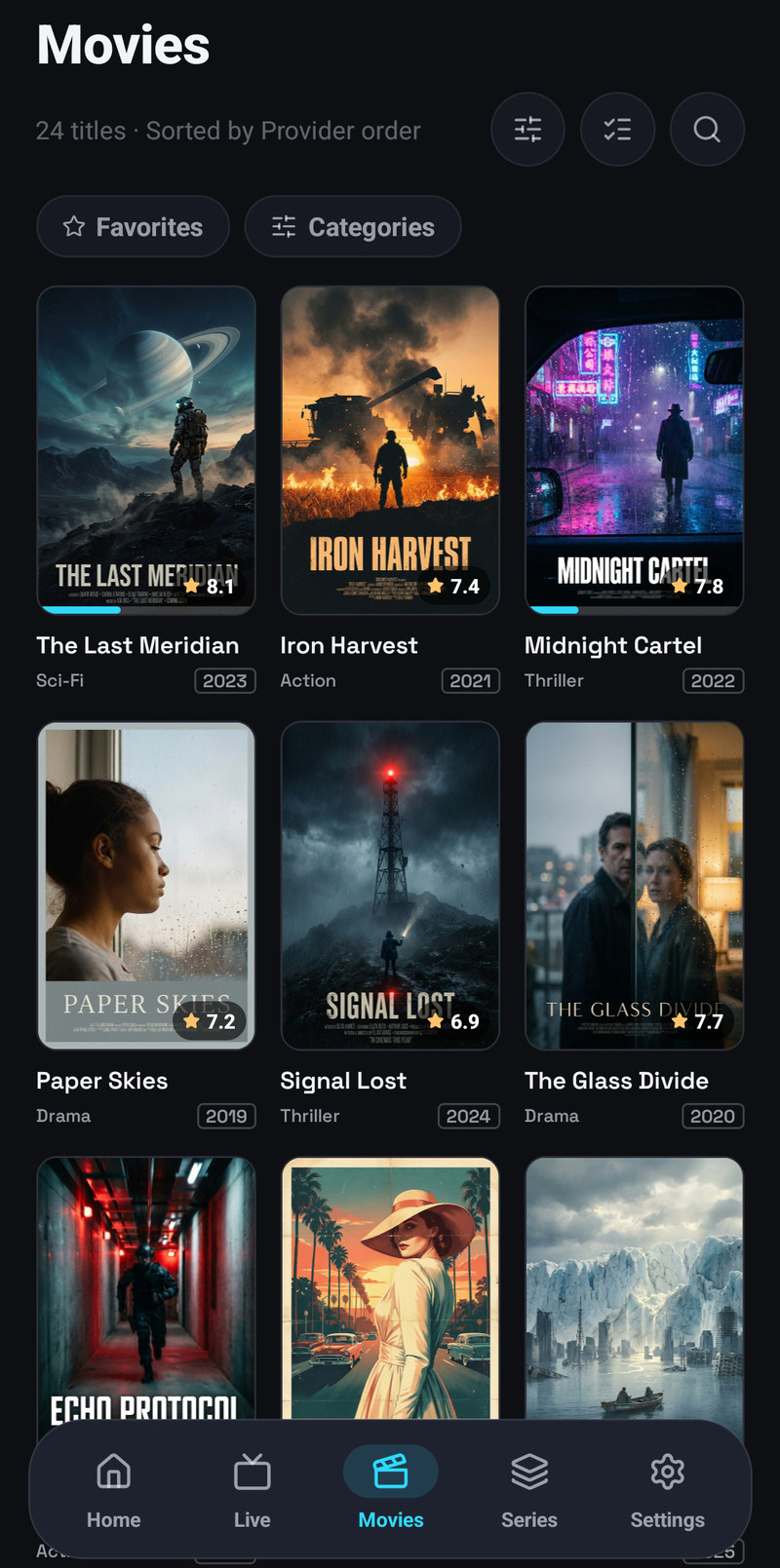
The tiles
Section titled “The tiles”Every poster carries its rating: the one your provider sends, or, with Trakt connected, the IMDb score where the provider sends none. Under it is the title, cleaned of the provider’s prefixes and ending on the year, and a line with the category and small labels: year, language, the country when your provider files the title in a folder named after one, streaming service, quality. Nothing is thrown away, the provider’s full name is on the title page. Tags your provider puts in names, such as |FR|, |EN| or (VOST), are taken out of the title and kept as the language label.
With TMDB connected, a film or series whose match is certain shows its TMDB name, in the language of the app. The provider’s name stays on the title page under it, in the list of versions and in search, and a title you renamed keeps your name. Titles from TMDB, in Settings → Playlists and in the account panel, turns it off. It is on by default and follows your account.
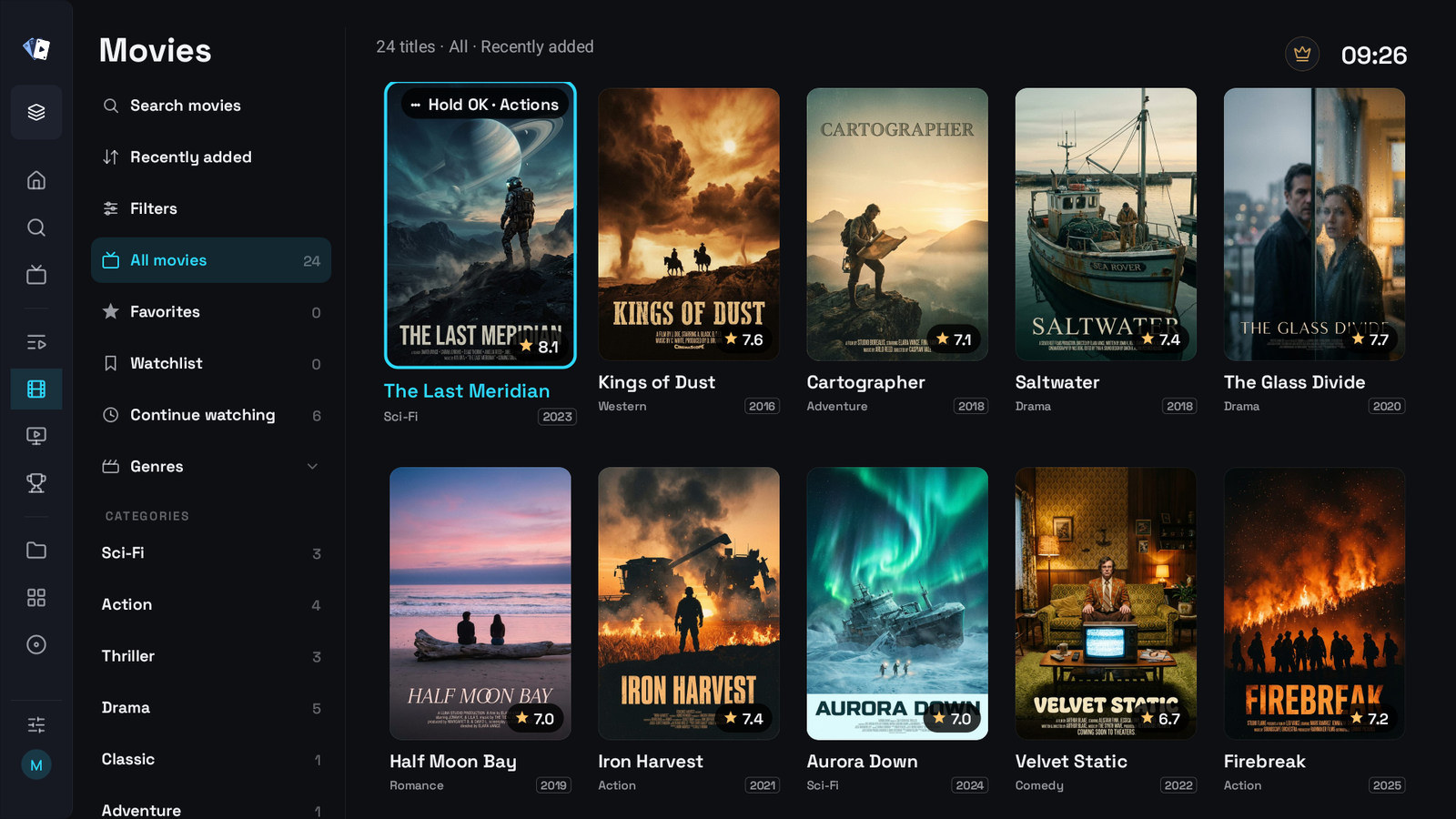
On a television the column on the left of Movies and Series holds search, sort order, filters, All, Favorites, Watchlist, then Trakt watchlist or TMDB watchlist when one is connected, with every title of it your playlist has, Continue watching, Genres with TMDB, and the categories. On a phone the same choices are behind the Favorites and Categories chips above the grid.
Keep looking at the end of a list
Section titled “Keep looking at the end of a list”Some lists stop at their end instead of loading more by themselves, so they do not grow and reshuffle while you read them:
- a genre in Movies or Series sorted by year, name, rating or date added,
- a genre with a search, a filter or a watch status,
- an actor’s page on a phone and a tablet.
At the end of such a list press Keep looking to find more titles. It says Looking… while it works.
The title page
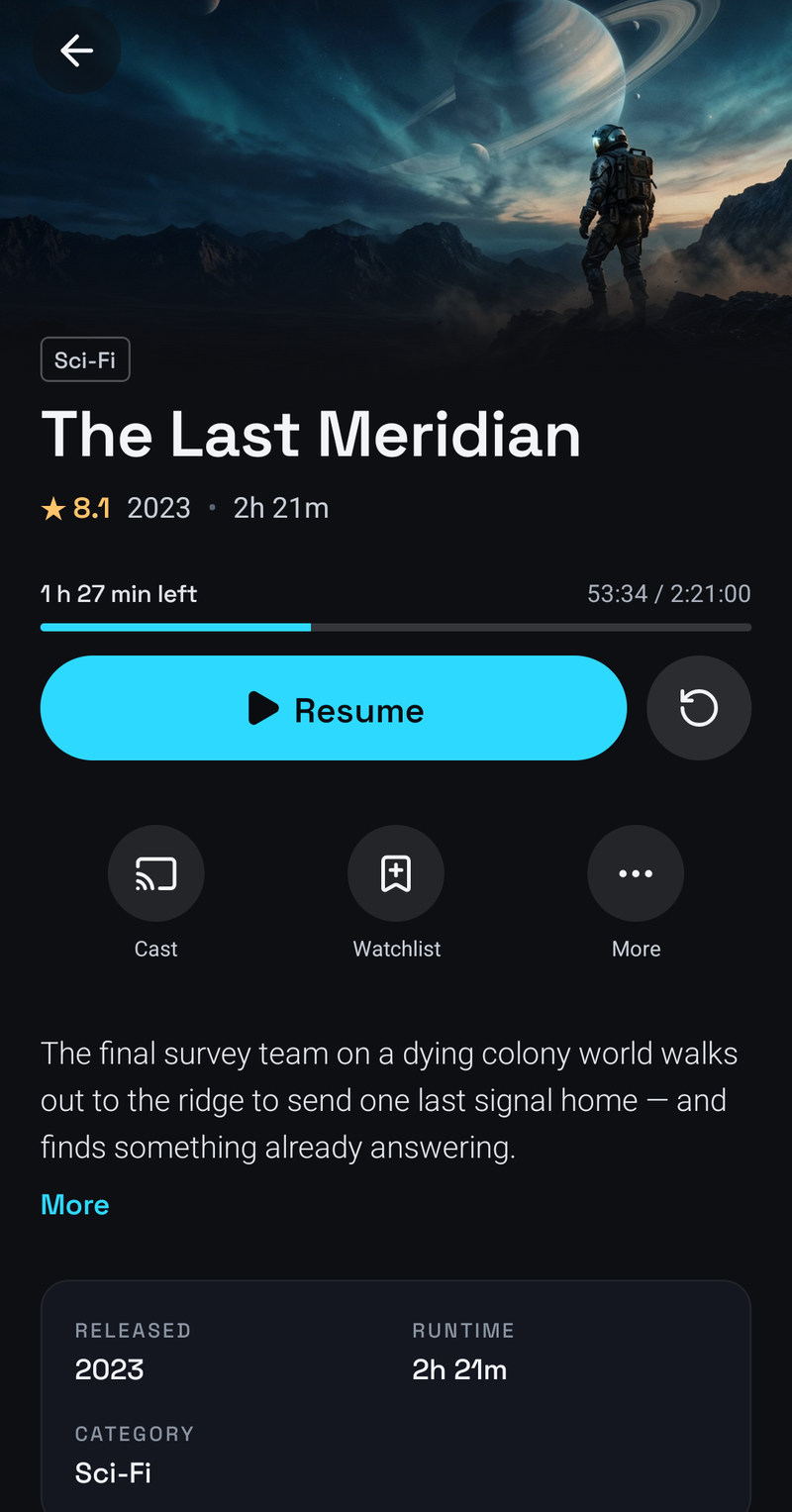
Section titled “The title page”Opening a title gives you a page of its own, on the phone and on the television.
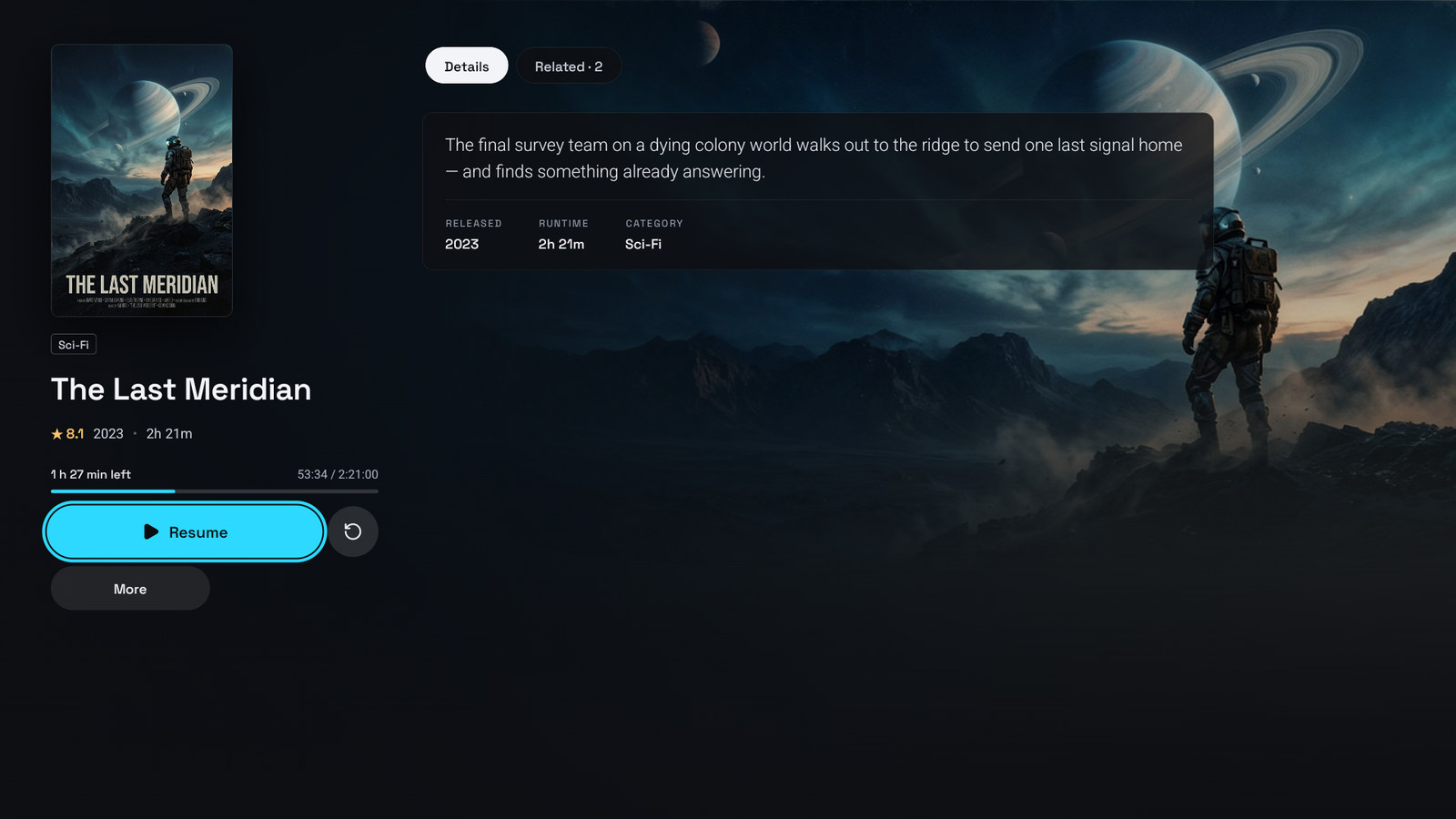
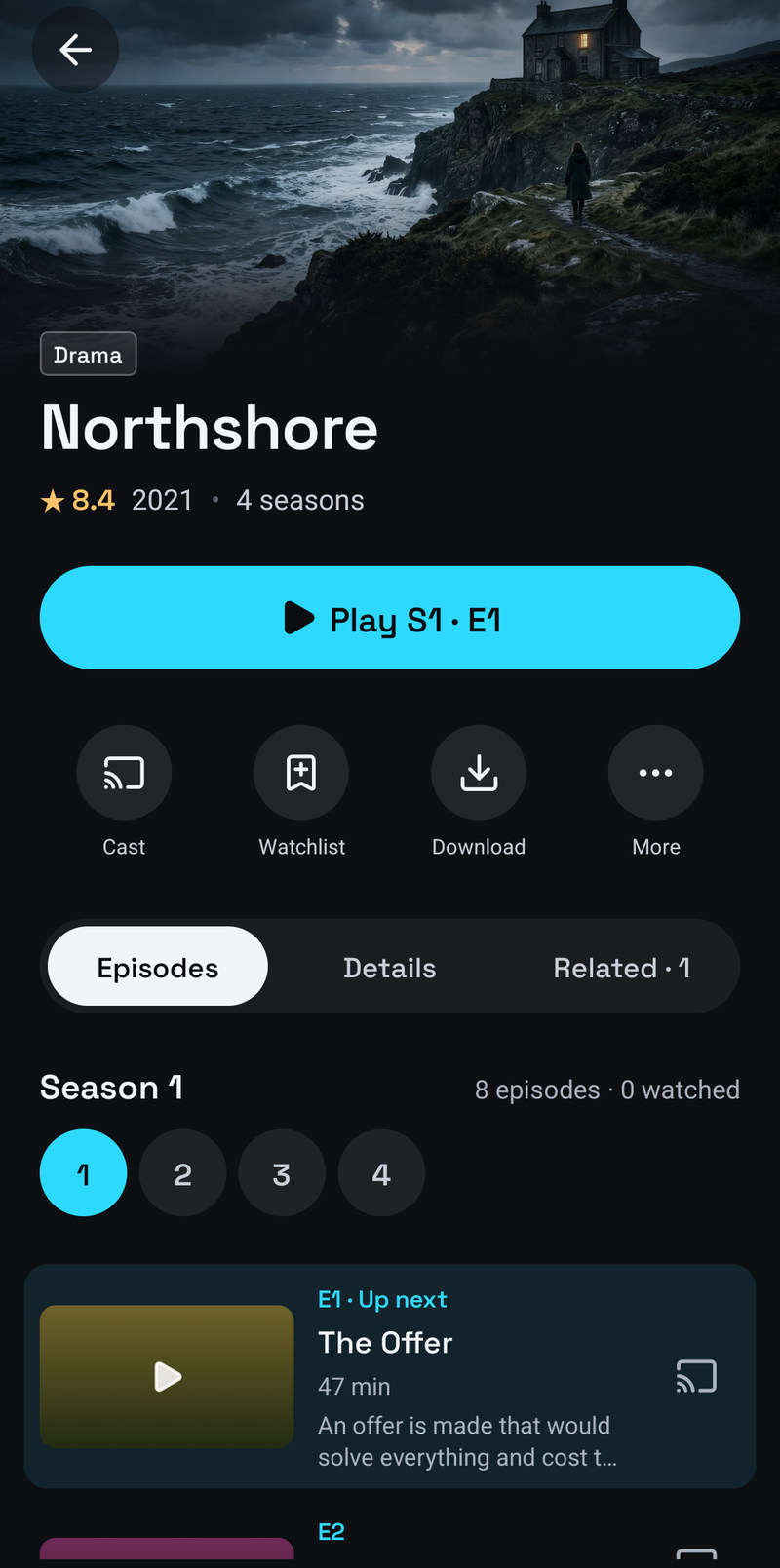
At the top are the labels, quality, age rating, the language of this version, the country when your provider files the title under one, such as Movies Germany, the playlist it comes from when you have more than one, and the genres, then the clean title, the provider’s full name in small type, and the rating, year and length. A genre label that is known to TMDB opens Movies or Series on that genre.
Then the actions:
- Play, or once you have started it, how much is left (25 min left), Resume, and From start.
- Trailer, when one is known.
- Cast, to play it on another screen, on a phone. See Casting to a TV.
- Watchlist.
- Variants, when the playlist has other versions of this title. On a television, Windows and the Mac the button also says how many, like Variants · 3.
- Download, where the device can keep files.
- Other player, on a film, with Open films in another player on, see below.
- More, with Add to favorites and Add to group.
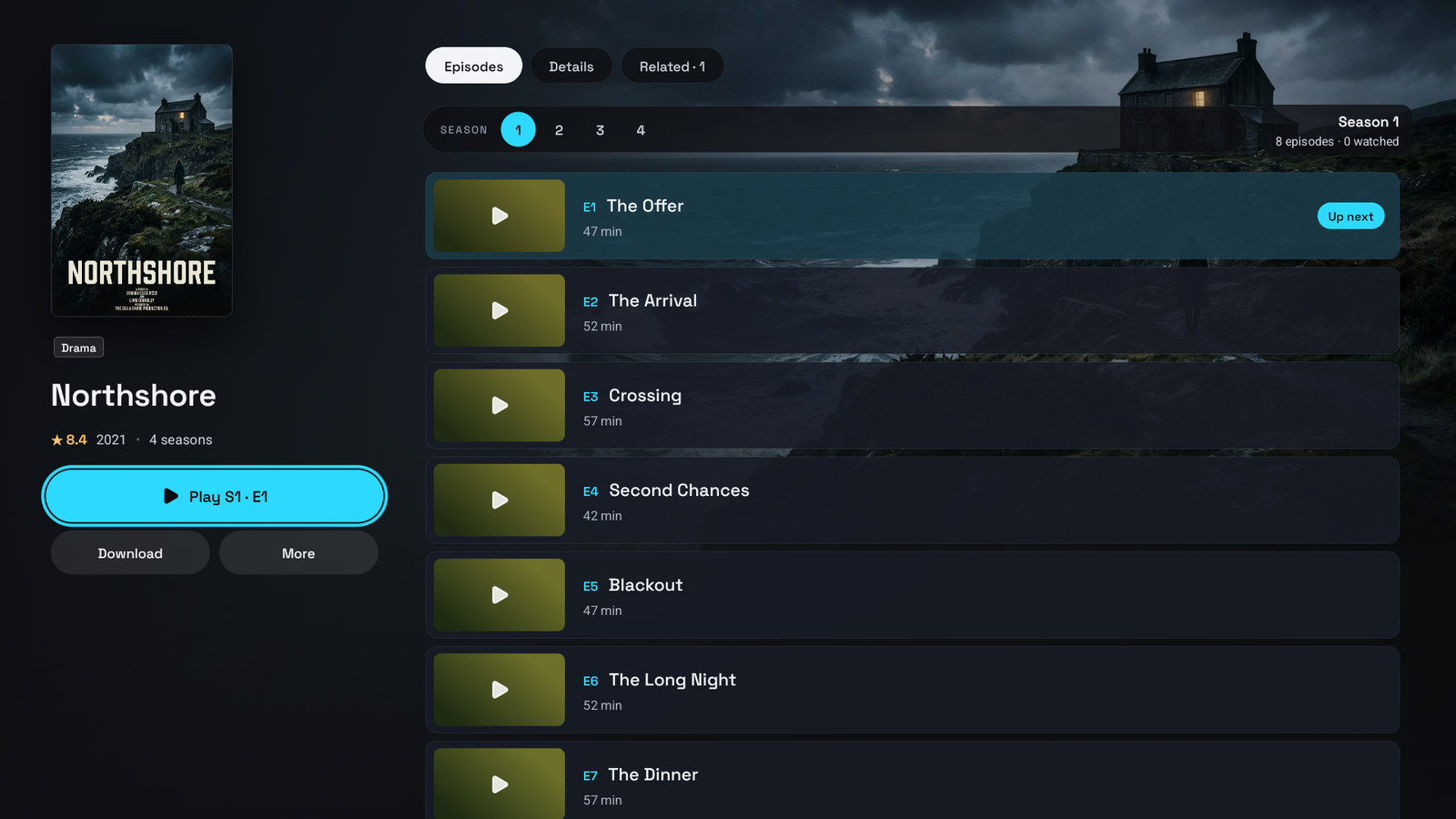
Under them are the synopsis, the facts (director, release, runtime, original language, category, the audio and subtitle tracks in the file, age rating), trailers, the cast, and related titles. With TMDB or Trakt connected the cast row starts with the director of a film or the creators of a series, see The director and the creators. On a television those live under the tabs Details and Related.
Most of what is on the page, plot, cast, poster, backdrop, genres, rating, comes from TMDB on your own key, or from Trakt when that is what you connected. With Trakt the rating line also carries the scores from IMDb, Rotten Tomatoes and Metacritic. With neither connected you still get the provider’s title, poster and stream; you just get less around it.
With Play trailers automatically on in Settings → Player, staying a moment on the page starts the trailer by itself, behind the title on a television, Windows and the Mac and in place of the picture on a phone. It is Muted everywhere but Fire TV, where it is Off, until you choose. See Player settings.
Trailers on Android TV, Fire TV, Windows and the Mac
Section titled “Trailers on Android TV, Fire TV, Windows and the Mac”Trailer on the page, and the trailers further down it, play behind the page with sound, the same way as a trailer that starts by itself. A trailer already playing by itself goes on with sound instead of starting over. While it plays, buttons sit where Trailer was, each with its name under it when selected:
- Stop ends the trailer.
- Mute or Unmute turns the sound off or on.
- Full screen shows the trailer over the whole screen.
Back stops the trailer too. Apple TV, LG TVs and Samsung TVs do not play trailers behind the page.
Trailers on a phone and tablet
Section titled “Trailers on a phone and tablet”On a phone and tablet every trailer plays where the picture at the top of the page was: the one that starts by itself and the one you start with Trailer or from the trailers further down the page. The page does not move when it starts or when the description arrives. Until the film starts, its still from YouTube shows there with a spinner. A trailer you start plays with sound, also on mobile data. Three buttons over it turn the sound on or off, show it full screen, turned sideways like the player, or close it, and Back closes it too. Leaving the app pauses a trailer you started, and coming back plays it on; scrolling the top of the page away ends one that started by itself.
Series
Section titled “Series”A series page has the tabs Episodes, Details and Related. Episodes shows the season you are in, how many episodes it has and how many you watched, a number for every season, and a row per episode: its still, with Trakt or TMDB connected your rating of it (on a phone the star next to it rates the episode or changes the rating), Continue or Up next where it applies, the time left, and buttons to play it on another screen and to download it. Above the episodes is what the series is about. An episode your provider gives no picture for borrows the picture of the same episode from a copy of the series in another language.
Download in the action row offers the whole season that is shown.
Watched and unwatched
Section titled “Watched and unwatched”An episode is marked watched by itself when you play it to the end. To mark it yourself:
- One episode: Mark as watched or Mark as unwatched in the episode’s menu, a long press on a phone and hold OK on a television.
- A season or the whole series: on a phone or tablet tap ⋯ next to the season and pick Mark season 2 as watched (or unwatched), or Mark the whole series as watched (or unwatched). On a television, Windows and the Mac the same rows are in the options of any episode of that season.
A film is marked from its page with Mark as watched, and by itself when it ends or you choose Finish the film at its end, see Up next and Finish the film.
The mark is shared by every copy of the title, also in your other playlists: watch an episode in one playlist and the same episode is ticked off in the other. Mark as unwatched takes it off everywhere, while where you stopped in an unfinished one stays with the copy you watched.
With Trakt connected, the app asks before marking something as unwatched, Remove it from your Trakt history?, because Trakt then forgets every time you watched it, also the times other apps added.
After the last episode of a season, Play and Up next go on to the next season, even when the earlier episodes were never marked, and after the last episode of the series they stay on it rather than going back to S1 E1.
When an episode will not play
Section titled “When an episode will not play”Providers often carry the same series several times, in other languages or qualities. When an episode will not play, the error screen offers the copies that have the same episode and open it, like Try EN · GB, and picking one plays that episode from that copy, from where you were. Other copies in an episode’s menu, a long press on a phone and hold OK on a television, lists every copy that has the episode, with whether it opens, its quality, size, audio and subtitles. Nothing switches by itself.
Up next and Finish the film
Section titled “Up next and Finish the film”When an episode reaches its end credits, the player shows Up next with the next episode. A phone shows a small Up next note in the corner, with the full card when you bring up the controls; a television, Windows and the Mac show the card with the controls only.
- Play now starts the next episode at once.
- Stay here (on a television Press Back to stay here) closes the card.
- With Autoplay next on, a 10 second countdown at the very end starts the next episode by itself. With it off the card still comes, and nothing starts until you choose Play now.
After the last episode of a series, its page opens on its rating.
| Setting | Options | Default | Where |
|---|---|---|---|
| Autoplay next | on or off | on | Settings → Player, in Playback on a phone and Startup & playback on a television, Windows and the Mac, and in the account panel. It belongs to your account and syncs |
On a catch-up programme the same setting starts the next programme of the channel instead, see Catch-up.
For a film the credits bring Finish the film instead. Finish marks the film as watched and opens its page, which is also where a film lands when it ends, so you can rate it or pick the next one. On a television it is a card above the bar with the controls: press OK, then choose Finish the film or Rate this. A recording never offers it.
When the card comes
Section titled “When the card comes”- Where the credits are known, the card opens exactly when they begin. The times come first from your media server, then from IntroDB, a free community database. It needs no TMDB or Trakt account: the app finds the film or series there on its own. Asking it sends only the IMDb number of the series or film and the season and episode for an episode; nothing is sent for live TV.
- Where no database knows them, viewers teach the app: leaving a title during its credits sends the moment they began, without your account or device, and the card then comes at that moment for everyone. Help improve Up next timing in Settings → Player or in the account panel turns the sending off, see Player settings.
- Otherwise Up next comes in the last 45 seconds of an episode, or the last 30 seconds of an episode shorter than 20 minutes, and Finish the film about 2 % of the film’s length before the end, at least 1 and at most 3 minutes.
- The app learns each series. Skip into the very end, press Back or leave in the last minutes of an episode, and the next episodes of that series show the card as their credits begin. Watching episodes to the end shortens it again. This stays on the device.
- With subtitles from a file on (OpenSubtitles, your own file, a media server or Gemini), the card never opens before the last line of dialogue, but never later than 45 seconds before the end. Subtitles that are part of the stream do not count.
Rate this
Section titled “Rate this”Rate this sits on the Up next card and next to Finish the film, on the phone, the TV, Windows and the Mac, and sends your rating of the episode or film to Trakt or TMDB, whichever you connected. It is there only with one of them connected.
Skip intro
Section titled “Skip intro”When the intro of an episode or a film is known, a Skip intro button shows while the opening titles play: tap it on a phone or tablet (the × next to it hides it), or press OK on a television, Windows and the Mac, where the corner says Skip intro · Press OK. It jumps to the end of the intro and does not come back for that play.
It works on episodes and films from your IPTV playlists and from media servers, whenever the intro times are known: from your media server first, then from IntroDB. TMDB and Trakt do not have to be connected. There is no setting for it; a title whose intro is unknown simply shows no button.
Continue watching
Section titled “Continue watching”Position is saved per profile and synced, so a film started on the phone resumes on the television at the same second. The home screen’s Continue watching row is built from that, and the title page shows how much is left with Resume and From start.
A film or episode played to its last few minutes (the last 5 % of it) counts as finished: it is marked watched and leaves the row, and a series moves on to its next episode.
Holding a tile in that row offers Remove from Continue watching. On a television it is hold OK → Remove from Continue watching.
With Trakt connected, a film or episode you paused in another app shows up here too, at the place you stopped.
A series you watched to its last episode leaves the row by itself, on every device, and comes back at the front when a new episode shows up.
Opening a film in another player
Section titled “Opening a film in another player”To watch a film or an episode in a video player app you prefer, such as VLC, MX Player or Infuse:
- Turn on Settings → Player → Open films in another player, or the same row for that device in the account panel. On a phone and a tablet it is in the Another player group, on Android TV, Fire TV, Windows and the Mac in Startup & playback.
- On a film’s page choose Other player, in the row of buttons with Play.
- For an episode, open its options, a long press on a phone and hold OK on a television, and choose Open in another player.
Play still plays in IPTV Deck. Only films and episodes go to another player, not live channels.
| Device | What opens |
|---|---|
| Android phones and tablets, Android TV, Fire TV | The video player apps installed on the device, or the one you set as the default |
| iPhone and iPad | VLC or Infuse, picked under Settings → Player → Other player |
| Windows and the Mac | The program the computer opens playlist files with, usually your default video player |
On Android the app keeps where you stopped when the other player reports it, so the film shows in Continue watching, and a film played to about 90 % counts as watched. VLC and Infuse on the iPhone and iPad, and the players on a computer, report nothing back. Apple TV, LG TVs and Samsung TVs do not have it.
If nothing opens, the app says No other video player could open this. Install one, such as VLC, and try again. On Windows a computer with no program set for playlist files asks how to open the file: pick your video player and Always.
Variants of a title
Section titled “Variants of a title”The same film often exists several times in one playlist, a different language, a different quality, a dub. The page has a Variants button that lists them, from the same playlist and the same type. With TMDB connected it also finds the copies filed under a different name, a translated title for example. The version you are on is marked This one.
Each row shows what the provider’s name says about the version, its quality and language, and a label for the sound: Subtitles, Voice-over or Dubbing, in the language of the app. Where the provider reports it, the row also shows the size of the file, also for a version whose audio and subtitles the app cannot read.
For films the list has two sort orders at the top, Recommended and Largest file. Largest file keeps the version you are on first and sorts the others from the largest file to the smallest, with the versions of unknown size at the end. The choice stays on the device.
Picking one opens that variant’s page; it does not start playing. Switching variant in the middle of playback is deliberately not offered.
Another version starts where you stopped
Section titled “Another version starts where you stopped”Another version of a film, such as 4K instead of FHD or another language, starts where you stopped in the version you watched before. Its page shows Resume with that time and progress bar, and From start still plays from the beginning. The same goes for an episode in another copy of a series: the same season and episode shows your progress, and the play button resumes it.
The versions that count are the ones the Variants list shows for a film, and the copies Other copies offers for a series. A copy in a playlist you do not have open does not take over your place.
Continue watching keeps one entry for the title: the version you play last. Going back to the first version takes your place back with it.
The tracks each variant carries, the audio languages and subtitles inside the file, are read straight from the file itself, not from the provider’s description, which is usually a single line about the first stream and never mentions subtitles at all. That is why the list can say Polish, English for one variant and 1 track for another.
Film series
Section titled “Film series”With TMDB connected, a film that belongs to a series of films also shows More from this collection: every released part you have, in release order, each in the version closest to the film you opened.
More like this
Section titled “More like this”The related row is built from three things, in order of how much they prove:
- TMDB’s recommendations for this title, restricted to titles you actually have.
- TMDB Discover, same language and genres, from the last few years.
- Other titles in the same provider category.
Each title appears once, as the version in the language you are watching in, rather than six times over for six dubs. A title you only have in another language still shows up, unless you turn on Related titles in the same language only in Settings → Playlists.
It works without TMDB too, then it is the folder, ranked.
