
Finding your way around
The app has two layouts. Phones get the phone layout, with tabs along the bottom. Android TV, Fire TV, Apple TV, LG and Samsung TVs, and the apps for Windows and the Mac get the television layout, with a side menu down the left. Which one you get is decided by the device, not by a setting, except on a tablet, where you can choose.
On a phone
Section titled “On a phone”Tabs along the bottom. At first there are five:
| Tab | What is in it |
|---|---|
| Home | Rows built from your own use and your playlist: continue watching, recently watched channels, favourites, your groups, your watchlist, new arrivals, and any category you add as a row, see The home screen |
| Live | The channel list, with categories, your groups, favourites and Catch-up. The guide, Sports, multiview and search open from the icons in its header |
| Movies | Films from every open playlist |
| Series | Series, seasons and episodes |
| Settings | Everything else, see Settings |
Choosing the bottom tabs
Section titled “Choosing the bottom tabs”Turn Live, Movies, Series and Sports on or off in Settings → Appearance → Bottom tabs on the phone or tablet, or under Bottom tabs in that device’s Device settings in the account panel. Home and Settings always stay. Sports is off until you turn it on; it then opens Sports in one tap. The choice stays on that device. All six tabs fit on most phones, closer together and with a long tab name made smaller; only on a very narrow screen does the bar scroll sideways.
The pill with the playlist’s name in the Home header is the playlist switcher.
Holding a tile on Home offers to remove it from whatever row it is in. Holding a channel in Live starts a selection, with the actions in a bar at the bottom: add to a group, favourite, Hide, Rename, EPG to pick its guide channel, Pin and Variants. The + on a channel row is the short way to favourites and groups.
On a television
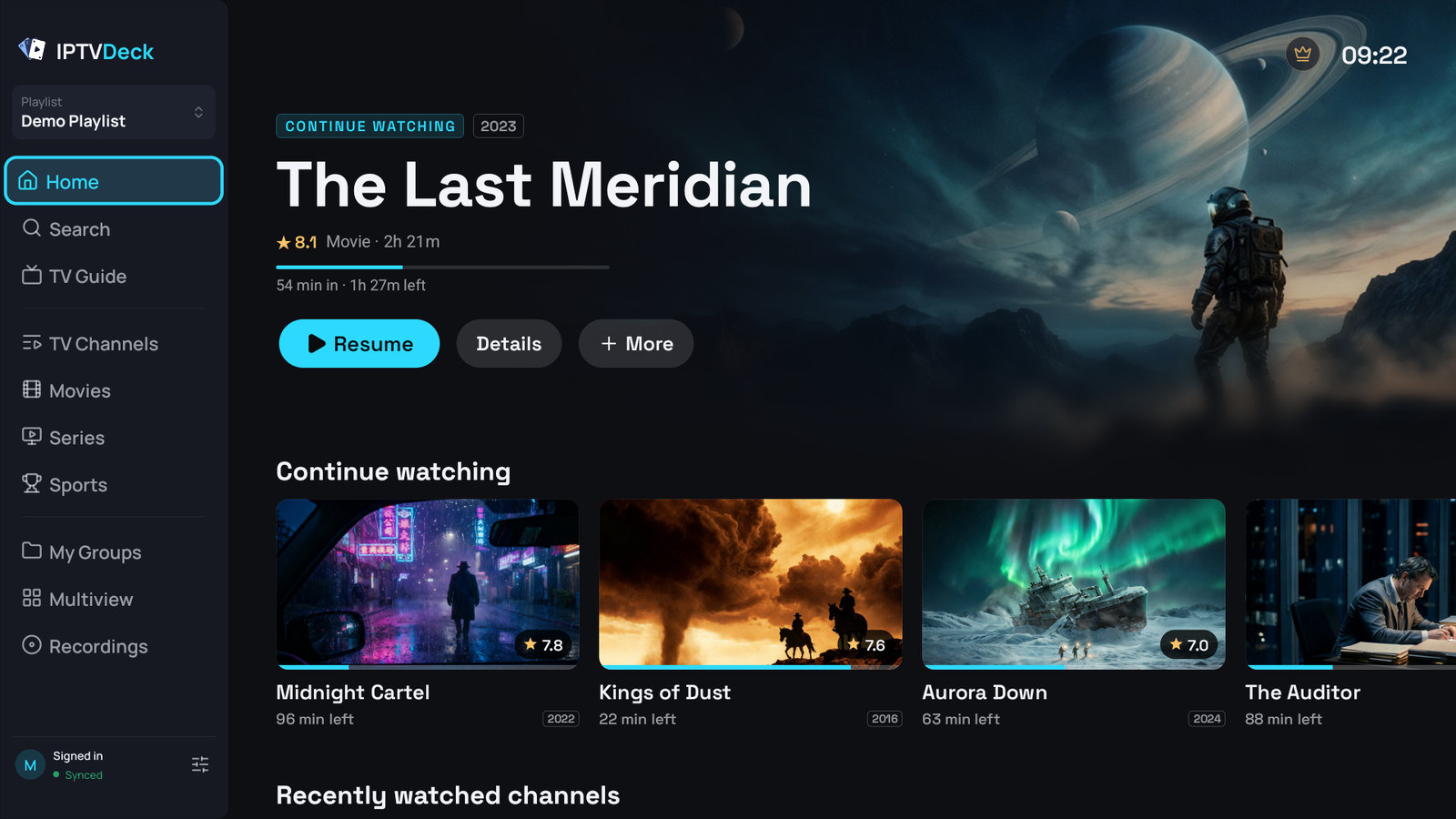
Section titled “On a television”A side menu runs down the left of every screen, in three groups: Home, Search and TV Guide; TV Channels, Movies, Series and Sports; My Groups, Multiview, Recordings and Downloads.
| Menu item | What is in it |
|---|---|
| Home | A large featured title on top and rows under it, see The home screen |
| Search | Split into tabs by what was found, see Search |
| TV Guide | The full grid, with a category column and a preview of the highlighted channel |
| TV Channels | The channel list with a category column, playing the chosen channel behind it |
| Movies, Series | Poster grids with a category column |
| Sports | Matches and live scores, tied to your channels, see Sports |
| Sports channels | Only once you tick it in Settings → General → Side menu: the sports networks of your playlist, see Sports channels |
| My Groups | The groups you built |
| Multiview | Several channels at once, see Multiview. Not on LG and Samsung TVs |
| Recordings, Downloads | Recordings is not on LG TVs, Downloads not on LG and Samsung TVs. Downloads appears once something is downloaded or a network folder is set up |
The playlist card at the top of the menu is the playlist switcher. Your account and the Settings button sit at the bottom. Settings → General → Side menu hides the items you do not use; Home and Settings always stay.
The menu folds to its icons as soon as you move into a screen, so the screen gets the whole width. Left from the first column of a screen moves onto it, and Left again or Back opens it with its names. In TV Channels, the TV Guide, Movies, Series and My Groups the categories on the left also slide away while you browse the list, and Left or Back brings them back.
The keys that matter
Section titled “The keys that matter”- OK opens or plays what is selected.
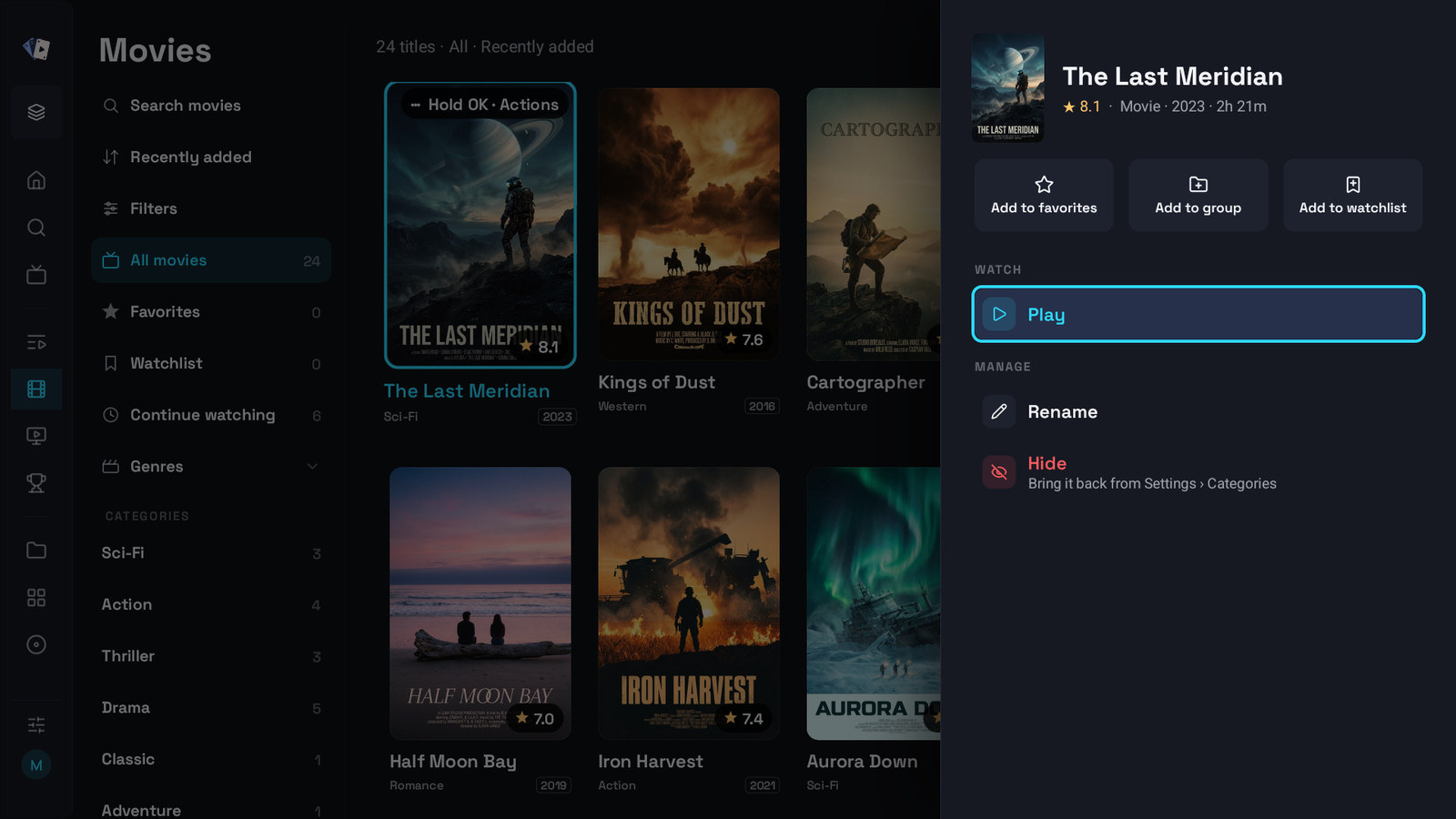
- Hold OK opens a sheet from the right with the options for what is selected: favourite, add to a group and watchlist on top, then the actions for that item, such as versions, recording and reminders. If you are hunting for an action on a television, hold OK first. INFO does the same on Android TV and Fire TV remotes that have it.
- Back goes one step back: from a list to its categories, then to the side menu, from the menu to Home, and on Home it asks Leave IPTV Deck? before it closes the app. Apple TV goes back to its own Home screen instead of asking.
The whole tour, with the menu, Back step by step, the category column, where the selection lands and the settings that shape them, is on Using it on a television. Every key is on Remote and keyboard keys.
On a tablet
Section titled “On a tablet”A tablet gets the phone layout and can switch to the television one: turn on TV layout (experimental) in Settings → Appearance → Layout. To go back, turn it off in Settings → General → Layout in the television layout.
In the television layout a tablet turns to landscape and works with a finger: a tap is OK, and a tap outside a sheet closes it. The phone’s navigation bar is hidden there, so pages such as a film get a Back button in the corner, and on an iPad a swipe from the left edge goes back too. The side menu stays open with its names on Home, Search, Recordings and Downloads and is narrow on the other screens. More on Using it on a television.
The choice belongs to the tablet. It does not sync, and moving your settings to another device does not carry it.
In the phone layout an iPad or an Android tablet turns with the device, so you can use it sideways, for example with a keyboard attached. Movies and Series show more posters in a row than on a phone.
On Windows and macOS
Section titled “On Windows and macOS”The television layout, driven by a mouse and keyboard. A click works everywhere the remote’s OK does, a right-click does what holding OK does, and Escape is Back. Moving the mouse reveals the player controls, and the window can be any size: the layout reflows rather than shrinking the text.
The side menu opens while the mouse is over it, and the pin next to the logo keeps it open beside every screen. On a computer the categories always stay next to the list.
Lists you put in order in Settings, such as categories, your groups and the home screen rows, can be dragged with the mouse, see Groups and your own order. More on Using it on a television.
What follows you, and what does not
Section titled “What follows you, and what does not”| Follows your account | Stays on this device |
|---|---|
| Playlists, favourites, watchlist, history, groups, reminders, playback position, and which playlists each profile has open | The device’s own settings, which you can copy to another device |
| Profiles, PINs, locked, pinned and hidden categories, each profile’s look | The categories you chose to download |
| Theme, language, clock, default subtitle and audio language | Subtitle size, colour and background, brightness, zoom and aspect |
| Guide sources, offset, refresh rules; playlist refresh rules | Player engine, buffer size, Timeshift, hardware decoding, how long the guide is kept |
| Multiview slots and layouts, autoplay next, guide preview behaviour | Download and recording folders, recording padding, the tablet layout |
| The teams and competitions you follow in Sports | The rows on Home and their order, sort and filters, the profile this device opens in |
The device-only half is not an oversight: a broken decoder on one box has nothing to do with your phone, and a folder path on a USB stick means nothing anywhere else. The full list is on Your account and sync.
Sending device-only things to another device is a deliberate act, see Moving to another device.
