
Subtitles, audio and volume
Subtitles
Section titled “Subtitles”The subtitle sheet of the player lists everything available for what is playing. On a phone it opens from the subtitles button in the bottom bar; on a television, Windows and the Mac from the Subtitles pill in the row of controls, next to Audio and Quality.
- tracks inside the file. SRT, ASS, PGS,
mov_text, DVB and teletext subtitles, - closed captions, labelled as such,
- anything you fetched from OpenSubtitles,
- a subtitle file of your own, see below,
- subtitles translated or made with Google Gemini, also live, as you watch,
- subtitles that came with a download.
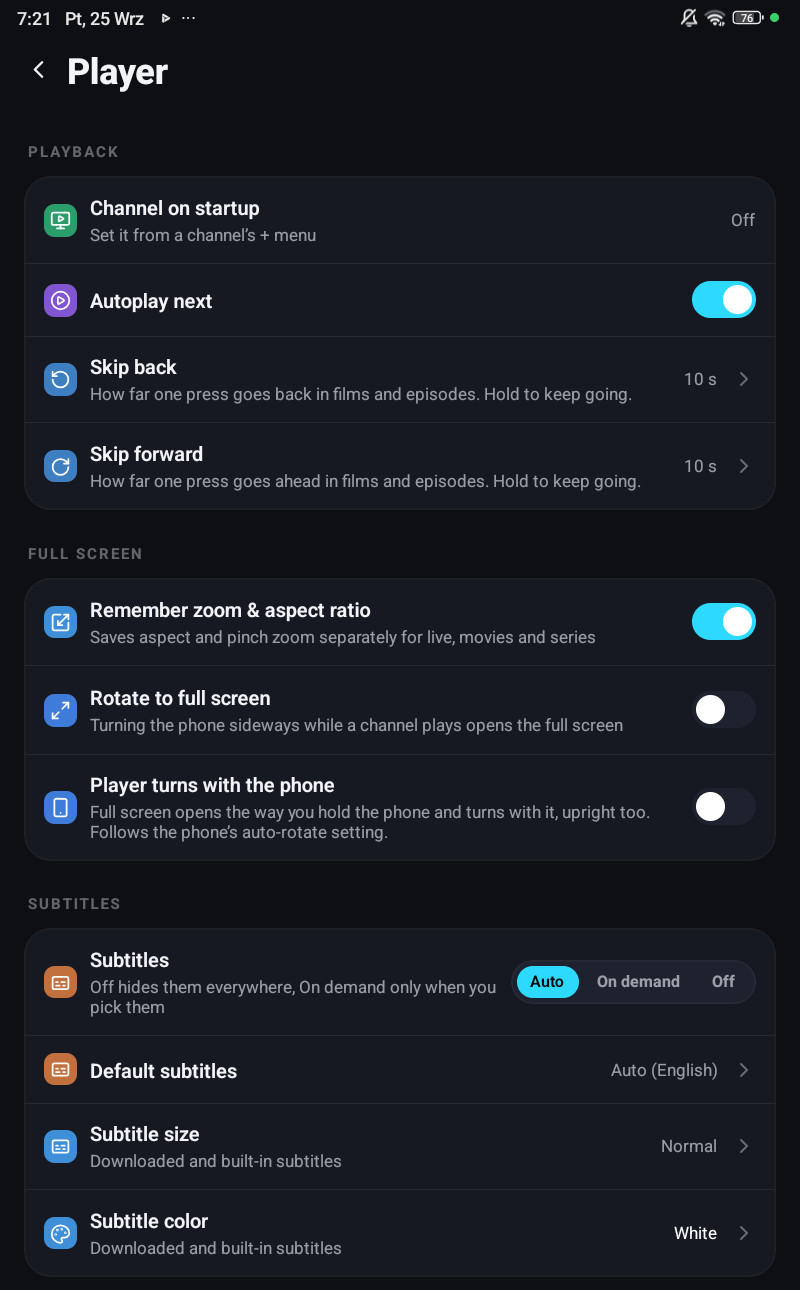
Settings → Player decides what happens without you asking. On a phone the rows are in the Subtitles and Audio groups; on a television, Windows and the Mac in Audio & subtitles.
| Setting | Options | Default | What it does |
|---|---|---|---|
| Subtitles | Auto, On demand, Off | On demand | Auto turns on a track that matches your preferred language, On demand shows subtitles only when you pick a track, Off hides them everywhere |
| Default subtitles (Preferred subtitles on a television, Windows and the Mac) | Auto (the app’s language) or any language | Auto | The language Auto looks for, and the language a search on OpenSubtitles asks for |
| Default audio (Preferred audio on a television, Windows and the Mac) | Auto (the app’s language) or any language | Auto | Picked automatically when a stream carries more than one audio track |
| Subtitle size | Smallest, Very small, Small, Normal, Large, Larger, Huge | Normal | Size of downloaded and built-in subtitles |
| Subtitle color | White, Yellow, Green, Cyan, Orange, Pink | White | Colour of downloaded and built-in subtitles |
| Subtitle background | on or off | on | The dark box behind them; turn it off for the text alone |
| Subtitle position | Lowest, Lower, Normal, Higher, Highest | Normal | How high they sit on the picture. Not for subtitles built into a film on the VLC engine on Android, Android TV and Fire TV |
The subtitle mode and the two languages belong to the profile and follow it to your other devices. Size, colour, background and position stay on the device: a living-room television and a phone held at arm’s length do not want the same size. The account panel edits all of them, the last four per device.
Changing the look while you watch
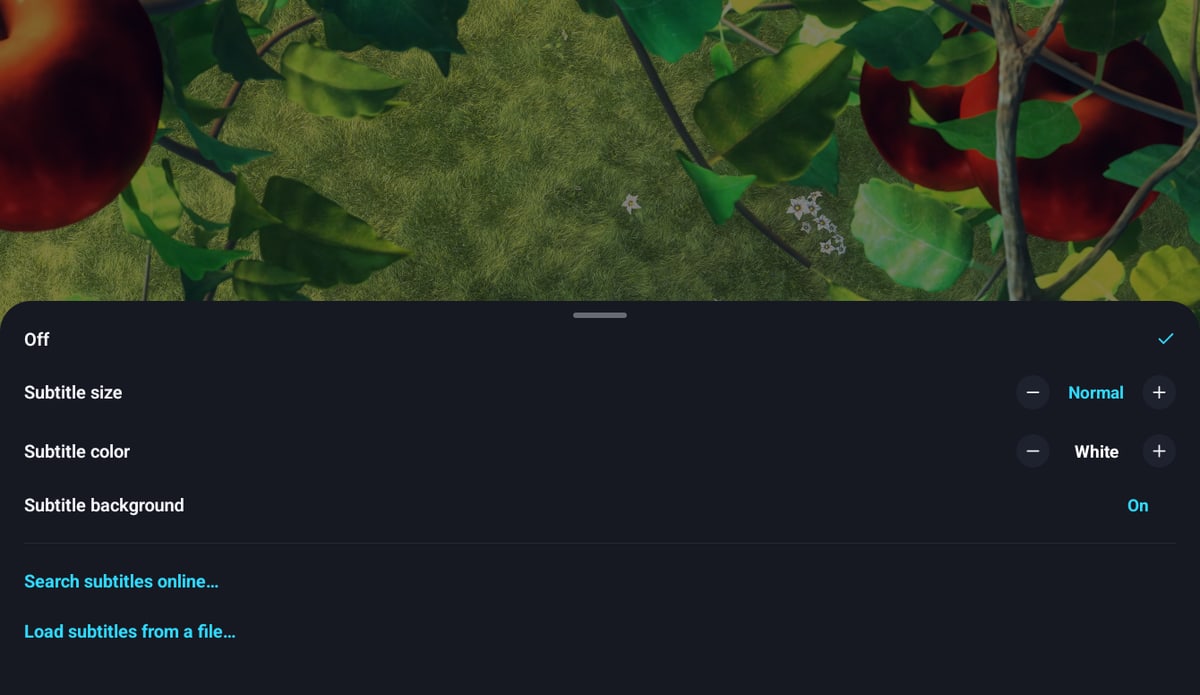
Section titled “Changing the look while you watch”The player has the same style rows, so you can fix the size without leaving the film:
- Phone and tablet: under the subtitle tracks in the subtitle sheet, Subtitle size, Subtitle color, Subtitle position and Subtitle background.
- Television, Windows and the Mac: Subtitles tab, group Style, above the list of subtitles: Size, Color, Position and Background.
A change here is the same setting as in Settings → Player.
Subtitles inside a film on iPhone, iPad and Apple TV
Section titled “Subtitles inside a film on iPhone, iPad and Apple TV”On the iPhone, iPad and Apple TV, Subtitle size, Subtitle color, Subtitle position and Subtitle background also change the subtitles that come inside a film or series from your provider, on every player engine: the built-in player, AetherEngine and VLC. With VLC they are no longer oversized, so Smallest is really small.
In picture-in-picture and on AirPlay those subtitles still look the way the system draws them, so the four settings do not reach them there.
Subtitles out of sync
Section titled “Subtitles out of sync”When a downloaded subtitle, your own file or a translated one is on, the sheet also offers a delay:
- Phone and tablet: the Subtitle offset row.
- Television, Windows and the Mac: Delay under the downloaded, translated or loaded subtitles, a quarter of a second per press, and Reset to in sync once you moved it.
Subtitles that are part of the stream have no delay control.
Your own subtitle file
Section titled “Your own subtitle file”Have an .srt or .vtt file that fits a film better?
- Phone and tablet: in the subtitle sheet of a film or an episode choose Load subtitles from a file… and pick it.
- Windows and the Mac: Subtitles tab, Your own file → Load from a file.
A TV has no files to pick from, so the file comes from somewhere else while the film plays on the TV: from your phone, in Settings → Devices under that TV, or from the TV on the Devices page of the account panel in your browser, with Choose file. The TV shows the subtitles as soon as the file arrives. Its Subtitles tab says so under Your own file.
The app remembers your file for that title, with its delay, so it is on again next time.
Translate subtitles with Gemini
Section titled “Translate subtitles with Gemini”With your own Google Gemini API key, the player translates subtitles into any language. The whole film is translated at once, so names stay the same from start to end.
Connecting Gemini
Section titled “Connecting Gemini”- Create a free API key in Google AI Studio (aistudio.google.com).
- Open Settings → Integrations → Google Gemini, or the Integrations page of the account panel, and paste it into API key.
On a television you do not have to type the key with the remote: choose Enter the key on your phone in the subtitle menu, or Enter it on your phone in Settings → Integrations → Google Gemini, scan the code and paste the key on your phone. See Google Gemini.
The subtitle text, or the sound when you make subtitles from it, goes to Google under your key, and Google’s terms and limits for that key apply.
Translating one subtitle track
Section titled “Translating one subtitle track”You translate the track you choose, straight from its row in the subtitle sheet: a track of the stream, downloaded subtitles, your own file or an earlier translation. A plain OK or tap on a track still only turns it on.
- Play the film or episode and open the subtitle sheet.
- Open the translation of the track:
- Television (Android TV, Fire TV, Apple TV, LG and Samsung TVs): hold OK on the track. Its row says Hold OK · Translate.
- Windows and the Mac: right-click the track, or hold Enter on it.
- Phone and tablet: tap the translate button, the languages icon, next to the track, or hold the row.
- Pick the language. On a television, Windows and the Mac it opens in a panel of its own, Translate to…, with a filter; on a phone the list opens under the track. Your preferred subtitle language comes first, then every other language. After you pick one, the selection stays on the track you translate.
While it works the track’s row shows Translating… with a percentage. The film keeps playing. To stop it, hold OK on the row again on a television, or tap Cancel under it on a phone. When it is done the translated track turns on by itself, listed as, for example, Polish (translated), with a note Some lines stayed in the original language when Gemini left a few lines out.
A track that cannot be translated has no translate action. A translation is kept on the device, so playing the film again, or picking the same language again, needs no new translation.
What can be translated
Section titled “What can be translated”| Subtitles | Translated |
|---|---|
| Downloaded from OpenSubtitles | yes |
| Your own subtitle file | yes |
| Subtitles from a media server | yes |
| Text subtitles of an HLS stream | yes |
| Subtitles made from the audio | yes |
| An earlier translation | yes |
| Text subtitles inside a video file | not yet |
| Picture subtitles (PGS, DVB) | no |
| Broadcast closed captions | no |
| Subtitles of a live channel | no, use Live subtitles instead |
When no track in the list can be translated, one line at the top of the sheet says why, for example Broadcast closed captions cannot be translated. Without a connected key the translation says Connect your Google Gemini account in Settings → Integrations.
Generate from audio
Section titled “Generate from audio”A film, an episode or a recording that is stored on the device can get subtitles made from its sound: Gemini listens to it and writes the dialogue in the language you pick.
- Play the downloaded film, episode or recording and open the subtitle sheet.
- Choose Generate from audio, then the language. On a television, Windows and the Mac the languages open in a panel of their own.
The row shows Listening to the film… with a percentage and about how many minutes are left, and selecting it cancels. It goes on if you leave the film; you get … is ready for … when it is done, and on a phone or tablet a notification when the app is in the background. If you are still watching, the new track, for example English (from audio), turns on by itself.
It works on phones and tablets, Android TV, Fire TV, Apple TV, Windows and the Mac, not on LG and Samsung TVs. A film that only streams says Download this film to make subtitles from its audio., and one stored on a network folder needs to be on the device itself.
Live subtitles with Gemini
Section titled “Live subtitles with Gemini”Gemini can also listen to the sound as you watch and show subtitles in your language, on a live channel, a film or an episode.
- Open the subtitle sheet while it plays.
- Choose Live subtitles. Before you start, the row says what it costs: about 23 US cents an hour on a paid key, or about 44 with More accurate.
- Pick the language, in a panel of its own on a television, Windows and the Mac.
While it runs the row shows Live subtitles in the language and how they keep up with the voice. Select the row again to stop.
Standard or More accurate is the Live subtitles row in Settings → Player: in the Subtitles group on a phone and tablet, in Audio & subtitles on Android TV, Fire TV, Windows and the Mac. The account panel can change it too. More accurate uses a larger Gemini model and costs about twice as much.
Where it works:
| Device | Live subtitles |
|---|---|
| Android phones and tablets, Android TV, Fire TV | Channels, films and episodes on the built-in engine (ExoPlayer). Not while VLC plays: the row says so |
| Windows and the Mac | Channels. Films too on Windows 11 |
| iPhone, iPad, Apple TV, LG and Samsung TVs | Not available |
It pauses while the picture is on a cast device. It needs a connected Gemini key, see Connecting Gemini.
Live subtitles: the picture runs later on Android
Section titled “Live subtitles: the picture runs later on Android”On Android phones and tablets, Android TV and Fire TV, the picture and the sound run a few seconds later while live subtitles are on, so each subtitle appears together with its words:
- About 9 seconds, or 10 with More accurate. After that, as long as Gemini needs to answer on your connection, between 5 and 12 seconds, set again at each channel change.
- When you turn live subtitles on, a message says The picture runs N s later so live subtitles keep up with the voice., and the row says In time with the voice · the picture runs N s later.
- When you turn them on while something plays, the picture stands still for those seconds, then goes on.
- After a channel change most HLS channels start playing within a few seconds. Other channels, and films, stay on their first picture for those seconds before they move.
On Windows and the Mac the picture is not held: the subtitles come a few seconds after the voice, and the row says About N s behind the voice.
Live subtitles: the note on the picture
Section titled “Live subtitles: the note on the picture”While live subtitles are on, a small note at the top corner of the picture says Live subtitles in the language and, while the picture runs later for them, picture N s later. The player controls show it too: in their header on a television, Windows and the Mac, and in the top bar on a phone.
When Gemini says no
Section titled “When Gemini says no”The messages come from your key’s limits, not from the app:
| Message | What to do |
|---|---|
| Gemini refused the API key. Check it in Settings → Integrations. | Paste the key again, or create a new one |
| Your Gemini key has used up its allowance for today. | Try again tomorrow, or raise the limit in Google AI Studio |
| Your Gemini key has no credit left. | Add credit to its project in Google AI Studio |
| Gemini is limiting requests from your key right now. | Wait a minute and try again |
| Gemini is busy right now. | Try again in a moment |
| Gemini is not available in your country. | Google does not offer it there |
| Gemini refused to translate these subtitles. | Google blocked the text; try other subtitles |
| Gemini heard no speech in this film. | Nothing to write down |
| This device cannot read the sound of this film. | Try it on another device or another version of the film |
Remembered per title
Section titled “Remembered per title”When you pick a subtitle or audio track yourself, the app remembers it for that film or episode, and on your other devices too. Come back and the same track, or the same downloaded subtitles, are on again. A downloaded film takes them along for watching offline, and the next episode of a series keeps the language, fetching subtitles when it has none of its own. Choices the app makes by itself are not remembered.
The subtitle list tells similar tracks apart, marks forced and hearing-impaired ones, and names the release of each download.
On a television, Windows and the Mac the sheet has three tabs, Subtitles, Audio and Quality. Subtitles starts with what you can do: Search subtitles on OpenSubtitles, Generate from audio, Live subtitles and Your own file, where the film has them. Under them comes the style, then the subtitles of the film: what is in the stream (In this stream), what you downloaded, generated, translated or loaded. Translating is done on a track itself, see Translating one subtitle track. The sheet opens with the subtitles you have on in view, so a film with dozens of tracks needs no long scrolling either way. On a phone the subtitle sheet has the same parts in one list, the actions on top (Search subtitles online…, the Gemini rows, Load subtitles from a file…) and the tracks under a line.
Audio tracks
Section titled “Audio tracks”The same sheet lists the audio tracks the stream carries, with language names rather than codes: the subtitles button on a phone, the Audio tab on a television, Windows and the Mac. Default audio in Settings, Preferred audio on a television, picks one automatically when it exists.
A track’s name is treated as a language only when it is not repeated on tracks of another kind, providers often stamp the release group’s name on every track, and a list of six identical labels tells you nothing.
The player has a mute button, next to Play on the TV and on Windows and the Mac (M on the keyboard), and in the bottom bar on the phone. A small icon on the picture shows while the sound is off, and it stays off when you change channel.
On Windows and the Mac a volume slider sits next to the mute button, and the mouse wheel over the picture turns the volume up and down. The computer keeps the level for the next channel or film.
Volume boost
Section titled “Volume boost”For quiet streams. Where to find it:
- Android phones and tablets: Volume boost in the player’s settings sheet.
- Android TV and Fire TV: Audio tab of the player, group Volume, Volume boost, changed with Decrease and Increase, or Options → Volume boost.
- Account panel: Volume boost for each device that has it.
The steps are Off, +3, +6, +9, +12 dB. When the film or channel plays on the VLC engine, the player offers Off, +2, +4, +6 dB instead, and a higher setting plays at +6 dB.
They are decibels, not percentages, and that matters: a “200 %” amplitude multiplier is only about +6 dB, while a doubling of perceived loudness is around +10 dB. So the old percentage labels promised something they never delivered, and the scale now says what it does.
It exists on Android phones and tablets, Android TV and Fire TV. The iPhone, iPad, Apple TV, Windows, the Mac and LG and Samsung TVs do not have it; on Windows and the Mac the volume slider next to mute sets the level, see Mute. The setting stays on the device and is off by default.
If it appears to do nothing at all on a Samsung phone, that is a known device behaviour, see Volume boost does nothing.
Where a track list comes from before you play
Section titled “Where a track list comes from before you play”The variants list and the facts on a film or series page show the audio and subtitle tracks without playing anything. They are read from the file itself rather than downloaded, so the list can take a moment to appear on a slow provider, and a file whose name says one thing while its contents say another is handled too.
Only one title is examined at a time, and never while something is playing, because an account limited to one connection answers the second request with an error.
