
Adding your own XMLTV
Any number of XMLTV feeds can be added, and they sit alongside the provider’s guide rather than replacing it.
Together with a new M3U playlist
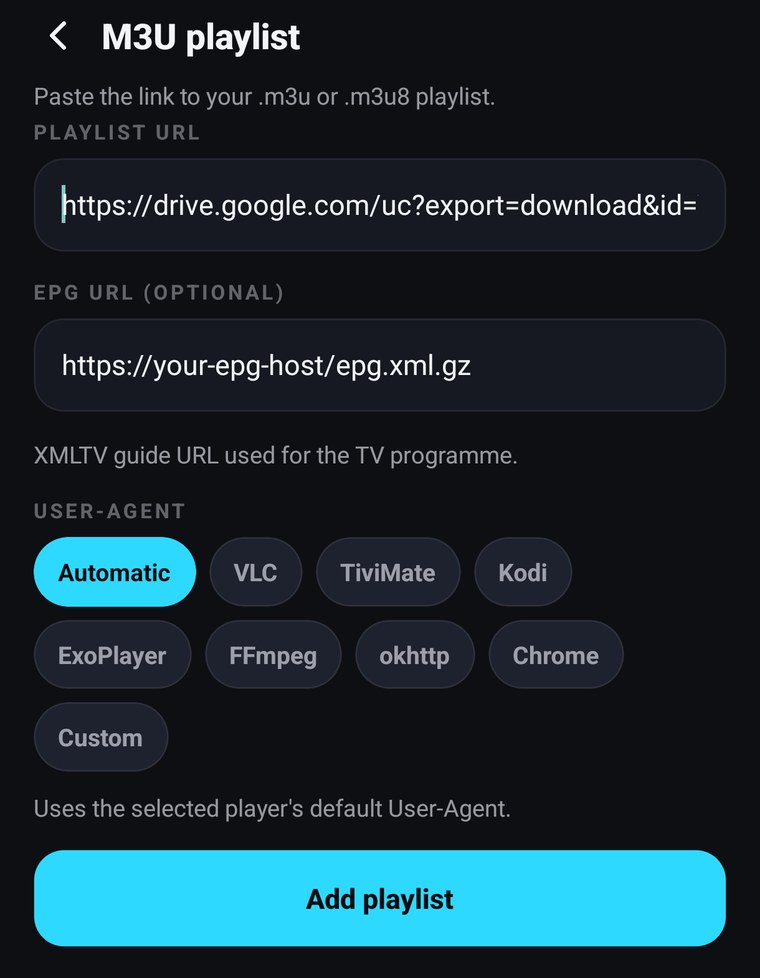
Section titled “Together with a new M3U playlist”The EPG URL (optional) field in the M3U form takes the guide address for that playlist. Fill it in when you add the playlist and there is nothing else to do.
On a playlist you already have
Section titled “On a playlist you already have”On a phone or tablet:
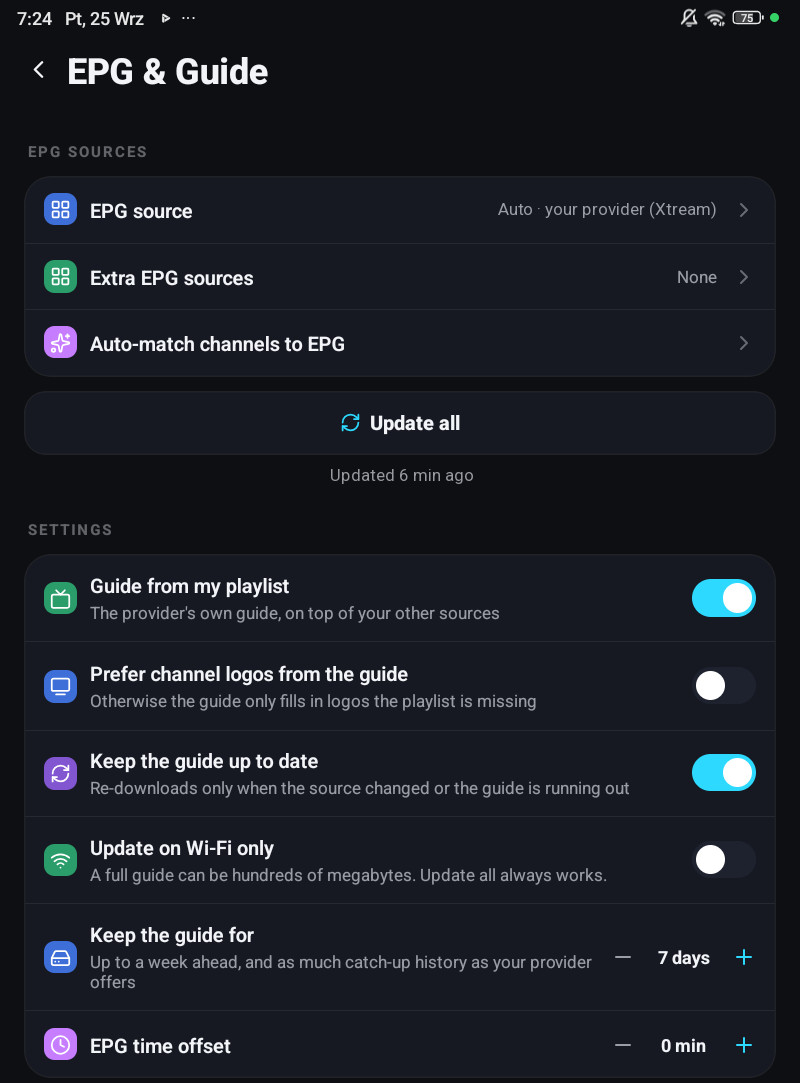
- Open Settings → EPG & Guide → Extra EPG sources. The row shows N configured or None.
- Tap Add source.
- Give it a Name, paste the address, and pick All playlists or the one playlist it is for.
- Tap Save. Only that source is downloaded.
The address must be the XMLTV file itself, a .xml or .xml.gz link, not the address of the site
that hosts it. On the same screen, tap sources to select and remove them, and drag ≡ to reorder them.
A source that failed to load is counted under the row, N sources failed.
On a television, Windows, the Mac, LG and Samsung TVs:
- Open Settings → EPG & Guide → Extra guide sources.
- Pick Add a source.
- Fill in Name and XMLTV address, and under Use it for pick All playlists or one playlist.
- Pick Save and reload.
Press OK on a source in the list to edit or remove it. The address can be typed with the remote, or added on the Guide page of the account panel in your browser, under Sources; it then reaches the television through your account.
Turning the provider’s guide off
Section titled “Turning the provider’s guide off”Guide from my playlist (on by default) switches off the automatically built Xtream guide, leaving only the sources you added. On a television the row shows only when your playlist provides such a guide. Turn it off when your provider’s guide is worse than the one you found, otherwise leave it on; two sources are better than one, and the app prefers whichever actually has a programme on air for a given channel.
When the guide stays empty afterwards
Section titled “When the guide stays empty afterwards”- Give it time. A full XMLTV is tens to hundreds of megabytes and is read on the device. The line under Update all says Updated … when it is done.
- Check the channel ids. Your feed’s
channel idvalues have to be reachable from your playlist names, see how matching works. A guide for a different country will never match. - Check the address. It has to open the guide file itself. A link to a web page about the guide will not load.
- Check Wi-Fi only. On a phone or tablet with Update on Wi-Fi only on, an automatic refresh waits for Wi-Fi. Update all ignores it.
More causes on The guide stays empty.
Changing a playlist’s address does not lose its guide
Section titled “Changing a playlist’s address does not lose its guide”When you edit an Xtream playlist’s server or password, the guide source is rewritten to match. Your downloaded programmes are not thrown away and re-fetched.
