
Live TV
Finding a channel
Section titled “Finding a channel”On a phone, Live. On a television, TV Channels for the list and TV Guide for the grid.
On a television, Windows and the Mac, TV Channels and the TV Guide have a category column on the left, and so do Movies, Series and My Groups. With Hide categories while browsing on, in Settings → General, the column slides away when you move into the list and Left brings it back; Windows and the Mac keep it in place.
To move through TV Channels and the TV Guide a page at a time, press Channel + or Channel −, Page Up or Page Down, or Rewind or Fast forward, on Android TV, Fire TV, LG TVs, Windows and the Mac. See Remote and keyboard keys.
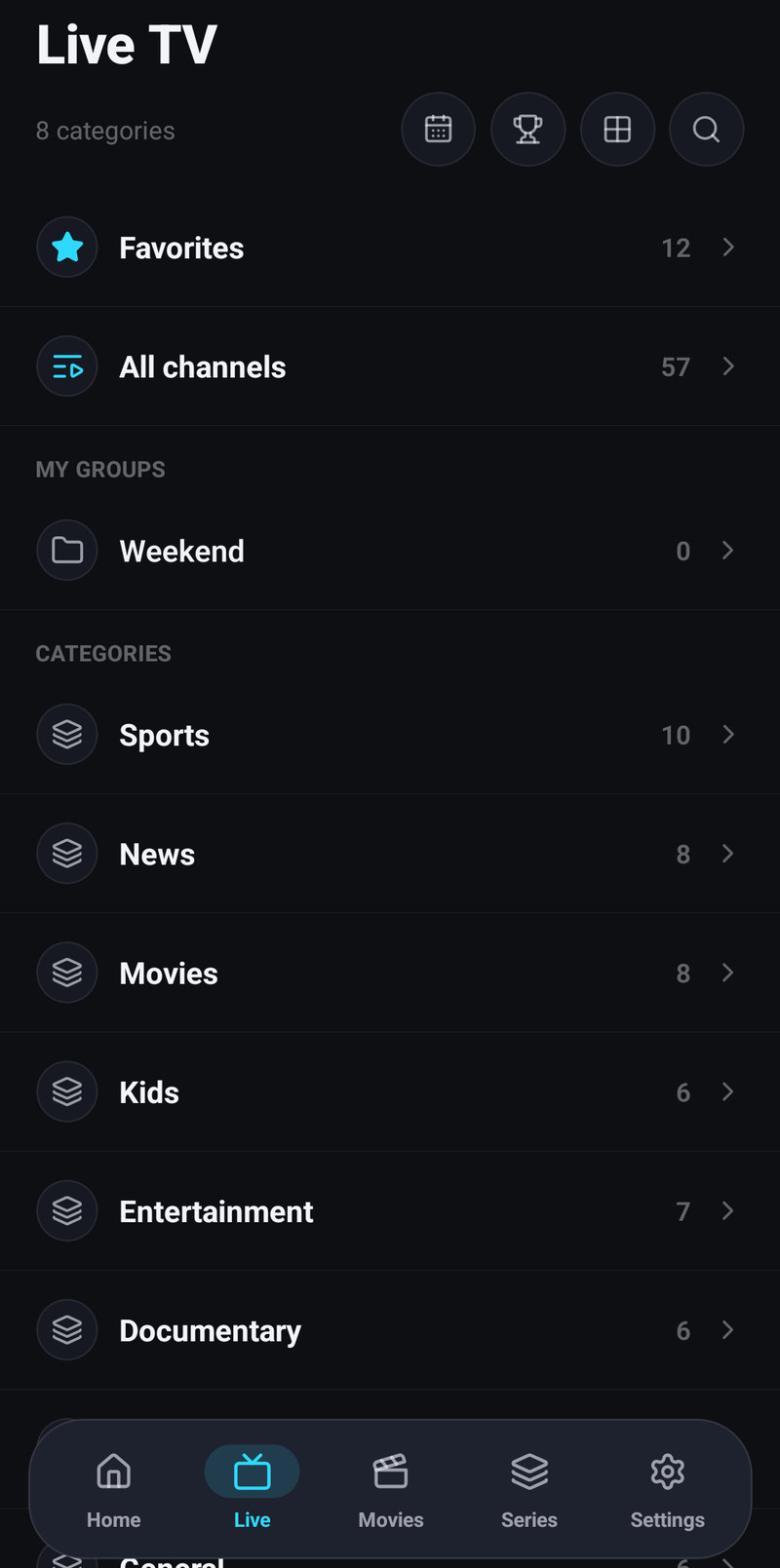
A playlist with at least eight visible categories opens Live on a folder screen: Favorites once you have any, All channels, Catch-up when the playlist has channels that keep past programmes, then Pinned, My groups and Categories with their counts. That is not a different mode, just a front door for lists that are too long to scroll. Pick one and you are in the ordinary list: the title stays Live TV, the chosen category shows as the highlighted chip, and a back arrow returns to the folders.
With several playlists open each playlist has its own Categories heading, and tapping it folds that playlist’s categories away. Categories you pinned stand above all of them.
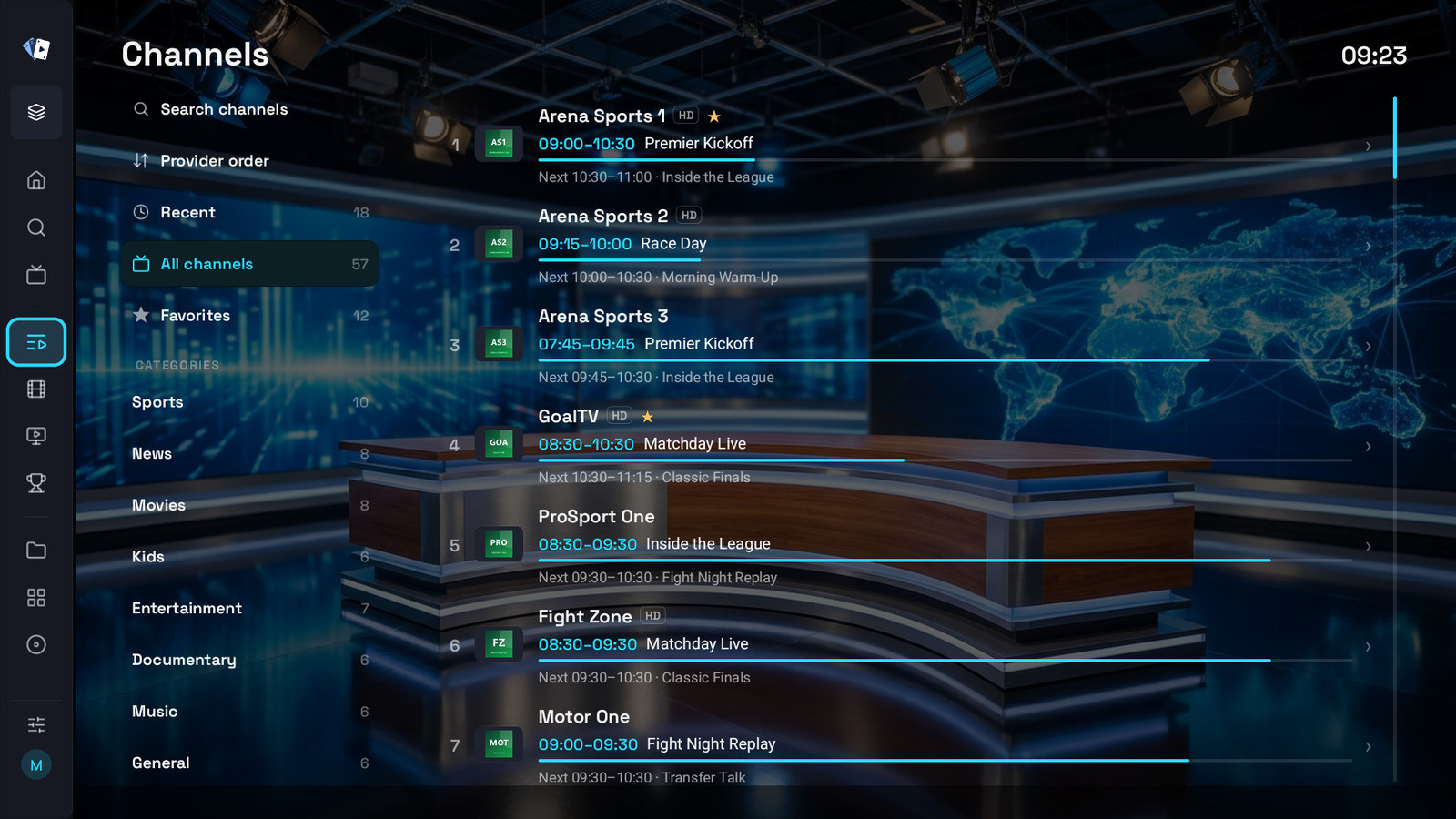
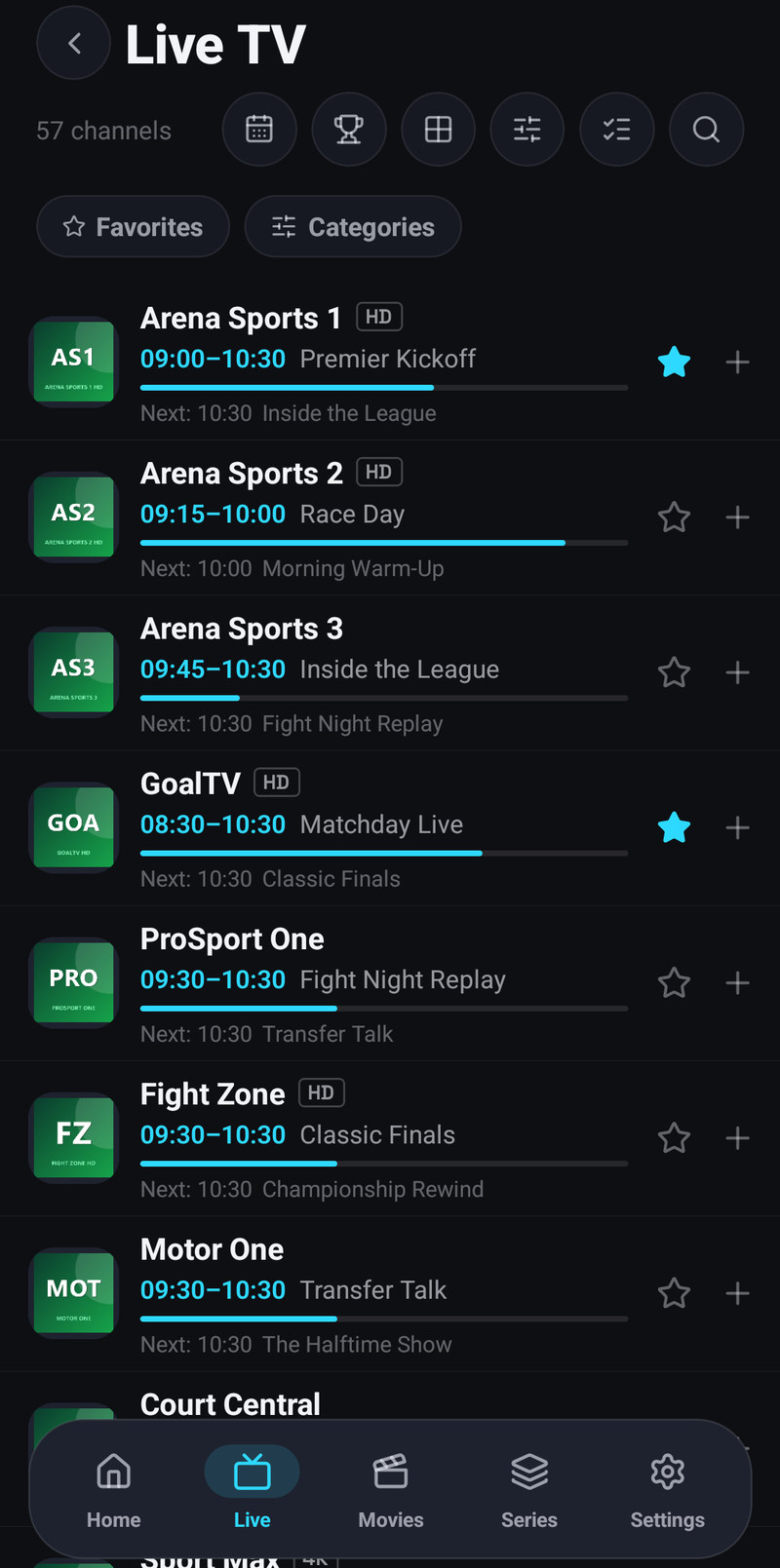
Channel names are cleaned up for reading: provider prefixes such as a country code go, and quality or language show as small labels next to the name. The provider’s full name is still there in the channel’s options.
Zapping
Section titled “Zapping”How you change channel in the player:
| Device | Next and previous channel |
|---|---|
| Phone and tablet | The arrows next to pause, or a swipe up or down in the middle of the picture (with Swipe gestures on) |
| Android TV, Fire TV, LG and Samsung TVs | Up and Down, or Channel + and Channel − |
| Apple TV | Up and Down, or the channel buttons of a remote that has them |
| Windows and the Mac | Up and Down, Page Up and Page Down, or the buttons in the controls |
Holding Up, Down or a channel button runs through the channels until you let go. On a television, Up and Down show the controls instead when Up / Down on a live channel is set to Show the controls; the channel buttons and the number keys still change channels then. On Android TV, Fire TV and LG and Samsung TVs you can give zapping to other buttons under Remote buttons.
Yellow on an Android TV or Fire TV remote, or Options → Last channel, goes back to the channel you watched before.
Zapping moves through the list you came from, and the app is careful about which list that is:
- If you opened the channel from a category, zapping stays in that category.
- If you opened it from your favourites, zapping stays in favourites.
- If you started it from a row on Home on a television, zapping stays in that row’s list.
- After you switch to another version of a channel, zapping still follows the list you were in, even if that version belongs to a different playlist, and even if the current filter no longer contains it.
The channel number shown next to the name, the number you type on the remote, and the Playing another version highlight all refer to that same list. If they ever disagree, that is a bug worth reporting.
Channel numbers
Section titled “Channel numbers”Type digits on the remote, or on the keyboard of a computer, and the app jumps to that number in the current list. There is no “enter”: it resolves on its own after a moment, and Back cancels a number you are still typing. With the channel list open, the number only moves the highlight to that channel, and OK plays it.
Section titles from your provider, such as ##### SPORT #####, show as headings only under All channels. They take no number and are left out of categories, favourites and search.
Versions of the same channel
Section titled “Versions of the same channel”Providers ship the same station several times over: HD, FHD, RAW, VIP, a backup. The app reads them as one channel, orders them by quality, drops copies that point at the same stream, and puts up to eight behind one switch.
- In the player: Versions, the blue key on an Android TV or Fire TV remote, or hold Left / Right when Timeshift is off. On a phone it is the layers icon in the bottom bar, or hold the picture: the left half for the previous version, the right half for the next.
- The toast shows name · playlist · i/N. The playlist name only appears when you have more than one playlist open.
Switching version does not restart your place in the list, and a second switch does not lose the list either.
Pausing live, and Go live
Section titled “Pausing live, and Go live”On Android phones, tablets, Android TV, Fire TV, the iPhone, the iPad, Apple TV, Windows and the Mac you can turn on Timeshift in Settings → Player to pause and rewind live channels for up to the length you choose, 15 minutes to 3 hours. LG TVs have it too, but keep only a few minutes, as many as fit in the TV’s memory. The channel is kept on your device while you watch, so this works on any continuous channel, also one without your provider’s archive. To watch a programme that started before you tuned in, use Catch-up instead.
- Turn on Settings → Player → Timeshift and pick a Timeshift length.
- Play a channel. From then on it is kept on the device while you watch.
- Pause, or step back: on a television Left and Right skip by your skip step, and holding them keeps going; on a phone the skip buttons appear next to pause and a double tap skips too.
- Go live returns to the broadcast.
With Timeshift on, hold OK on a television or a computer opens the channel list, the bar shows how far behind live you are, a pause or any step back takes you out of live, and the app catches up by itself only when it fell behind on its own, through stalls. Changing channel starts Timeshift again.
Without it, and on Samsung TVs, pausing a live channel holds only what is already loaded, a few seconds, and no more.
On a phone you can pause without going full screen: the small picture above a channel in Live, and above a match in Sports, has a pause button of its own.
While you are behind, a Go live pill appears and the LIVE label goes grey. Tapping it rejoins the edge. After a long pause some channels jump back by themselves and others simply keep drifting further behind without saying so, which is exactly what the pill is for.
Restart channel
Section titled “Restart channel”When a live channel stutters, freezes or shows an old picture, Restart channel opens it again from your provider, on every device. It sits where Go live would be, so it shows while you are at the live edge: the circular arrow in the bottom bar on a phone, the Restart channel button in the row of controls on a television and a computer. It is not offered while the channel is recorded or cast. If restarting does not help, try Versions, or see Stuttering.
Going back in time
Section titled “Going back in time”To actually go back in time, use catch-up, including Start from the beginning on the programme that is on right now, which is how you skip the advertisements at the top of the hour.
What “channel on startup” does
Section titled “What “channel on startup” does”Settings → Player → Channel on startup opens a chosen channel when the app has been closed for a while. You set it from the channel itself, its + menu on a phone and hold OK → Play when the app opens on a television, rather than from a dropdown, because picking one out of a hundred thousand in a settings row is not a thing anyone wants to do.
When you switch the TV on
Section titled “When you switch the TV on”Channel on startup works whenever the app opens. On Android TV, Google TV and Fire TV it can also open by itself when the device starts: Settings → General → Start-up → Open IPTV Deck on start-up.
- Android lets an app open by itself only with Allow display over other apps. With the switch on, the app shows that row until you allow it; OK on it opens the Android setting.
- The power button of most TVs and boxes wakes them from standby rather than starting them, and then they show whatever was on screen before. The setting comes into play after a real start: when the device lost power or installed a system update.
- If you force stop IPTV Deck in the Android settings, Android does not start it by itself again until you open it by hand once.
- The setting belongs to this device and is not shared with your other devices.
Sport on a channel
Section titled “Sport on a channel”When a match is on a channel you are watching, Sports mode shows its score and the other live matches over the picture, see Sports.
