
Several playlists at once
You can add as many playlists as you like and switch between them, or show several at the same time.
Switching
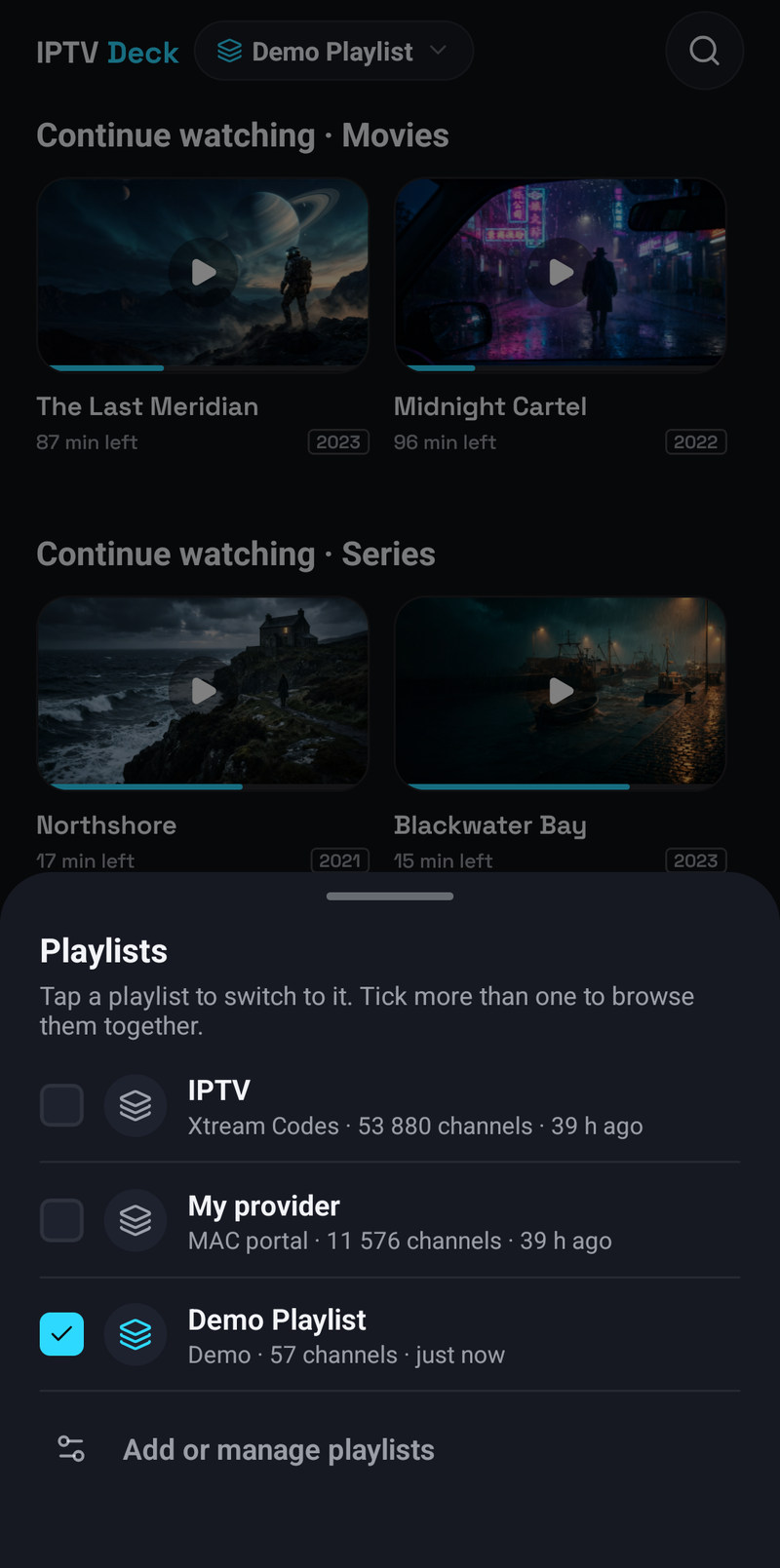
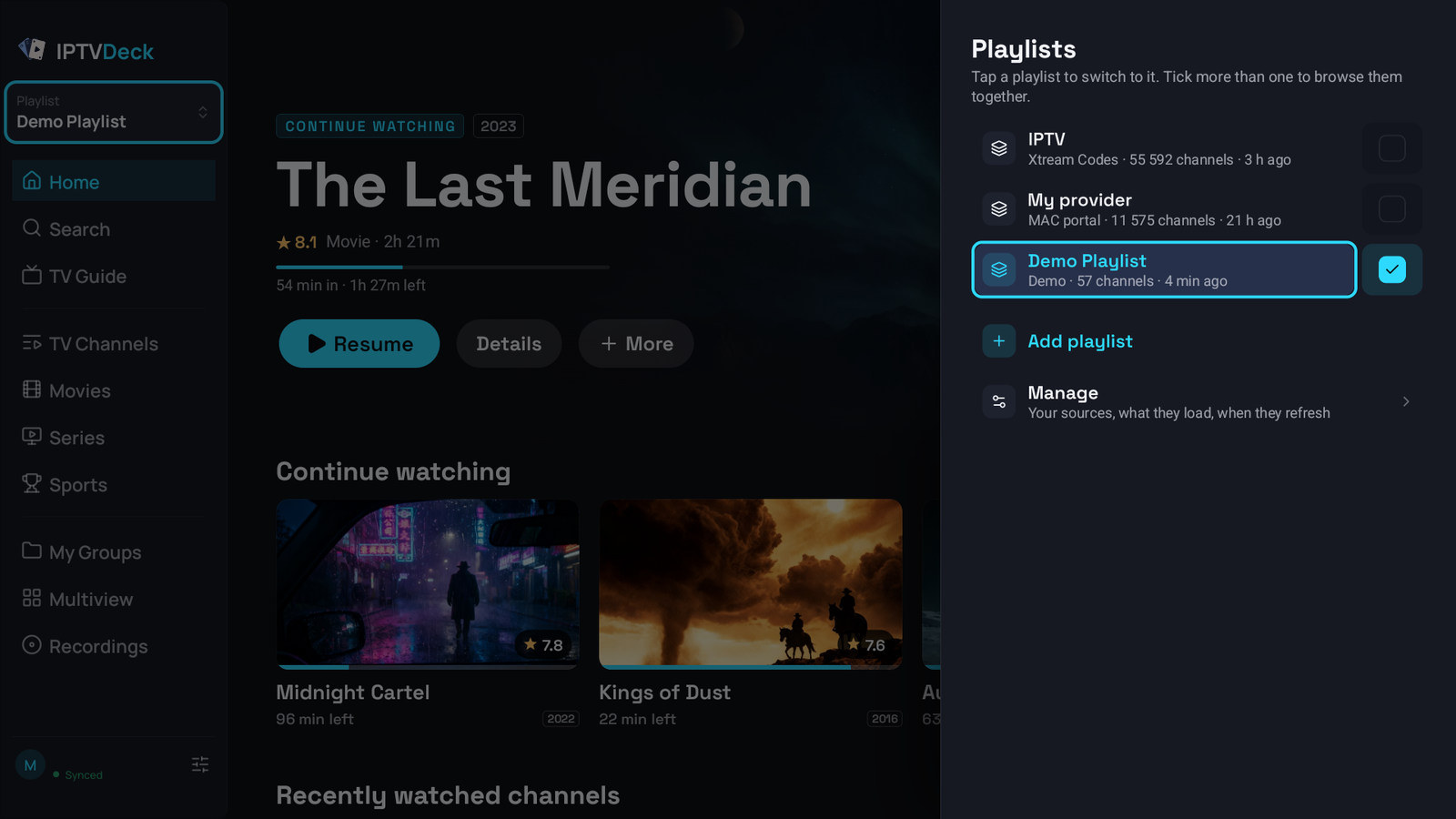
Section titled “Switching”On the phone the playlist switcher is the pill with the playlist’s name in the Home header. On the television it is the playlist card at the top of the nav rail; it opens a side sheet with your playlists, Add playlist and Manage.
On Android TV, Fire TV and LG and Samsung TVs a remote button can open the switcher from any screen, also while a channel plays: in Settings → Player → Remote buttons, give Open playlists under Anywhere a button, see Remote and keyboard keys.
Tap a playlist to switch to it alone. Tick more than one and the lists are shown together:
- Channels come one playlist after another, in the order of your playlists. Films and series are sorted as one list, see Sorting several playlists together.
- Categories stay separate, under a heading per playlist. The heading folds that playlist’s categories away, and categories you pinned stand above all of them.
- Every tile and row is marked with the playlist it came from, and a film’s or series’ page names it among its tags.
- Titles are not de-duplicated: the same film from two providers appears twice, which is what you want when one of them is down. The copies of a live channel in the playlists you show are offered as its versions, and a film or episode you watch shows as watched in every copy.
- Home has Recently added movies and series for each playlist, with its name, see The home screen.
At least one playlist always stays ticked. The Demo Playlist cannot be shown together with others. A playlist that reached this device without its password asks for it first.
To change the order of your playlists, use the select button in the top corner of Settings → Playlists on a phone and drag ≡.
Sorting several playlists together
Section titled “Sorting several playlists together”With several playlists shown, Movies and Series sorted by Year, Rating, A–Z or Recently added mix the titles of every playlist into one list. To have one playlist after another instead:
- Phone and tablet: Sort & filter, then under Playlists choose One after another. All together mixes them again.
- Television, Windows, the Mac and LG TVs: open Sort and untick All playlists together.
It is set separately for Movies and for Series, and stays on the device. Mixing is the default.
Nothing is lost when you tick or untick
Section titled “Nothing is lost when you tick or untick”This is a hard rule in the app, not a side effect:
- Favourites, groups, history, the watchlist and reminders are kept exactly as they were.
- Filters and the category you were in are remembered per combination of playlists, so going back to a single playlist puts you back where you were in it.
- Positions in lists are parked per owner, so a list does not jump to the top when you change the selection.
Which playlists are open
Section titled “Which playlists are open”Each profile keeps its own set of open playlists, and that set follows your account to every device. Tick two playlists in one profile, switch to another profile and back, and both are still ticked; your other devices open the same two for that profile.
- A playlist a device does not have is skipped there, and stays in the profile’s set for the devices that have it.
- A profile that never picked its own opens what the main profile opens.
- Until a profile picks playlists on a device with the latest version, that device opens what it opened last.
- The Demo Playlist never goes to your account.
In the account panel, Profiles, open a profile and choose its playlists under Open together. Open playlists on a device’s page in the panel changes the set of the profile open there.
A playlist that is not open on a device is not refreshed there either, neither by Update all nor in the background; it catches up when you open it.
When you sign a new device in with a QR code, the code carries which playlists were open on the sending device, so the new one opens the same ones instead of guessing.
The guide with several playlists
Section titled “The guide with several playlists”Each playlist keeps its own guide sources, and each is refreshed on its own schedule. A playlist that has just been ticked fetches only its own guide; it does not drag the others along.
A channel is only matched against guide data its own playlist is entitled to, so two providers carrying the same station do not steal each other’s programmes.
Profiles can be limited to some of them
Section titled “Profiles can be limited to some of them”A profile can be held to a subset of your playlists. A profile that sees every playlist opens the other one in Settings → Profiles & PIN and unticks the rest, and that profile cannot see or switch to the others anywhere. See Profiles, PINs and locked categories.
