
Categories
Categories come from the provider. What you do with them is entirely yours.
Choosing what to download
Section titled “Choosing what to download”When a playlist is added, Choose categories appears before anything is downloaded. You can come back to it any time: the pencil next to the playlist in Settings → Playlists, then Downloaded categories. On a television it is part of Settings → Categories, and Downloaded categories in a playlist’s options takes you there.
On a television, Windows and the Mac, Load everything and Load selected stay on the left of that screen with how many categories you ticked. Search categories narrows the list, and Tick these or Untick these then changes only what the search found.
Untick a category here and the app never downloads it. On a large provider this is the single biggest thing you can do for speed: a playlist told to keep two live categories asks the provider for those two instead of downloading everything and throwing most of it away.
On a phone the screen has a tab each for Live TV, Movies and Series, All here or None here for the tab you are on, Select all and Unselect all for every tab, and at the bottom Load selected with how many you ticked, and Load everything.
Categories are managed separately for Live TV, Movies and Series. Live TV only, on the same screen when you add a playlist, leaves out all films and series at once, on a phone and a television.
Hiding, locking and ordering
Section titled “Hiding, locking and ordering”Settings → Categories, with a tab each for Live TV, Movies and Series. At the top, Hide new categories: when on, categories your provider adds later stay hidden until you unhide them, which helps on a provider that keeps inventing sections. It is off by default, follows your account, and the account panel can change it too. Under it, Hidden channels, a search, Hide all and Show all, and then every category.
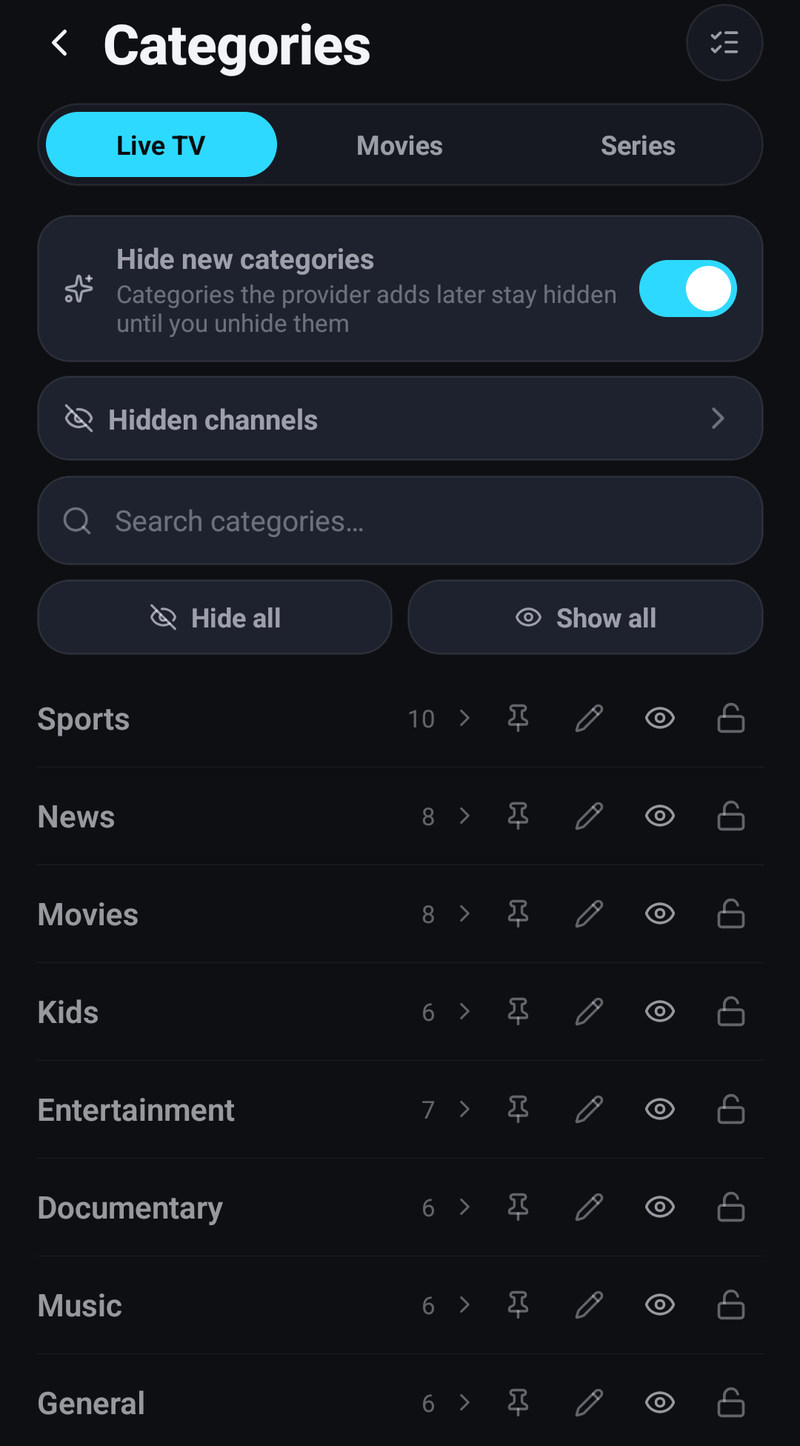
On a phone each category has buttons to pin, rename, hide and lock it, and tapping it lists its channels, each with its own switch to hide it. Holding a category starts selecting several: the bar at the bottom then hides, shows, pins, locks or removes from the device every ticked category at once. The list of channels inside a category can select several too, to hide or show them together.
- Hide it. It disappears from the lists but its channels stay on the device. What you hide belongs to your profile: other profiles show what the first profile hides until they hide or show something themselves, and keep their own from then on.
- Lock it. It is hidden from every profile that has no PIN, and asks for the PIN in profiles that do. See Profiles, PINs and locked categories.
- Pin it to the top, see below.
- Put the list in the order you want: on a phone with the button in the top corner of the screen, on a television with hold OK on the row, and on a computer by dragging the row with the mouse. This needs Provider order, see A–Z or your own order.
To hide one category on a phone:
- Settings → Categories, and pick the tab: Live TV, Movies or Series.
- Tap the hide button on the category’s row.
Or hold the category where you browse and choose Hide from browsing. Show it again with the same button in Settings → Categories. To hide single channels, see Channels, versions, hiding and renaming.
In the lists you browse, holding a category offers Pin to the top, Add to Home and Hide from browsing. On a Kids profile hiding asks for a parent’s PIN. Renaming, showing a hidden category again and locking are in Settings → Categories.
A–Z or your own order
Section titled “A–Z or your own order”Categories can be sorted by name instead of the order your provider gives them, separately for Live TV, Movies and Series:
| Device | Where |
|---|---|
| Phone and tablet | Category order at the top of Settings → Categories, on the tab of the type: Provider order or A–Z |
| Television, Windows, the Mac, LG and Samsung TVs | The Order button at the top of Settings → Categories, which says Order: Provider order or Order: A–Z. OK switches between them |
| Account panel | Category order on the Categories page |
- Provider order (at first) keeps the order you set, or the provider’s when you never moved a category.
- A–Z sorts by name in every list of categories. Signs and symbols at the start of a name, such
as
|or★, are skipped, and numbers sort as numbers, so Sport 2 comes before Sport 10. - Pinned categories stay on top either way.
- With A–Z you cannot move categories by hand. Switch back to Provider order and the order you set before is still there.
The choice follows your account to every device and is the same for every profile, so it is not there while you edit another profile’s categories.
Pinned categories
Section titled “Pinned categories”A pinned category stands in a Pinned block above your playlists in every list of categories: the Live folder screen, the Categories sheet of Movies and Series, the column on a television. The pin follows your account, so it is pinned on every device. It belongs to the profile that made it: other profiles show the pins of the first profile until they pin or unpin something themselves, and keep their own from then on.
- On a phone: the pin on its row in Settings → Categories, or hold the category where you browse and choose Pin to the top.
- On a television: hold OK on it in the column and choose Pin to the top, or switch on Pin to the top in its sheet in Settings → Categories.
Unpin from the top in the same places takes it back to its playlist.
Pinning a genre
Section titled “Pinning a genre”With TMDB connected, Movies and Series also list genres under your categories. A genre can be pinned to the top of that list the same way:
- On a phone or tablet: hold the genre in the Categories sheet of Movies or Series and choose Pin to the top.
- On a television, Windows, the Mac and LG and Samsung TVs: hold OK on the genre in the category column of Movies or Series (right-click on a computer) and choose Pin to the top, which Shows it above your playlists, on every device.
The same sheet has Add to Home, and Unpin from the top takes the pin away. Pinned genres belong to the profile, like pinned categories.
With several playlists open, each playlist’s categories sit under their own heading, and that heading folds the playlist’s categories away. Which ones are folded stays on the device.
A locked category does not leak anywhere else either: not through search, the home screen rows, Continue watching or a link.
Renaming
Section titled “Renaming”Rename a category and that name is used everywhere the app shows it, the category list, the home screen rows, the hidden list, the download panel.
- An empty field puts the provider’s name back.
- Typing the provider’s own name also counts as putting it back.
On a phone use the rename button on the category’s row in Settings → Categories; on a television, Windows and the Mac, OK on the category there, then Rename.
On a television
Section titled “On a television”Categories are a column on the left of TV Channels, the TV Guide, Movies, Series and My Groups. OK on one shows it, or turn on Open a category when it is highlighted in Settings → General to show each one as you move onto it. Hold OK on one there offers Pin to the top, Add to Home and Hide from browsing. Everything else is in Settings → Categories:
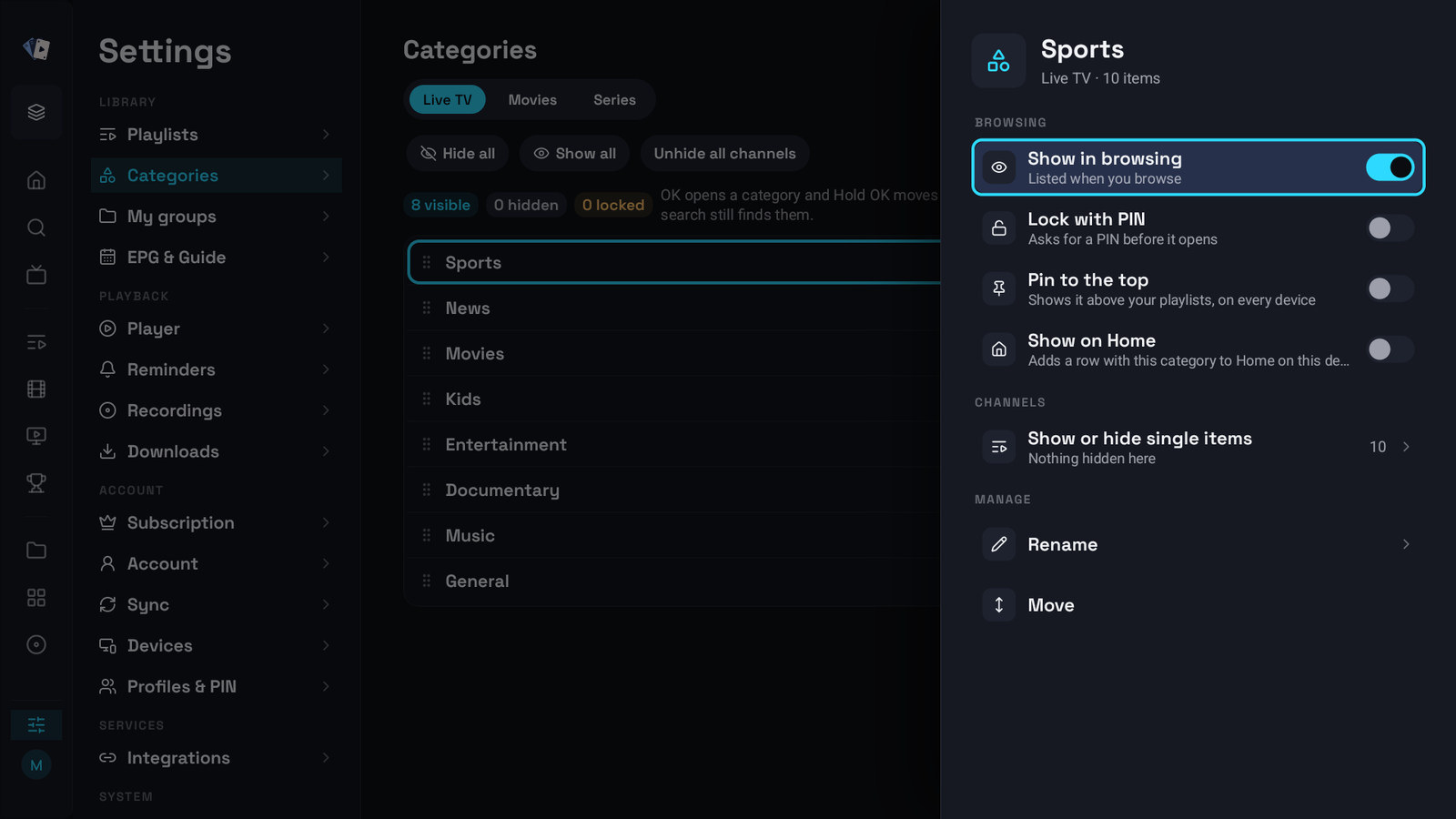
- At the top, the type, Live TV, Movies or Series, and with several playlists the playlist. Counters show how many categories are visible, hidden and locked.
- Search categories, Hide all, Show all and Unhide all channels act on the whole list. Order switches between Provider order and A–Z.
- OK on a category opens its sheet: Show in browsing, Lock with PIN, Pin to the top, Show on Home, Show or hide single items, Rename and Move. For a playlist from a provider it also has Keep on this TV, which decides whether the category is downloaded at all (Keep on this computer on Windows and the Mac). What you change there is queued instead of making you wait.
- Hold OK on a category moves it.
- Select turns OK into a tick, also across searches. Actions then hides, shows, pins, locks, deletes from this TV or restores every ticked category at once, and Back ends selecting. The list of single items in a category has Select too, to hide or show several.
The Hide new categories switch is on the phone only.
Catch-up only
Section titled “Catch-up only”When some channels of the playlist keep past programmes, the category column of TV Channels and the TV Guide has a Catch-up only row with On or Off. On, Favorites, your groups and every category show only their channels with catch-up, with their counts, and the ones without any are left out. The Catch-up row next to it still lists every channel with catch-up. This is on the TV, Windows, the Mac and LG and Samsung TVs; on the phone and tablet the categories of Catch-up list only the groups and categories that have catch-up channels.
Live TV opens on the folders
Section titled “Live TV opens on the folders”A playlist with at least eight visible categories opens Live TV on a folder screen. Favorites, All channels, Catch-up when any channel keeps past programmes, Pinned, My groups, then the categories with their counts, instead of a flat list of ten thousand channels. Pick one and you are in the ordinary list: the title stays Live TV, the category shows as the highlighted chip, and a back arrow returns to the folders.
A playlist with fewer categories than that is not changed at all.
